OpenNebula VM templates turn a saved machine definition into new running workloads. Instantiating a template is the handoff from catalog metadata, image disks, and virtual networks to an actual VM that the scheduler can place on a host.
The CLI path uses onetemplate instantiate from a shell that already authenticates to the OpenNebula frontend. A usable template should have its disk image, network, and contextualization settings resolved before launch because restricted attributes and template defaults decide what the user may override.
A VM is not ready when the instantiate command only returns an ID. The instance should move from pend to runn in onevm list, show ACTIVE and RUNNING in onevm show, and expose the network or console path expected by the template.
Related: How to create an OpenNebula VM template
Related: How to troubleshoot OpenNebula scheduling
Related: How to open an OpenNebula VM console
Steps to instantiate an OpenNebula virtual machine:
- List the VM templates available to the current account.
$ onetemplate list
  ID USER     GROUP    NAME               REGTIME
   6 oneadmin oneadmin ubuntu-24.04-base  06/25 09:14:22
Use a template ID or name that the account can USE. A template can be visible but still fail at instantiation if image, network, quota, or group permissions are missing.
- Inspect the template before creating the VM.
$ onetemplate show ubuntu-24.04-base
VIRTUAL MACHINE TEMPLATE 6 INFORMATION
ID             : 6
NAME           : ubuntu-24.04-base
USER           : oneadmin
GROUP          : oneadmin
##### snipped #####
TEMPLATE CONTENTS
CPU="1"
MEMORY="2048"
DISK=[
  IMAGE="Ubuntu 24.04"]
NIC=[
  NETWORK="prod-lan"]
CONTEXT=[
  NETWORK="YES",
  SSH_PUBLIC_KEY="$USER[SSH_PUBLIC_KEY]"]
Confirm the image, virtual network, capacity, and contextualization values before launch. Template user inputs may prompt interactively unless the values are supplied with --user-inputs.
- Instantiate the template with a VM name.
$ onetemplate instantiate ubuntu-24.04-base --name web-01
VM ID: 42
--name sets the VM instance name. Use --multiple only when every generated VM can safely share the same template inputs, image behavior, and network selection.
- Check the VM immediately after creation.
$ onevm list
  ID USER     GROUP    NAME   STAT CPU     MEM        HOSTNAME        TIME
  42 oneadmin oneadmin web-01 pend   0      0K                 00 00:00:08
pend means the VM exists but has not yet been placed on a host.
- List the VM again after the scheduler places it.
$ onevm list
  ID USER     GROUP    NAME   STAT CPU     MEM        HOSTNAME        TIME
  42 oneadmin oneadmin web-01 runn   1      2G         kvm-01   00 00:02:40
If the VM remains pend or moves to a failure state, inspect scheduler capacity, host, datastore, network, quota, and template restrictions before forcing a deployment.
Related: How to troubleshoot OpenNebula scheduling - Inspect the VM details after it reaches running state.
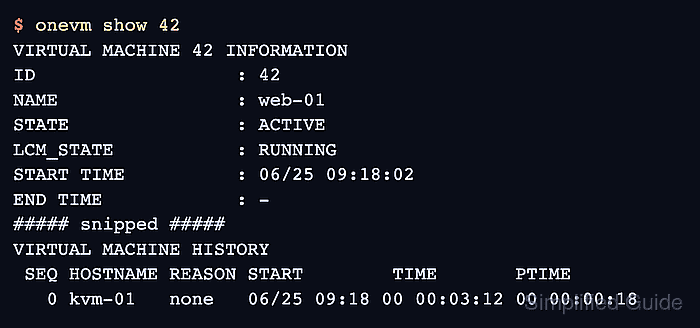
$ onevm show 42
VIRTUAL MACHINE 42 INFORMATION
ID                  : 42
NAME                : web-01
USER                : oneadmin
GROUP               : oneadmin
STATE               : ACTIVE
LCM_STATE           : RUNNING
START TIME          : 06/25 09:18:02
END TIME            : -
##### snipped #####
VIRTUAL MACHINE TEMPLATE
NIC=[
  NETWORK="prod-lan",
  IP="192.0.2.45"]

VIRTUAL MACHINE HISTORY
 SEQ HOSTNAME REASON START        TIME       PTIME
   0 kvm-01   none   06/25 09:18 00 00:03:12 00 00:00:18
The LCM_STATE value should be RUNNING, and the history should show the host that received the VM.
- Test the access path provided by the template.
$ onevm ssh 42 clouduser --cmd hostname
web-01
Use onevm ssh only when the template injects an SSH key and the VM network is reachable from the shell running the command. For templates that rely on console access, open the VM console after LCM_STATE reaches RUNNING.
Related: How to open an OpenNebula VM console

Mohd Shakir Zakaria is a cloud architect with deep roots in software development and open-source advocacy. Certified in AWS, Red Hat, VMware, ITIL, and Linux, he specializes in designing and managing robust cloud and on-premises infrastructures.


