OpenNebula can copy a virtual machine's disks into a backup datastore while the workload is running or powered off. A VM-level backup is useful before host maintenance, risky guest changes, or routine protection windows where the restore point should remain visible inside OpenNebula.
The backup operation depends on an existing backup datastore and on the backup configuration stored with the VM. The datastore supplies the backend driver, such as Restic or rsync, while the VM configuration controls whether the run is full or incremental and how OpenNebula handles guest filesystem consistency before copying disks.
Use an administrator account that can schedule backup actions, and choose a VM whose state is suitable for the backup method you intend to use. The backup is complete when the scheduled action reports Done and the resulting backup image is in rdy state for later restore operations.
Steps to back up an OpenNebula virtual machine:
- List the available backup datastores.
$ onedatastore list
  ID NAME       SIZE AVA CLUSTERS IMAGES TYPE DS      TM STAT
 100 RBackups   1.5T 91% 0             0 bck  restic  -  on
   1 default   19.8G 84% 0             1 img  fs      local on
   0 system        - -   0             0 sys  -       local on
The datastore ID in the first column is the value used with onevm backup. The target datastore must have type bck and status on before a VM can write backups to it.
- Check the VM state before changing its backup configuration.
$ onevm show 42
VIRTUAL MACHINE 42 INFORMATION
ID                  : 42
NAME                : web-01
USER                : oneadmin
GROUP               : oneadmin
STATE               : ACTIVE
LCM_STATE           : RUNNING
##### snipped #####
OpenNebula supports live VM backups on KVM and powered-off backups where live backup is not appropriate. Incremental backups require supported disk formats and hypervisor capabilities, so use full backups when the VM storage layout cannot support an incremental chain.
- Add or update the VM backup configuration.
$ onevm updateconf 42

BACKUP_CONFIG = [
  FS_FREEZE = "AGENT",
  KEEP_LAST = "4",
  MODE = "INCREMENT"
]
FS_FREEZE=“AGENT” requires a working guest agent. Use FS_FREEZE=“NONE” for crash-consistent backups when guest freeze support is unavailable, or FS_FREEZE=“SUSPEND” when a short VM pause is acceptable.
- Confirm that OpenNebula saved the backup configuration.
$ onevm show 42
##### snipped #####
BACKUP CONFIGURATION
BACKUP_VOLATILE="NO"
FS_FREEZE="AGENT"
INCREMENTAL_BACKUP_ID="-1"
KEEP_LAST="4"
LAST_INCREMENT_ID="-1"
MODE="INCREMENT"
- Schedule an immediate backup into the backup datastore.
$ onevm backup --schedule now -d 100 42
VM 42: backup scheduled at 2026-06-25 08:50:12 +0000
Replace 100 with the backup datastore ID and 42 with the VM ID. Use --reset only when you intentionally need to close the current incremental chain and start a new one.
- Check the scheduled action after the backup has time to finish.
$ onevm show 42
##### snipped #####
SCHEDULED ACTIONS
 ID ACTION ARGS SCHEDULED REPEAT END STATUS
  0 backup 100  06/25 08:50           Done on 06/25 08:54

VM BACKUPS
 IMAGE IDS: 176
If the action stays pending or fails, check the VM state, datastore status, and /var/log/one/oned.log before scheduling another backup.
- Inspect the backup image record.
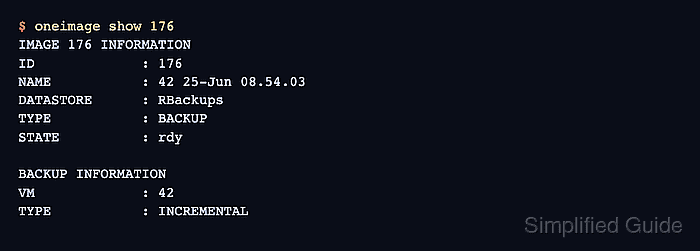
$ oneimage show 176
IMAGE 176 INFORMATION
ID             : 176
NAME           : 42 25-Jun 08.54.03
USER           : oneadmin
GROUP          : oneadmin
DATASTORE      : RBackups
TYPE           : BACKUP
STATE          : rdy
SIZE           : 172M
##### snipped #####

BACKUP INFORMATION
VM             : 42
TYPE           : INCREMENTAL

BACKUP INCREMENTS
 ID PID T SIZE                DATE SOURCE
  0  -1 F 172M      06/25 08:54:03 25f4b298
The rdy backup image and the VM BACKUPS link from the VM record are the non-destructive restore-readiness checks. Restore drills use the backup image ID later with the appropriate restore workflow.

Mohd Shakir Zakaria is a cloud architect with deep roots in software development and open-source advocacy. Certified in AWS, Red Hat, VMware, ITIL, and Linux, he specializes in designing and managing robust cloud and on-premises infrastructures.


