Open WebUI user roles determine whether a local account can reach the chat workspace, admin panel, and shared resources. Moving an account back to Pending is the least destructive way to stop a standard user from using the instance while keeping the account row available for review or later reactivation.

The role selector under Admin Panel → Users changes the account's system role. User can use the workspace according to RBAC permissions, Admin controls the system, and Pending is restricted until an administrator promotes it again.
Use this method for locally managed accounts or manual cleanup on a self-hosted instance. For SSO or SCIM managed users, disable access in the identity provider as the source of truth, then confirm Open WebUI reflects the user lifecycle state. If old sessions must be cut off immediately, use Redis backed token revocation and a short session lifetime.
Related: How to create a user in Open WebUI
Related: How to disable signup in Open WebUI
Related: How to enable SCIM provisioning in Open WebUI
Steps to disable an Open WebUI user:
- Sign in to Open WebUI with an administrator account and open Admin Panel → Users.
- Confirm the target account is a standard USER account.

Keep at least one known administrator account active. Do not demote the only administrator or the account currently needed for recovery.
- Click the user's role badge to open Edit User.
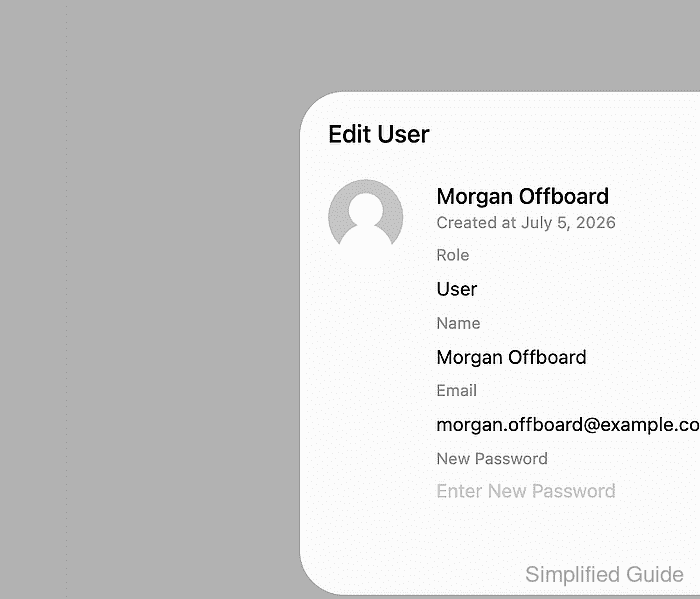
- Set Role to Pending and click Save.
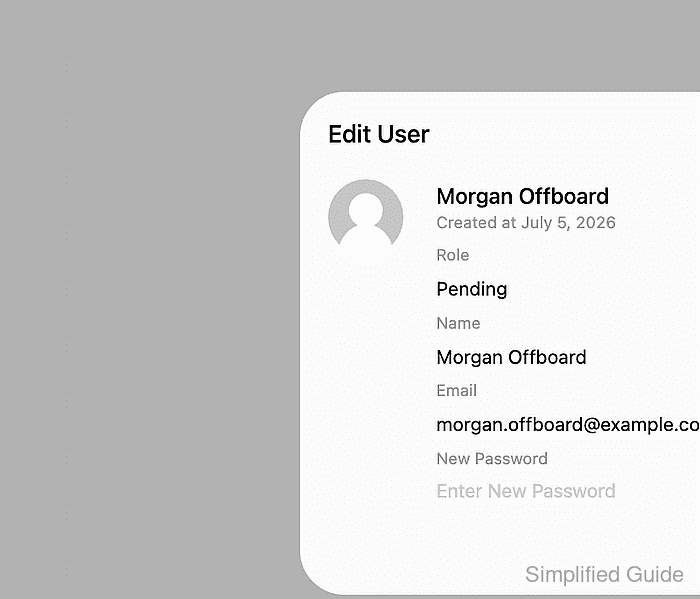
Use Delete User only when the account record should be removed. Pending disables workspace access without deleting the user row.
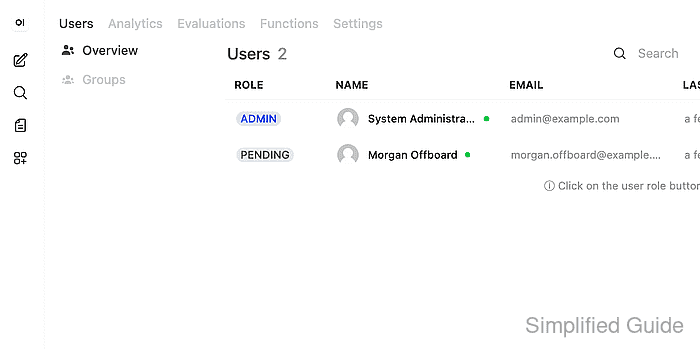
- Confirm the users table shows the account with the PENDING role.
- Sign in as the disabled user from a logged-out browser session and confirm the activation-pending screen appears instead of the workspace.

- Return to the administrator session and confirm Admin Panel → Users still opens.
Existing sessions may remain usable until their token is revoked or expires on deployments without Redis token revocation. Keep JWT_EXPIRES_IN short when immediate offboarding matters.

Mohd Shakir Zakaria is a cloud architect with deep roots in software development and open-source advocacy. Certified in AWS, Red Hat, VMware, ITIL, and Linux, he specializes in designing and managing robust cloud and on-premises infrastructures.


