A chat assistant needs an execution environment to inspect files or run shell commands. Open Terminal supplies that environment to Open WebUI through an authenticated connection, with commands running inside a dedicated container.
An administrator can add the terminal under Integrations so Open WebUI's backend holds the API key and forwards requests. A direct connection shares one terminal workspace among the users granted access; it does not create a separate home directory for each chat.
An existing Open WebUI container and a connected model with native tool calling and Builtin Tools enabled are required for the Docker connection. The terminal receives its own home volume and a shared Docker network, without publishing its API port or mounting host files. Browser-based Python execution remains a separate feature.
The terminal key grants command execution and access to files available inside the terminal container. Model-generated commands can modify or delete those files and make network requests. Only trusted users should receive access; host directories, credentials and the Docker socket do not belong in this terminal.
Steps to connect Open Terminal to Open WebUI:
- Restrict permissions for files created in the current shell.
$ umask 077
- Enable overwrite protection in the current shell.
$ set -C
This prevents the key-generation command from overwriting an existing open-terminal.env file.
- Generate the terminal key into a protected env file.
$ printf 'OPEN_TERMINAL_API_KEY=%s\n' "$(openssl rand -hex 32)" > open-terminal.env
The key stays out of terminal output and shell history. The env file is needed again if the terminal container is recreated.
- Create a Docker network for the two services.
$ docker network create open-webui-terminalThe name open-webui-terminal is a new network for this connection.
- Attach the existing Open WebUI container to the network.
$ docker network connect open-webui-terminal open-webuiopen-webui represents your existing container name. This adds a network without recreating the container, changing its image, or replacing its data volume.
- Start Open Terminal with its key and a dedicated home volume.
$ docker run --detach \
  --name open-terminal \
  --network open-webui-terminal \
  --env-file open-terminal.env \
  --mount type=volume,source=open-terminal-home,target=/home/user \
  --restart unless-stopped \
  ghcr.io/open-webui/open-terminal:0.17.13
The terminal listens on port 8000 inside the Docker network. No host port is published. Files under /home/user survive container recreation through open-terminal-home; files elsewhere in the container may not. Open Terminal is still pre-1.0, so connection behavior can change between releases.
- Check the terminal from the Open WebUI backend.
$ docker exec open-webui curl --fail-with-body --silent --show-error http://open-terminal:8000/health
{"status":"ok"}
A healthy response means the backend can reach the service. A name-resolution error or connection failure requires checking that both containers are running on open-webui-terminal before adding the connection. This public endpoint does not test the key.
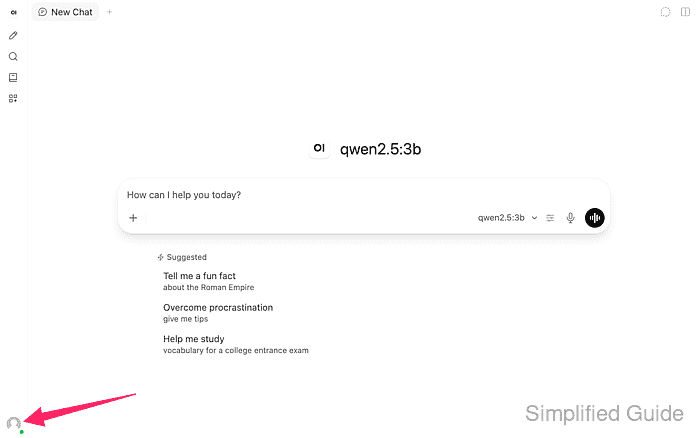
- Open the account menu in the lower-left corner of Open WebUI as an administrator.
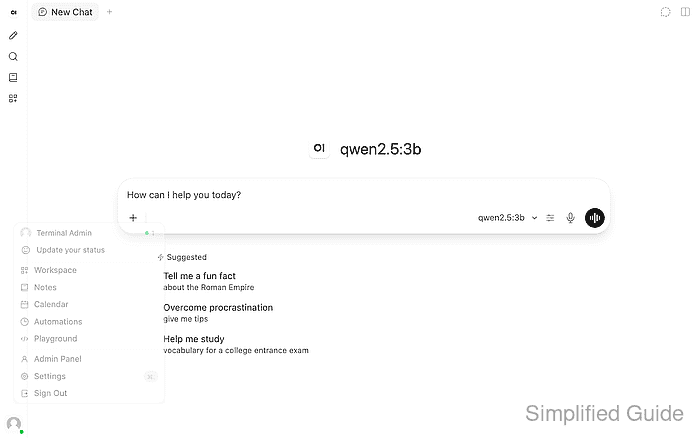
- Select Settings.
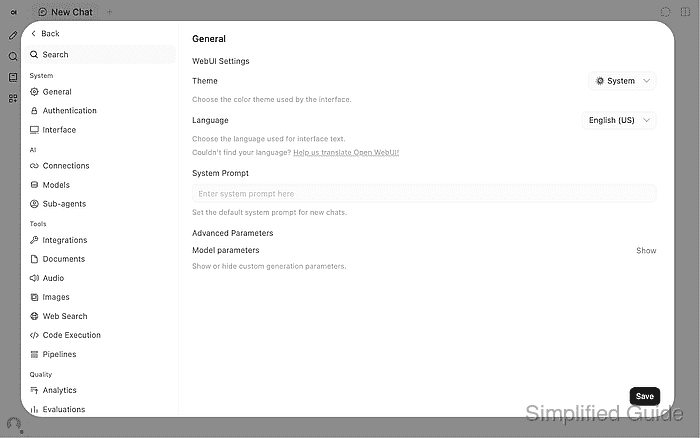
- Select Integrations under Admin → Tools in the settings sidebar.
- Click Add Connection beside Open Terminal in the Terminal section.
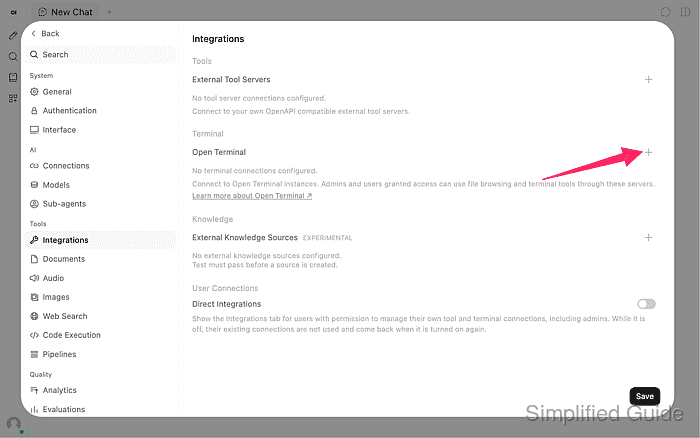
The plus beside External Tool Servers belongs to a different integration.
- Enter Open Terminal in Name.
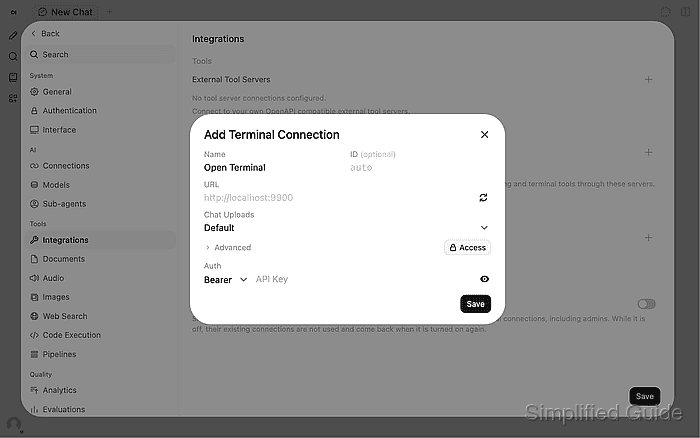
- Enter http://open-terminal:8000 in URL.
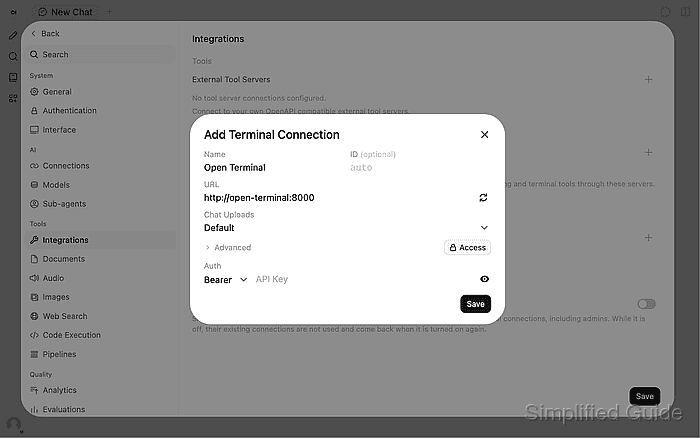
The URL uses the terminal container's name on the shared network. localhost would point back at the Open WebUI container. The circular-arrow Verify control checks reachability; in Open WebUI 0.13.3 it can succeed with a wrong key.
- Enter the OPEN_TERMINAL_API_KEY value from open-terminal.env into API Key.
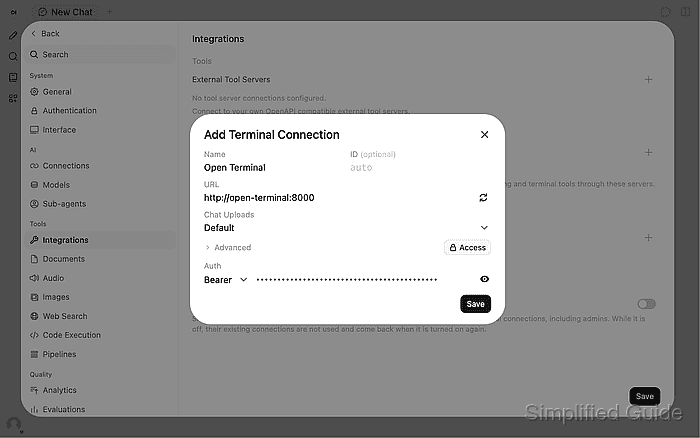
The field takes only the value after the equals sign. Bearer is the authentication type. The key must remain private, including in screenshots and shared terminal logs.
Saving this connection gives administrators access to the shared command environment. Additional users require an explicit grant through Access. Admin settings survive container recreation while ENABLE_PERSISTENT_CONFIG remains at its default, enabled; disabling it lets environment settings take precedence.
- Click Save to connect Open WebUI to Open Terminal.
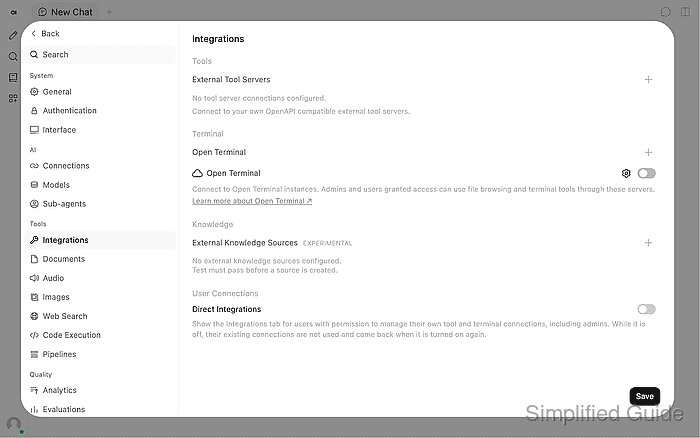
- Turn on the saved Open Terminal connection.
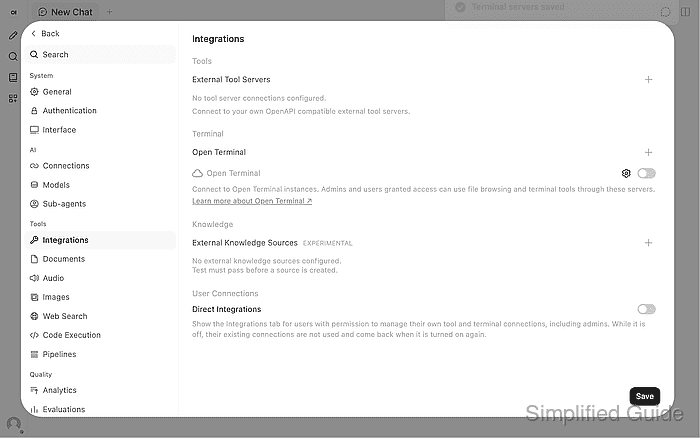
The connection switch must be enabled for the terminal to appear in chat. The switch also provides a way to stop access without deleting the connection.
- Click Back to return to chat.
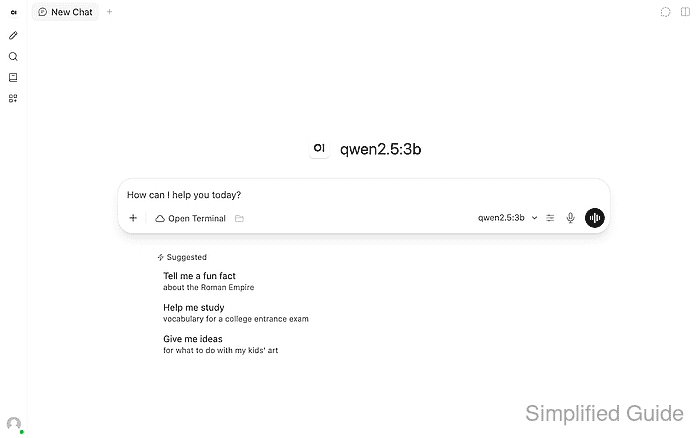
- Open the cloud-shaped Terminal control in the composer.
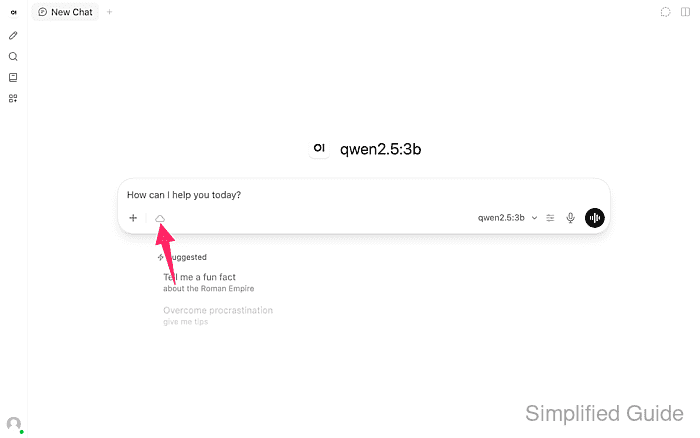
The model needs native tool calling and enough context for the terminal tool definitions. The qwen2.5:3b model shown uses num_ctx=16384 in Ollama; a smaller context can truncate the tools. A model configured for Legacy calling may need Native under its model settings.
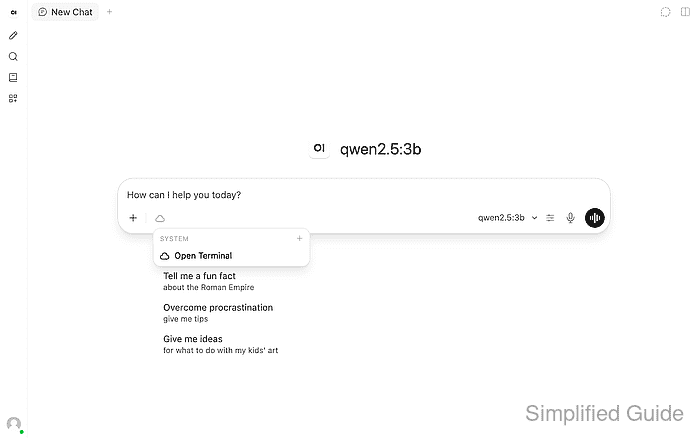
Related: How to tune model parameters in Open WebUI - Select Open Terminal under System.
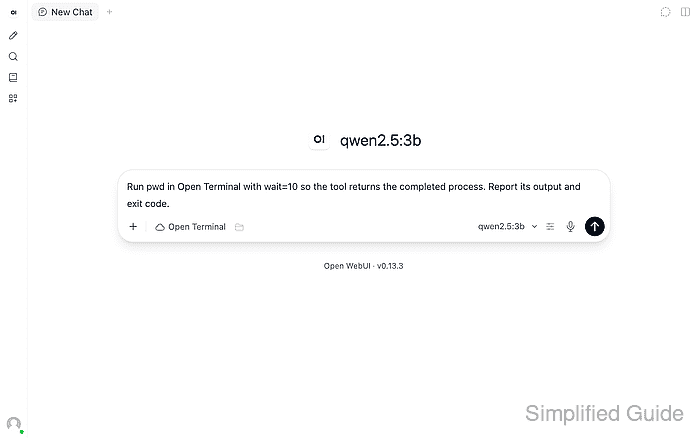
- Enter a shell-command request in the message box.
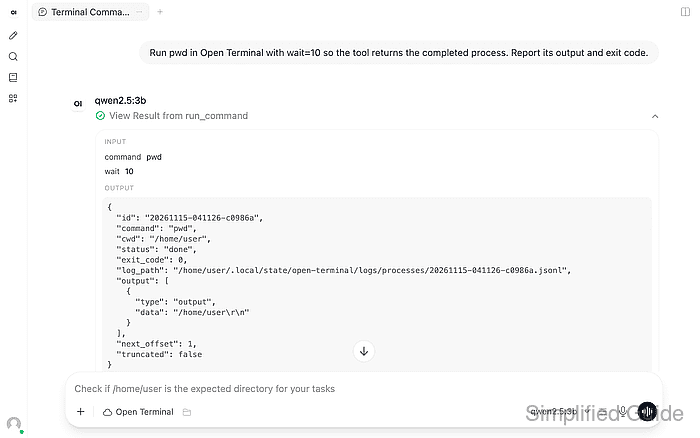
Run pwd in Open Terminal with wait=10 so the tool returns the completed process. Report its output and exit code.
- Send the request.
- Expand the run_command result in the reply.
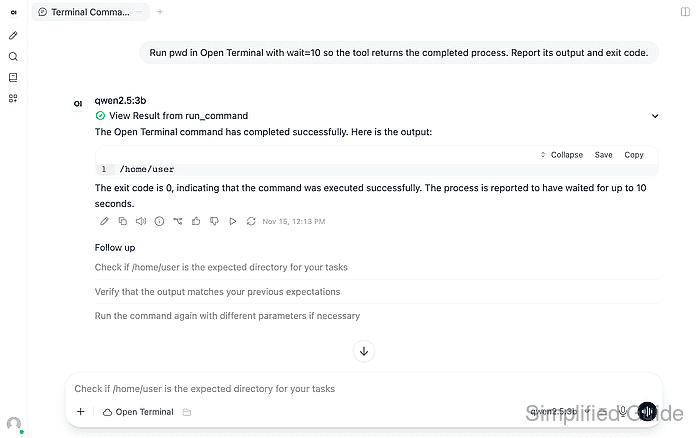
- Confirm the executed pwd command returns /home/user with exit code 0.
The expanded tool result must contain the shell output and a completed status. The wait=10 request gives this short command time to finish before the tool returns; a running-process handle or a model's unexecuted answer is insufficient. An Invalid API key or 401 error means the saved key needs correcting to match open-terminal.env. A connection error points to the URL or Docker network. If no tool call appears, the terminal selection, model tool support and Builtin Tools capability need checking before retrying.