Language models can describe a calculation without running it. Open WebUI Code Interpreter gives a chat model a Python runtime for calculations and small data checks, with the executed code and its result available in the conversation.
The global Code Interpreter setting makes the feature available, while the composer control activates it for a conversation. The selected model needs native tool calling and its Code Interpreter and Builtin Tools capabilities enabled; regular users also need the Code Interpreter feature permission.
The pyodide engine runs Python in the browser, so the chat tab must remain connected during execution. Pyodide and Jupyter are legacy execution engines with different limits from a full Python environment; Open Terminal is a separate integration for shell access, native packages, or longer jobs.
Model-generated Python can process files available to the runtime and consume browser resources. Only trusted code and data belong in the interpreter; browser execution is not a security boundary for untrusted workloads.
Steps to enable Open WebUI code interpreter:
- Open the profile menu at the bottom of the sidebar as an administrator.
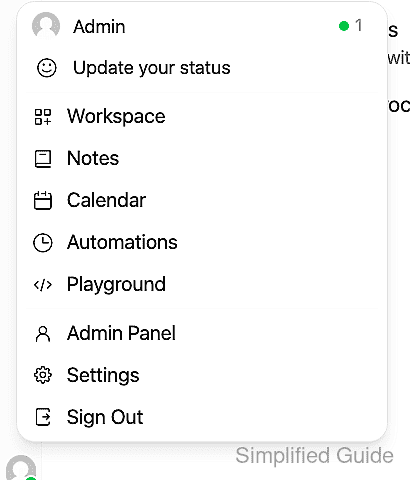
- Select Settings.
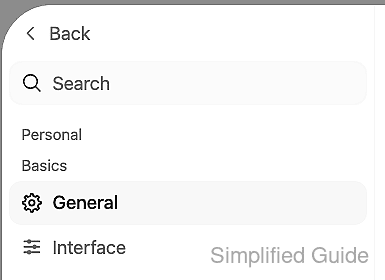
- Scroll the settings sidebar to the Admin section.
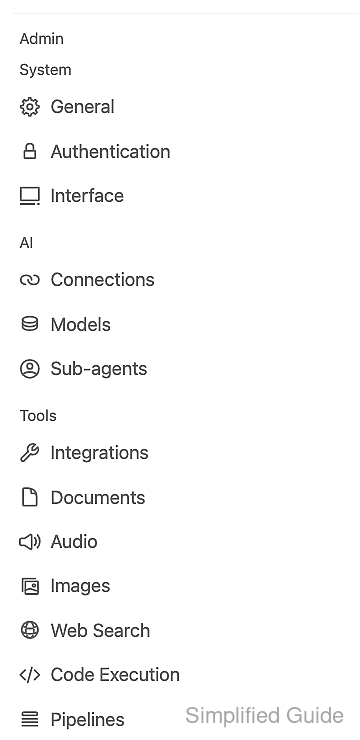
- Select Code Execution under Tools.
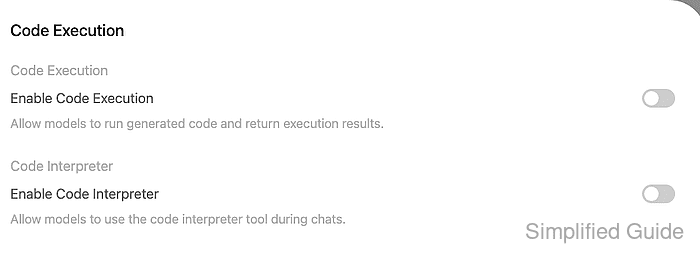
The Enable Code Execution switch controls manual code-block execution independently of Code Interpreter.
- Turn on Enable Code Interpreter.
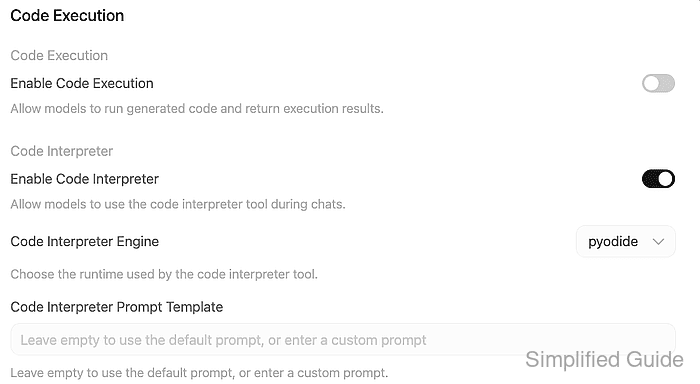
Turning this switch off again removes global availability.
- Select pyodide in Code Interpreter Engine.
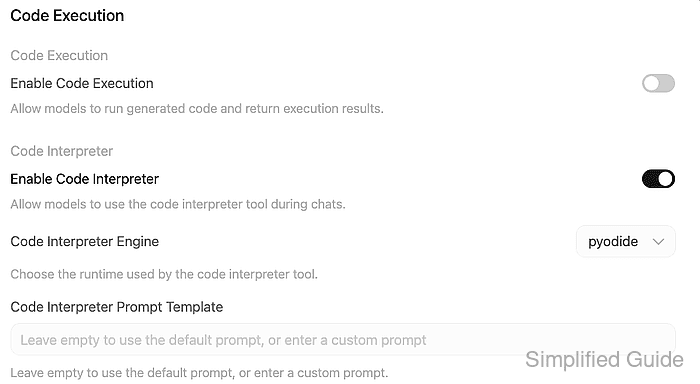
Jupyter runs code in a separately configured server environment. An unrestricted notebook server can expose server files and network access; it is not a substitute for browser execution.
- Click Save.

- Close Settings with Back.
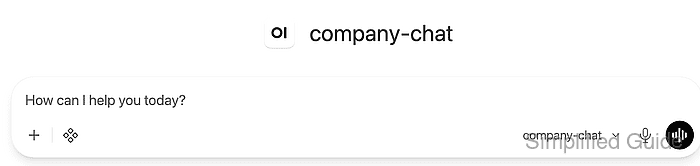
- Open the model picker in the composer.
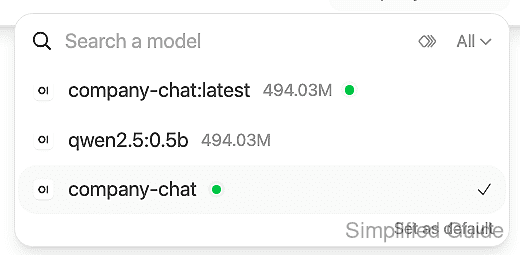
- Select a model with native tool calling enabled.
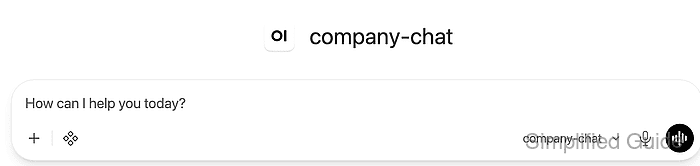
company-chat is the model's display name here. A custom profile can disable Code Interpreter or Builtin Tools under Workspace → Models → the model's Capabilities; the Code Interpreter category within Builtin Tools must also be allowed.
- Open Integrations with the four-diamond icon beside the + button.
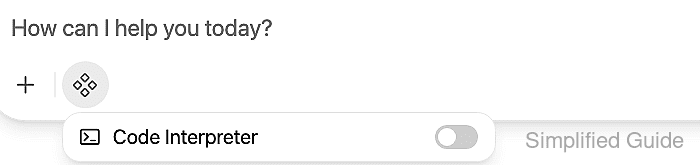
- Enable Code Interpreter for the conversation.

The active interpreter appears as a blue chip in the composer. A selected terminal hides this option, and a regular user's access also depends on their Code Interpreter feature permission.
- Enter a calculation request in the message box.
Use Code Interpreter to calculate 19 * 23. Execute print(19 * 23) in Python and report the tool output.

- Send the request.

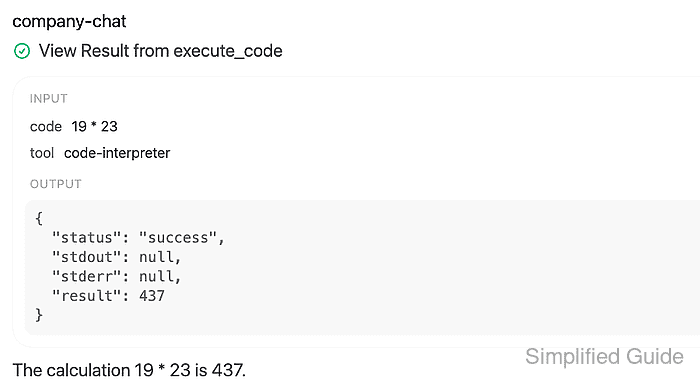
- Expand View Result from execute_code in the reply.
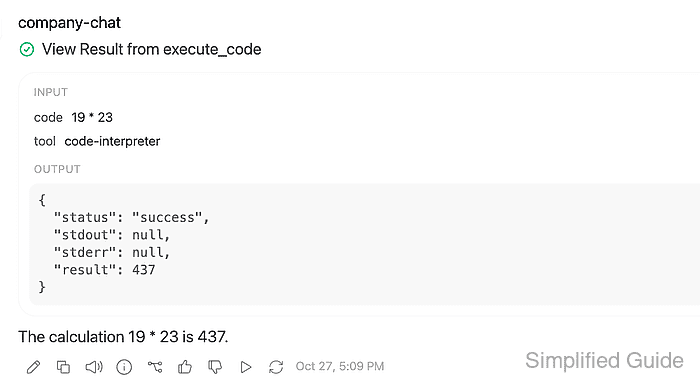
- Confirm the tool output reports success with the calculated value 437.
The model may evaluate 19 * 23 directly or print it; the value can appear in result or stdout. A plain answer of 437 without an executed tool result does not establish Python execution. Missing tool output can indicate disabled capabilities, an inactive composer control, Legacy function calling, or a disconnected browser.