A local chat interface can still depend on internet services for inference, document processing, and sign-in. Open WebUI's offline mode prevents selected downloads and update checks, while prepared local models let chat and document retrieval continue without internet access.
Chat and document retrieval use different models. The Ollama chat model, the local embedding cache, and document extraction must all work before disconnection. Persistent storage must retain both Open WebUI's data directory and Ollama's model store across container recreation.
The starting point is a working Docker Compose deployment with services named open-webui and ollama, a downloaded local chat model, the default local embedding model, and local account authentication. The browser and both services must remain reachable on the isolated network. Hosted models, external sign-in, web search, remote tools, and unprepared speech services cannot supply an offline dependency.
Steps to enable offline mode in Open WebUI with Docker Compose:
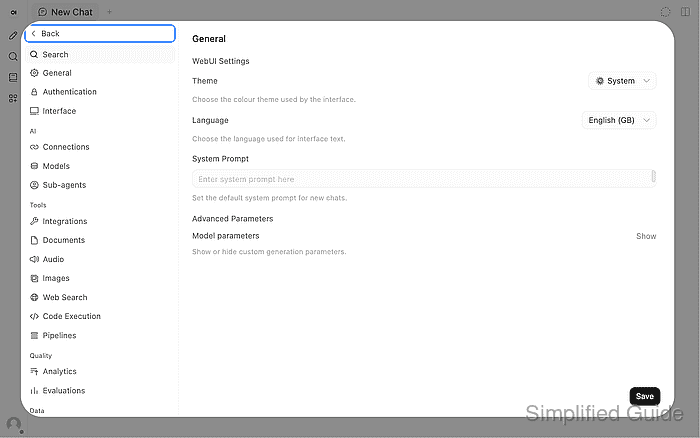
- Open Settings with Ctrl+. on Windows or Linux, or Cmd+. on macOS.
- Select Documents under Admin in the settings sidebar.
- Confirm that Bypass Embedding and Retrieval is off under the Default content extraction engine.
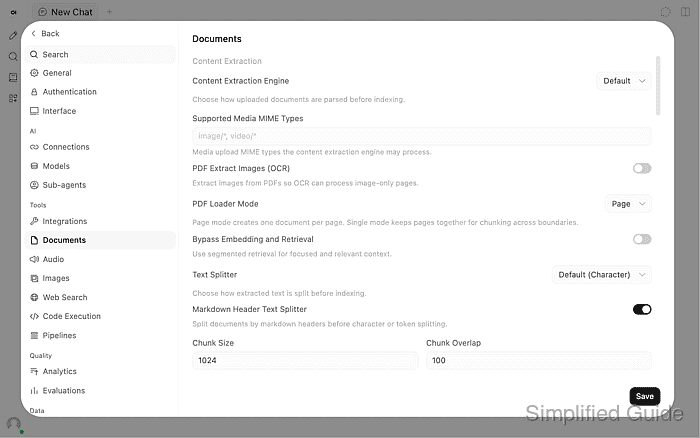
The default parser handles plain text locally. An external extraction service needs its own reachable local installation.
Related: How to tune RAG settings in Open WebUI - Load the selected local embedding model with Update embedding model.
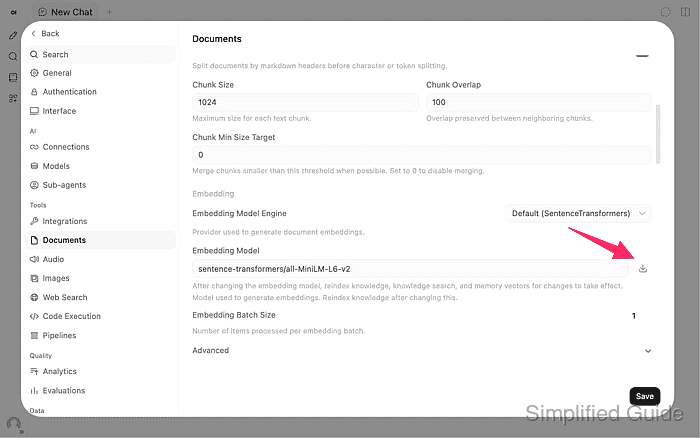
The download icon is beside Embedding Model, under Default (SentenceTransformers). The default model is all-MiniLM-L6-v2. This preparation belongs before disconnection; missing files cannot download after offline mode is enabled. If an existing installation uses a different local embedding model, its matching cache is required instead; changing the model also requires reindexing existing knowledge.
- Set Full Text Threshold (Characters) to 0 for the document retrieval check.
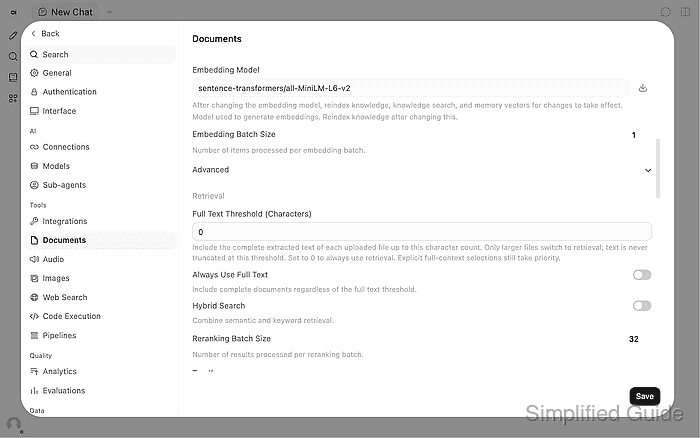
In Open WebUI 0.13.3, short files otherwise enter the prompt in full. A zero threshold exercises retrieval even for a small text file. Always Use Full Text must be off, and the attachment must not explicitly use the entire document. Hybrid Search is off here, so no reranking model is needed.
- Click Save to retain the document settings.
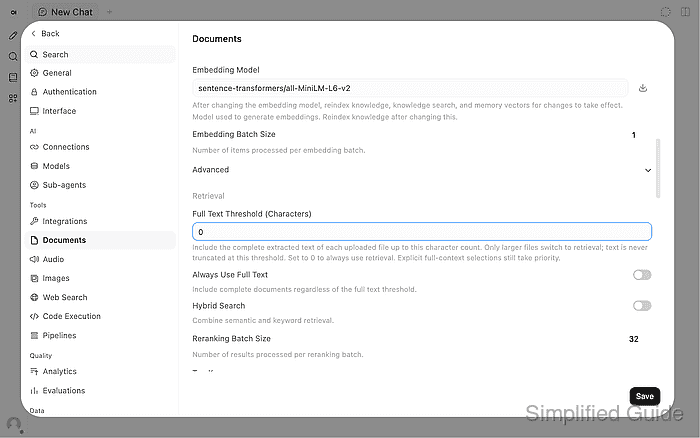
The embedding model reloads during saving. Do not close settings while the save is still in progress.
- Back up the deployment's existing compose.yaml from its project directory.
$ cp -p compose.yaml compose.yaml.before-offline
A protected copy of the original env file must also remain available. Restoring the saved Compose configuration and recreating the containers provides a way back without deleting volumes.
- Open compose.yaml in your text editor.
The file must define the working open-webui and ollama services. The application data mount at /app/backend/data includes the default embedding cache; Ollama's model store needs its own persistent mount. Existing custom cache mounts must also remain attached.
Related: How to run Open WebUI with Docker Compose
Related: How to run Ollama with Docker - Add OFFLINE_MODE: “true” under services.open-webui.environment without replacing its other entries.
OFFLINE_MODE: "true"
If OFFLINE_MODE already exists, replace its value instead of adding a duplicate. It sets HF_HUB_OFFLINE=1, disables version checks, and forces the embedding, reranking, and Whisper auto-update flags off. It does not block network connections.
Related: Open WebUI offline configuration - Save compose.yaml with the existing volumes, port bindings, and WEBUI_SECRET_KEY retained.
Changing the secret key can invalidate sessions and encrypted integration data. Removing a data volume deletes its stored information. Unused remote integrations must be disabled before isolation; offline mode does not turn them off.
- Validate the Compose configuration from the deployment directory.
$ docker compose config --quiet
No output and exit status 0 mean the configuration is valid. Plain docker compose config can print resolved secrets.
- Block external egress from Open WebUI and Ollama using your network's isolation controls.
Network isolation interrupts external services and network sessions. Local browser access, local authentication, and the Open WebUI connection to Ollama must remain available. For a single-host installation, disconnecting the host's external uplink can leave loopback browser access and the private container network usable.
An internal Docker network is another boundary, but all required services must share it without a second external route. On Docker installations where internal networks do not forward published ports, browser access requires a separately arranged local ingress path. The offline flag is independent of these network controls.
- Recreate both services with the prepared images and persistent volumes.
$ docker compose up -d --pull never --force-recreate --wait open-webui ollama
Container recreation briefly interrupts the service. –pull never uses images already on the machine; –force-recreate starts fresh containers with the environment change. A plain docker compose restart does not apply changed environment variables. A startup error or unhealthy service needs attention before continuing. Do not use docker compose down -v; it removes persistent data.
- Check the restarted Open WebUI logs for missing models or attempted downloads.
$ docker compose logs --since 5m open-webui
The embedding model should load from the persistent cache. No embedding model is loaded, cache lookup failures, or download attempts mean offline preparation is incomplete. Logs can contain document text and private addresses, so they need redaction before sharing.
- Confirm that the network controls deny external access while permitting the local model connection.
A denied external connection in the firewall or network monitor proves a different boundary from a successful chat. Neither a working web page nor OFFLINE_MODE=true proves egress isolation.
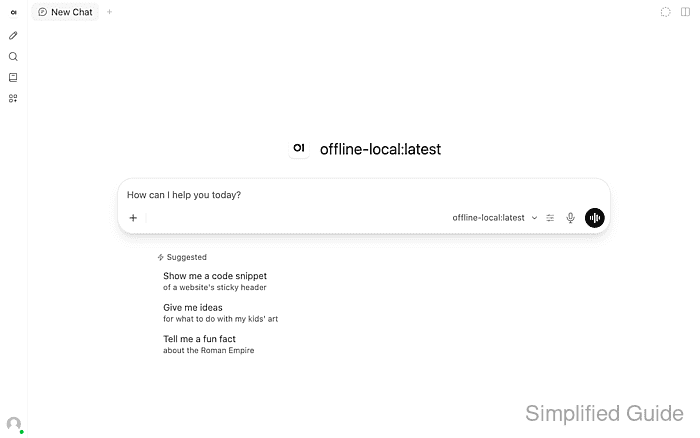
- Open New Chat in the restarted web interface.
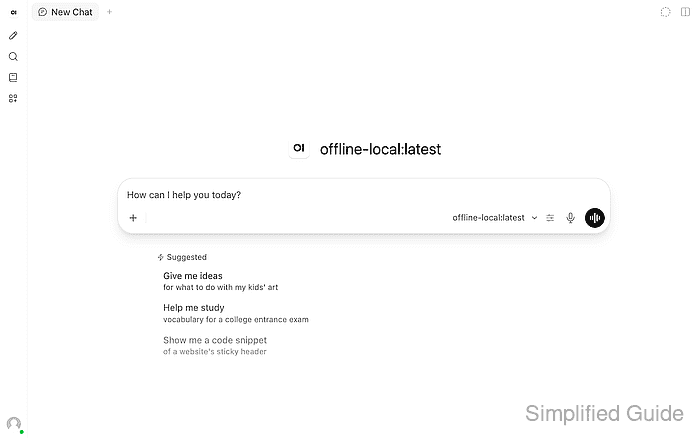
A normal authenticated installation must allow sign-in with its intended offline account method. An external identity provider must remain reachable locally or be replaced through a separate authentication change before isolation.
- Open the model picker beside the message box.
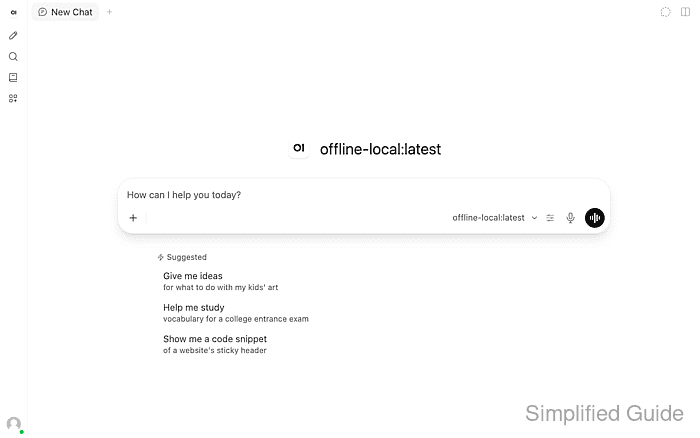
- Select your downloaded local Ollama model.
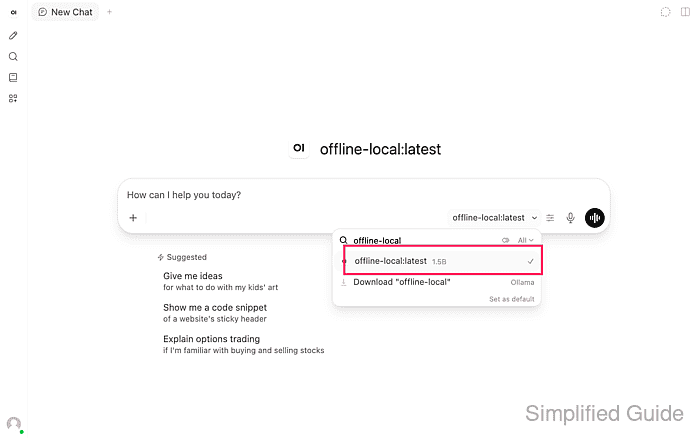
offline-local:latest is a local alias for qwen2.5:1.5b here. Your model name can differ. A cloud model or hosted API cannot replace the local inference server after disconnection.
Related: How to connect Ollama to Open WebUI
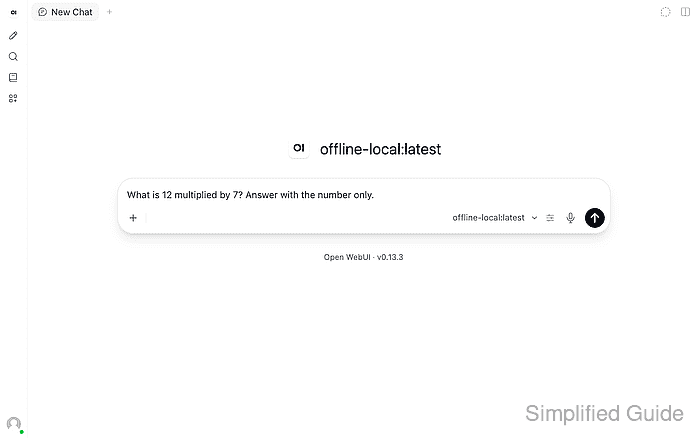
Related: How to pull an Ollama model - Enter a short chat question in the message box.
What is 12 multiplied by 7? Answer with the number only.
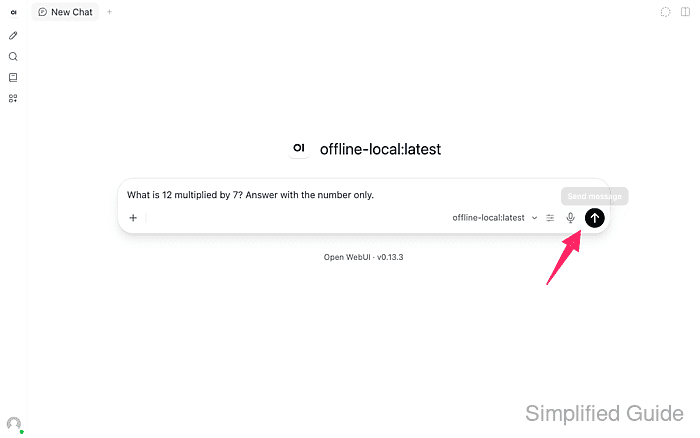
- Click Send message to submit the chat question.
- Confirm that the local model returns a completed reply. Example output:
84
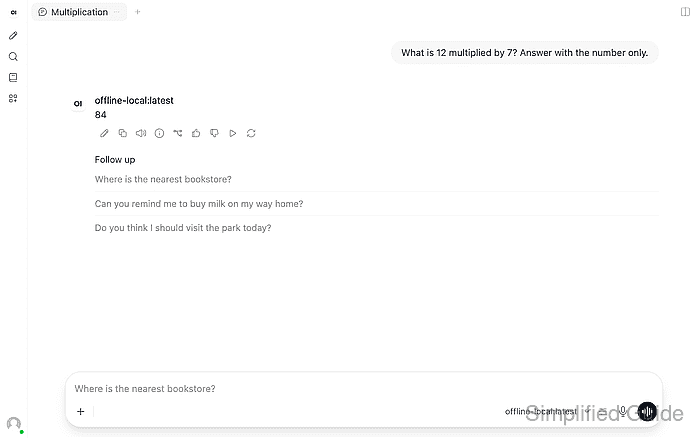
This checks local inference after restart. It does not establish that document extraction or embeddings work.
- Create cedar-lantern.txt in your text editor with the following content.
- cedar-lantern.txt
Support Escalation Handbook

This is synthetic training data for the Cedar Lantern service.
The support desk is open on weekdays from 09:00 to 17:00 UTC.
The escalation owner is the Platform Support Team.
The escalation code is cedar-lantern-47.
Before escalating, collect the request timestamp and the affected service name.
- Start a fresh New Chat for the document question.
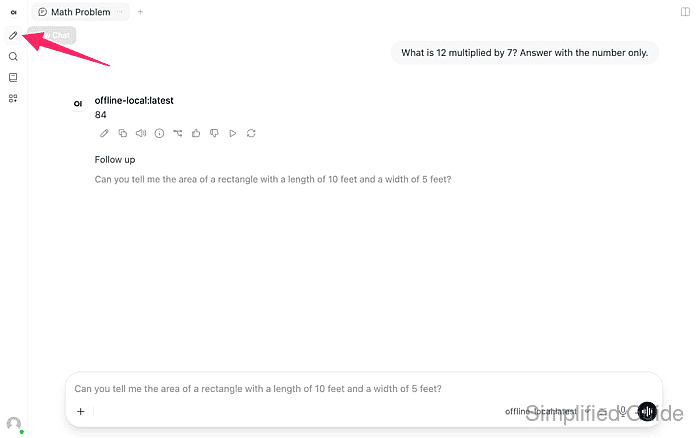
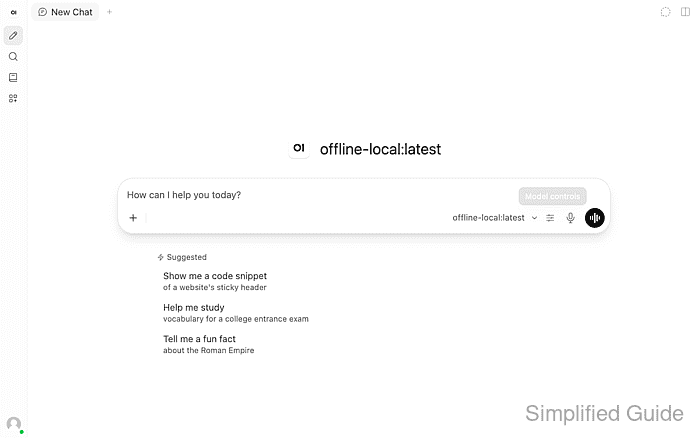
- Open Model controls beside the selected model in the message box.
- Expand Advanced Params in the controls panel.
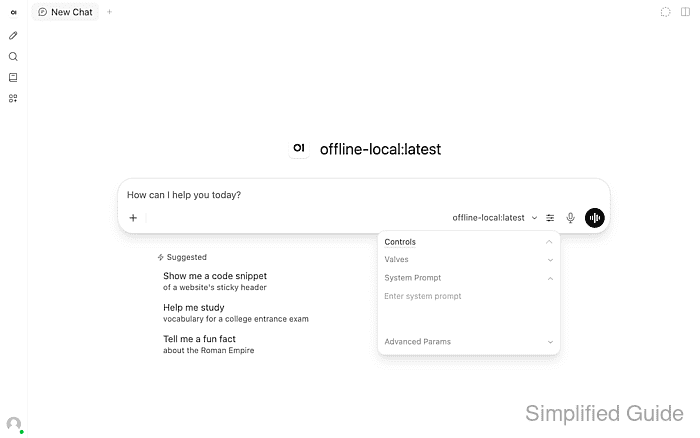
- Set Function Calling to Legacy for the document check.
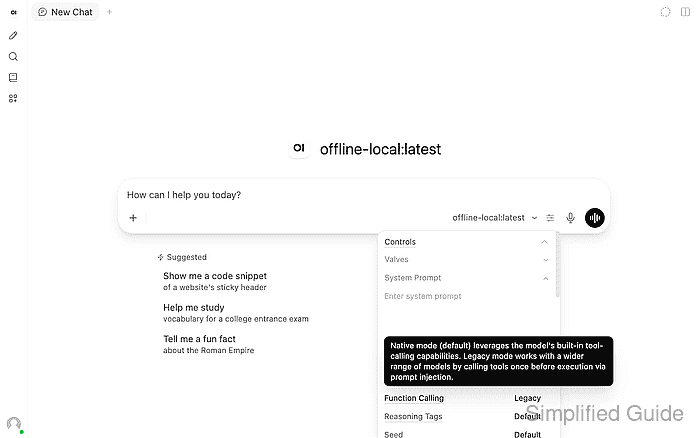
The value cycles through Default, Native, and Legacy. Legacy supplies retrieved context before generation, so the check does not depend on a small model choosing a knowledge tool. It does not change the embedding model or rebuild existing data.
- Dismiss the controls panel with Esc.
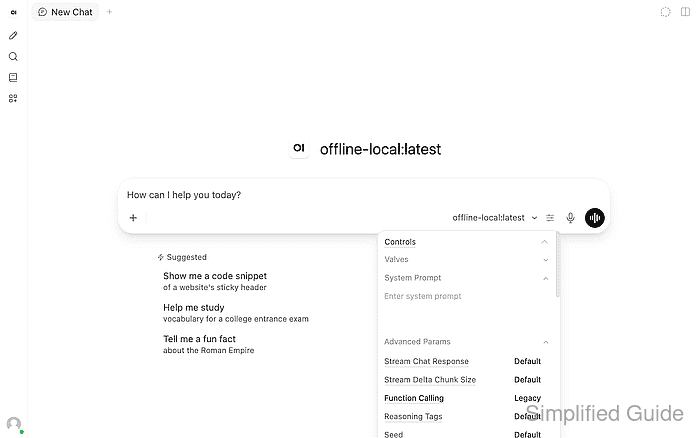
- Open the + attachment menu in the message box.
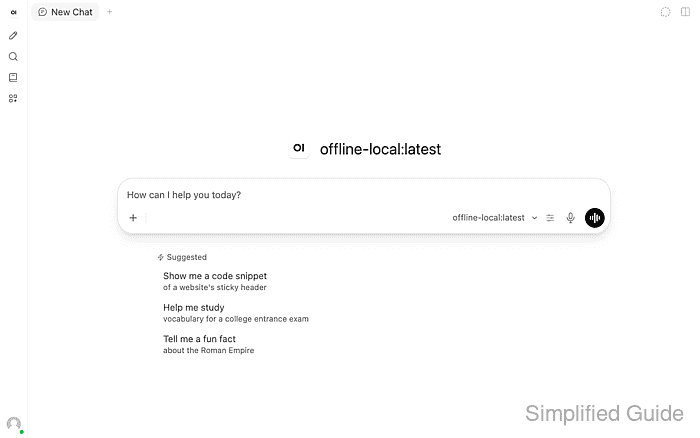
- Choose Upload Files from the attachment menu.
- Select the newly created cedar-lantern.txt file.
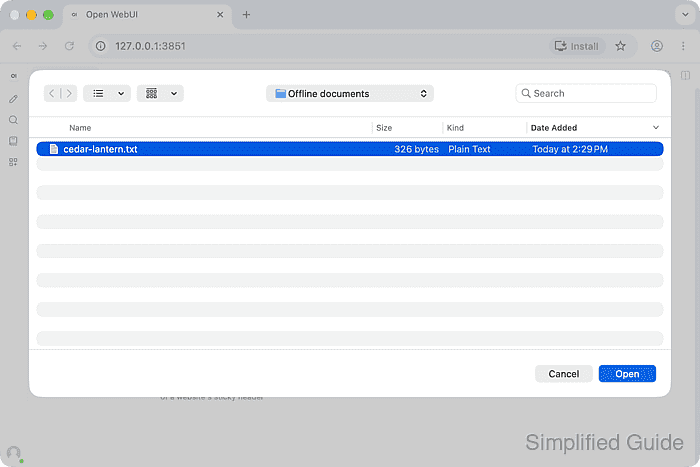
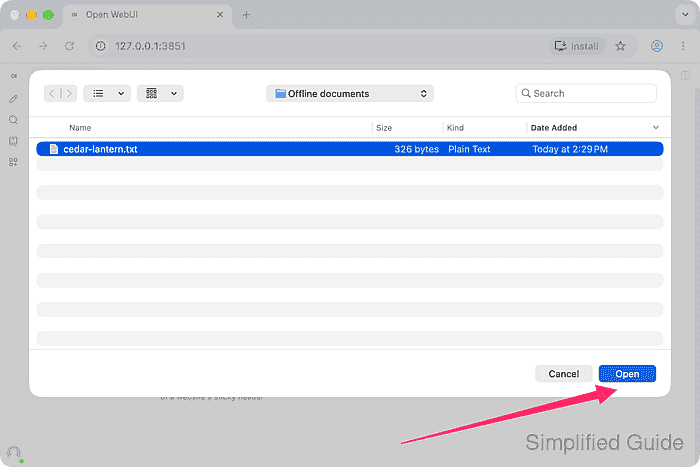
- Click Open to upload cedar-lantern.txt.
- Wait for cedar-lantern.txt to finish processing.
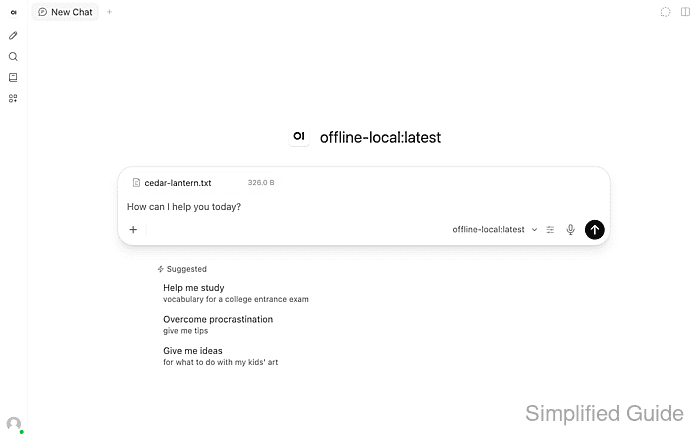
The attachment's progress spinner changes to a document icon. An upload error or a spinner that never completes is a failed document test, even when ordinary chat works.
- Enter the document question with cedar-lantern.txt attached.
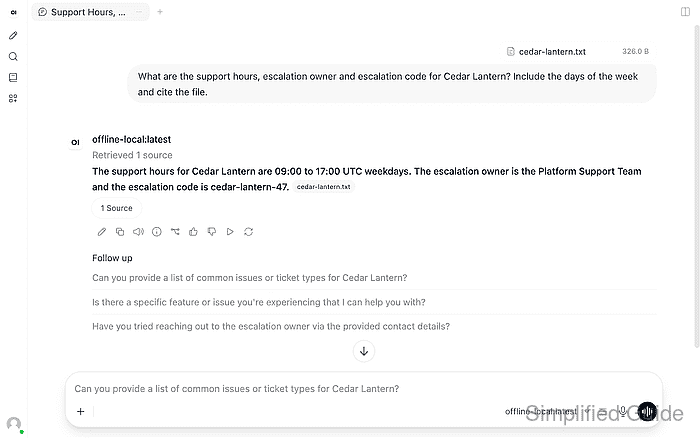
What are the support hours, escalation owner and escalation code for Cedar Lantern? Include the days of the week and cite the file.
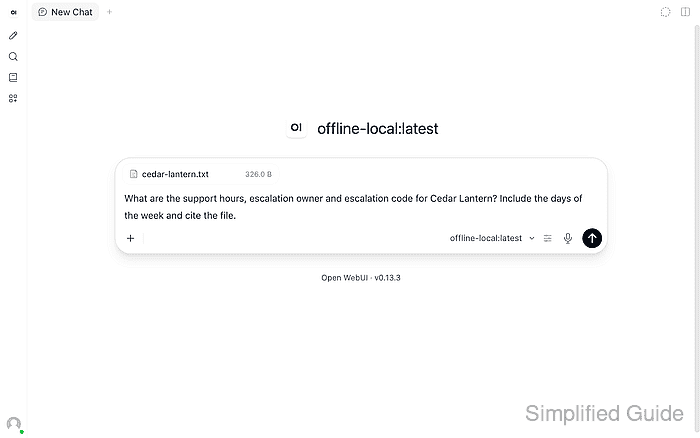
- Click Send message to ask about the attached document.
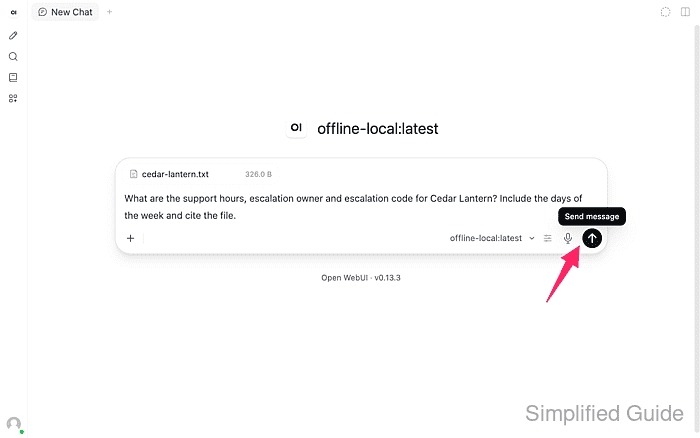
- Expand 1 Source beneath the completed reply. Example output:
The support hours for Cedar Lantern are weekdays from 09:00 to 17:00 UTC. The escalation owner is the Platform Support Team, and the escalation code is cedar-lantern-47. [1]
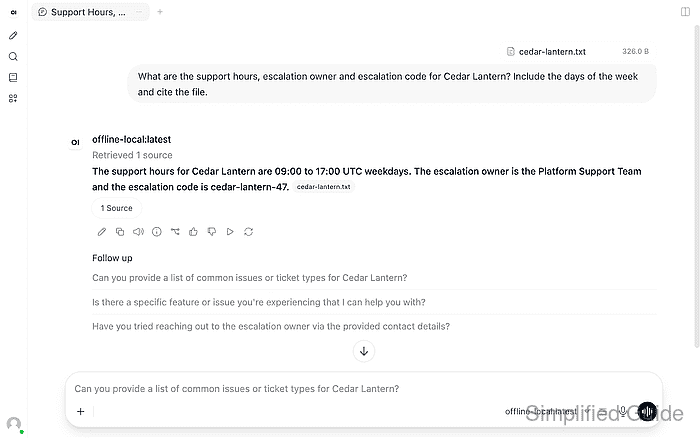
Wording varies by model. The source control and Retrieved 1 source status should accompany the answer.
- Open cedar-lantern.txt in the source list.
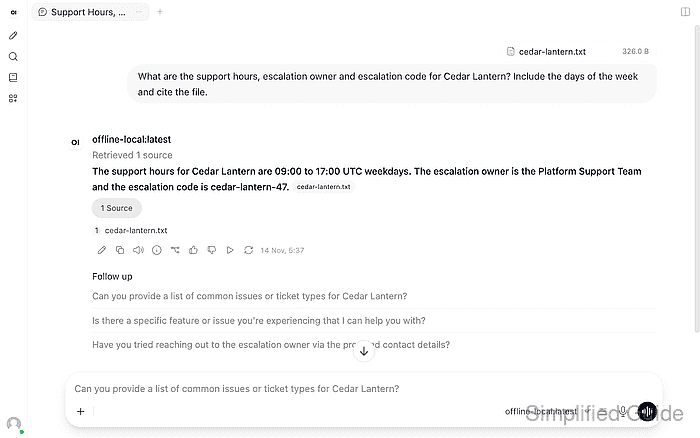
- Compare the source passage with the completed answer.
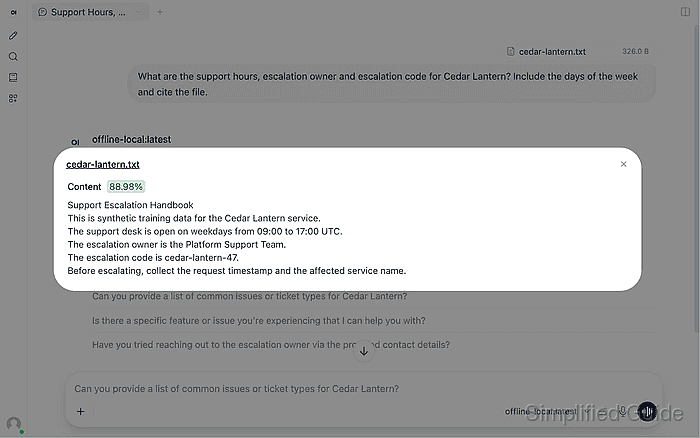
The answer must give weekdays 09:00–17:00 UTC, Platform Support Team, and cedar-lantern-47, with cedar-lantern.txt as the source. Wording can vary. A fresh file that processes and supplies the cited answer after the isolated restart checks the local document path as well as chat. The logs and network controls still provide the separate download and egress checks.