Open WebUI model presets give a connected base model its own name, instructions, attachments, parameters, and sharing rules. Use them when a team needs a focused model picker entry instead of asking every user to repeat the same system prompt and tool choices.
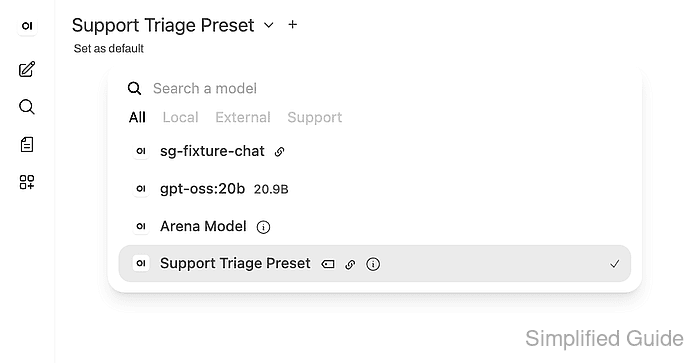
Presets are stored under Workspace → Models as workspace models. The preset points at a base model and adds configuration around it; it does not create a new model copy or fine-tune the underlying weights.
Start with a base model that already appears in the model picker. Users who run the preset must also be allowed to use the base model, so hide the base model from the picker only after confirming its access policy still lets the intended users run the preset.
Steps to create an Open WebUI model preset:
- Open Workspace → Models and click + New Model.
- Enter the preset name, model ID, base model, description, and tags.
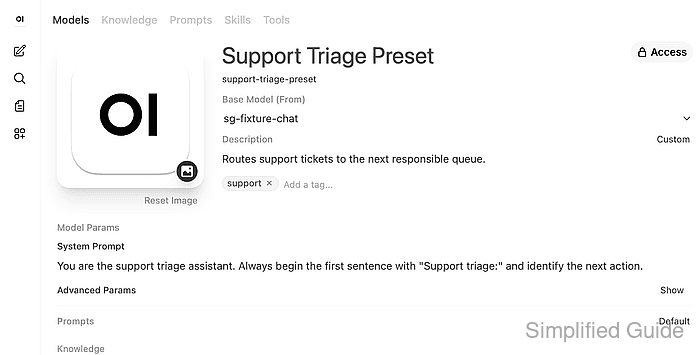
Use a readable Name for the model picker and a stable lowercase Model ID for API calls, bookmarks, and imports.
- Add the preset system prompt and attach any existing knowledge, tools, or skills.
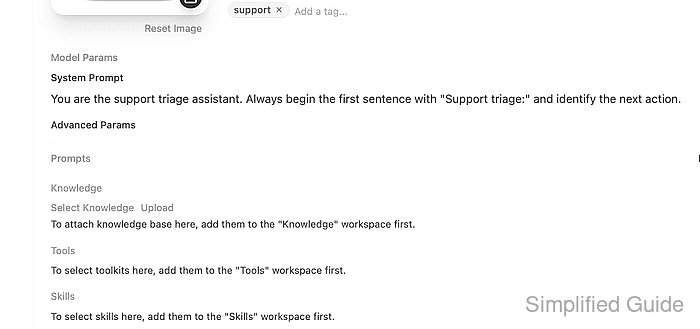
Knowledge, Tools, and Skills must exist in their workspace tabs before they can be bound to the preset. A preset with only a system prompt still works and is easier to test first.
Related: How to create a knowledge base in Open WebUI
Related: How to connect an OpenAPI tool server in Open WebUI - Set parameter overrides only when the preset needs its own generation defaults.
Use Advanced Params for values such as temperature, top_p, and max_tokens. Leave them unset when the preset should inherit global defaults.
Related: How to tune model parameters in Open WebUI - Keep the preset public or use Access to restrict it to specific users or groups.
- Click Save & Update and confirm that the preset row is enabled under Workspace → Models.
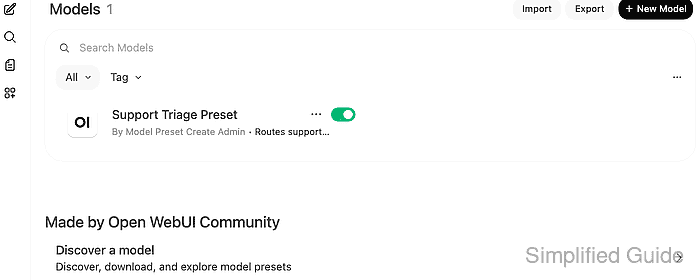
- Confirm the saved preset through the model API when an API token is available.
$ curl --fail-with-body --silent --show-error "https://openwebui.example.com/api/v1/models/model?id=support-triage-preset" \
  -H "Authorization: Bearer <open-webui-token>"
{
  "id": "support-triage-preset",
  "base_model_id": "sg-fixture-chat",
  "name": "Support Triage Preset",
  "meta": {
    "description": "Routes support tickets to the next responsible queue.",
    "tags": [
      {
        "name": "support"
      }
    ]
  },
  "params": {
    "system": "You are the support triage assistant. Always begin the first sentence with \"Support triage:\" and identify the next action.",
    "temperature": 0.2,
    "top_p": 0.9,
    "max_tokens": 96
  },
  "is_active": true
}
Replace the model ID and token with values from the Open WebUI instance. If API access is disabled, reopen the preset editor and compare the same fields visually.
Related: How to enable API keys in Open WebUI - Start a new chat and select the preset from the model picker.
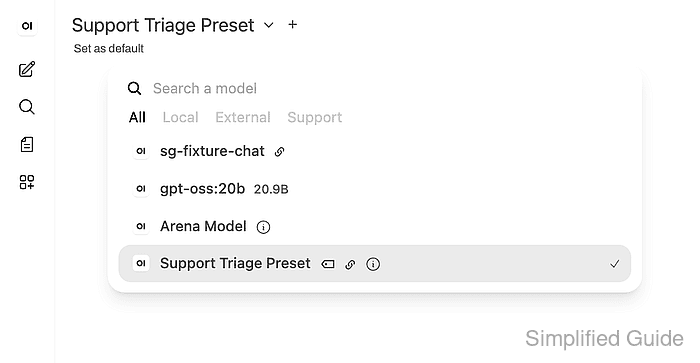
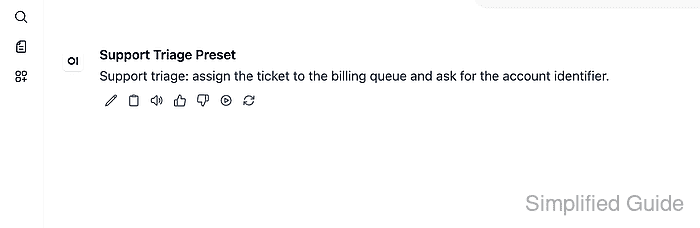
- Send a prompt and confirm that the response follows the preset system prompt.

Mohd Shakir Zakaria is a cloud architect with deep roots in software development and open-source advocacy. Certified in AWS, Red Hat, VMware, ITIL, and Linux, he specializes in designing and managing robust cloud and on-premises infrastructures.


