Model Context Protocol servers let Open WebUI expose external tools to a chat model without rewriting those tools as native plugins. The connection belongs in the admin-controlled tool server settings because an MCP server can run stateful operations and return data from systems outside the chat itself.
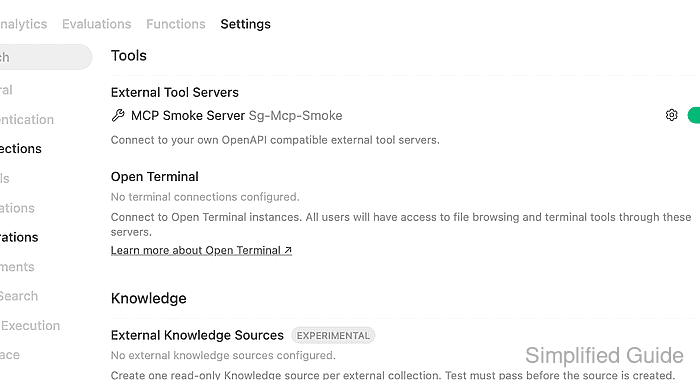
Open WebUI supports native MCP connections through the Streamable HTTP transport. A server that only exposes stdio or older SSE transport needs a bridge or proxy before Open WebUI can add it as an external tool server.
The server URL must be reachable from the Open WebUI backend container, not just from the browser. For Docker Desktop deployments, a service running on the host is usually reached with host.docker.internal; for Docker Compose deployments, prefer the service name on the shared Compose network.
Steps to connect an MCP server in Open WebUI:
- Confirm that the server exposes a Streamable HTTP MCP endpoint.
MCP endpoint: https://mcp.example.com/mcp
Docker host endpoint: http://host.docker.internal:8000/mcp
Compose service endpoint: http://mcp-server:8000/mcp
Use the URL shape that Open WebUI can reach from its backend. Do not use localhost for a host-side MCP server when Open WebUI itself runs inside a container.
- Open Admin Panel → Settings → Integrations and find Tools → External Tool Servers.
Some Open WebUI documentation refers to this admin surface as External Tools. The connection is still the same external tool server list.
- Add a new external tool server and set the connection type to MCP (Streamable HTTP).
Type: MCP (Streamable HTTP)
URL: https://mcp.example.com/mcp
Auth: None
ID: inventory
Name: Inventory MCP
Keep Type on MCP (Streamable HTTP). Pasting mcpServers JSON or an MCP URL into an OpenAPI connection can leave the tool server list in a broken loading state.
- Select the authentication mode required by the MCP server.
None: internal server without a token
Bearer: server expects an API token
OAuth 2.1: server supports browser authorization
OAuth 2.1 (Static): client credentials already exist
For OAuth 2.1 MCP tools, set a persistent WEBUI_SECRET_KEY for the Open WebUI container so encrypted OAuth tokens survive container restarts.
- Verify the connection before saving.
get_inventory_status
  service: string
A successful verification should list one or more tool names from the MCP server. If verification fails, recheck the URL from the Open WebUI container and switch Auth back to None when the server does not require a token.
- Save the server and confirm it appears under External Tool Servers.
- Open a chat with a model that supports native tool calling, then enable the MCP server from + → Integrations → Tools.
OAuth 2.1 MCP tools normally need to be enabled per chat so the browser can complete the authorization redirect before the model tries to call the tool.
- Ask for a result that clearly requires one MCP tool.
User: Check the inventory service through MCP.
Assistant: The MCP inventory tool returned: inventory service is reachable through MCP.
If the chat shows Failed to connect to MCP server after settings verification succeeded, check the auth mode, the function name filter list, and whether the server handshake needs a longer MCP_INITIALIZE_TIMEOUT.

Mohd Shakir Zakaria is a cloud architect with deep roots in software development and open-source advocacy. Certified in AWS, Red Hat, VMware, ITIL, and Linux, he specializes in designing and managing robust cloud and on-premises infrastructures.


