A conversation in Open WebUI often holds something a colleague needs next, such as a troubleshooting checklist, a drafted reply or a model answer worth reviewing. A share link hands that one conversation to chosen people on the same instance without exporting a file or opening the rest of your chat history to them.
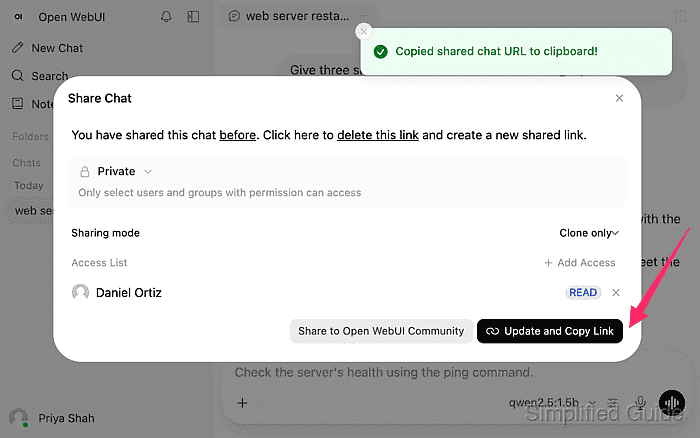
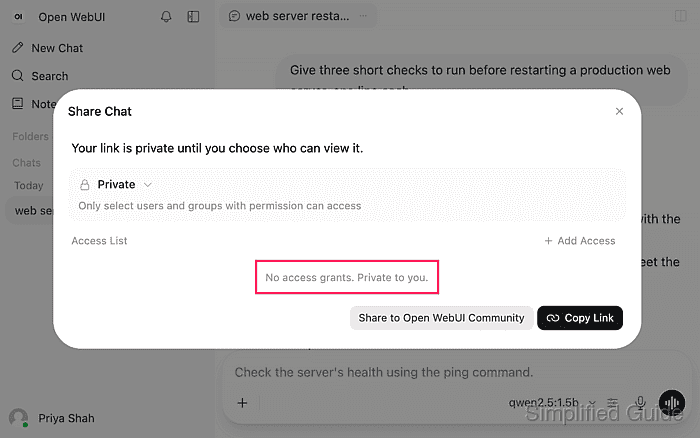
New share links start private. Only the accounts and groups on the link's access list can open it, after signing in to the same instance, while you and the administrators keep access to it. The link carries the conversation as it stood when the link was last updated, so messages you add afterwards stay out of it until you update the link again.
Standard users can share with individual accounts and with groups. Each group's own sharing setting decides whether it is offered, so by default only your own groups appear, but an administrator can open a group to everyone or close it even to its members. An Open link that anyone holding it can read without signing in appears only after an administrator allows it, and deleting the link withdraws every recipient's access at once while your own copy of the conversation stays in your chat list.
Steps to share a chat in Open WebUI:
- Select the conversation to share in the Chats list of the sidebar.
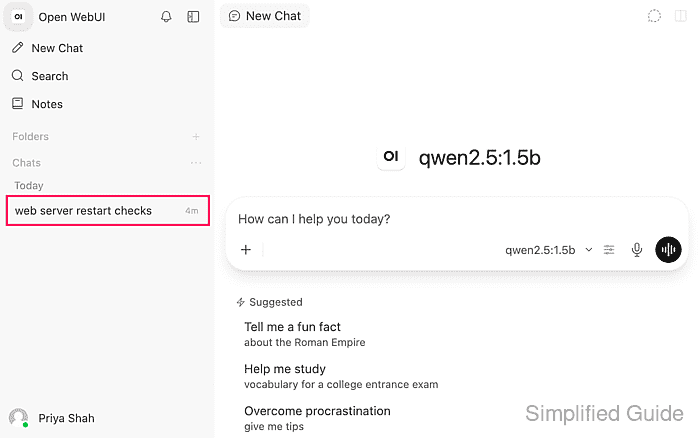
The sidebar button in the top-left corner shows the list when it is hidden.
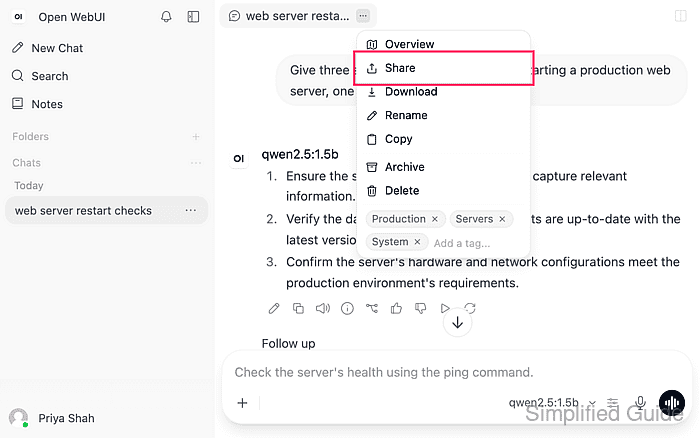
- Click the ellipsis button beside the chat title at the top of the conversation.
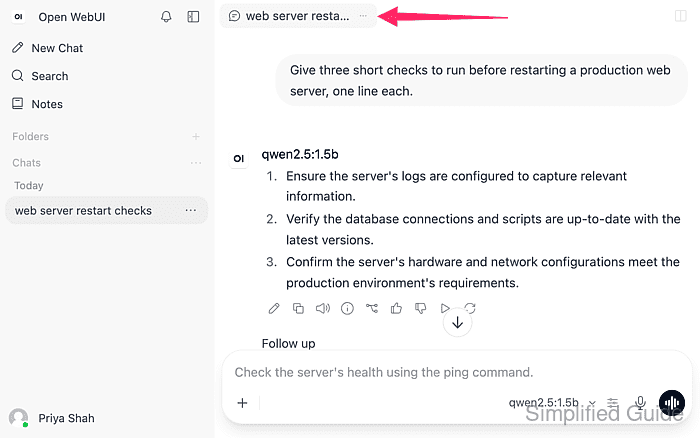
- Click Share in the chat menu.
- Click Add Access in the Share Chat dialog.
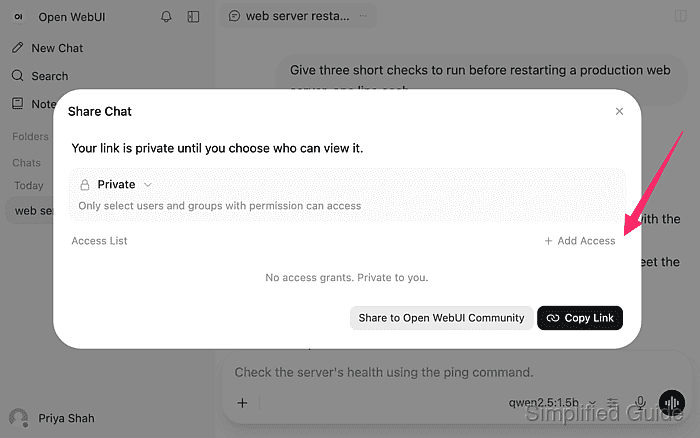
Private is the only Visibility choice for a standard user. An administrator can add an Open choice, labelled Anyone with the link can view, by turning on Chats Open Sharing under Admin Panel → Users → Groups → Default permissions. An Open link exposes the conversation to anyone who obtains the address, including people without an account.
- Select the checkbox beside the colleague's name under Users.
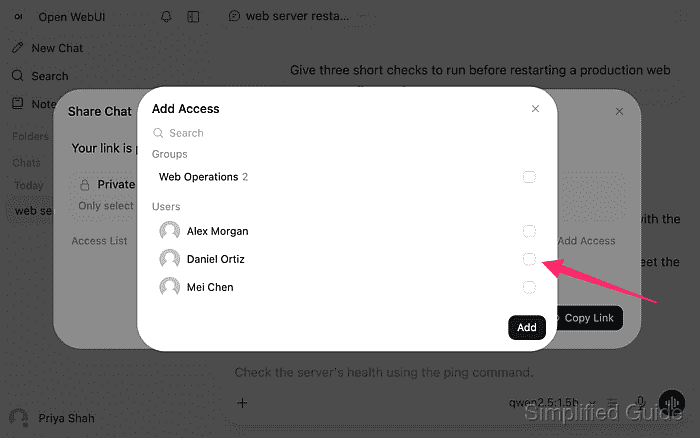
Groups normally lists the groups you belong to. An administrator's Who can share to this group setting on a group, under Admin Panel → Users → Groups, can add a group you are not in by choosing Anyone or hide one you are in by choosing No one. Selecting a group lets every member open the link, while accounts outside the group stay locked out.
Related: How to create an RBAC group in Open WebUI - Click Add.
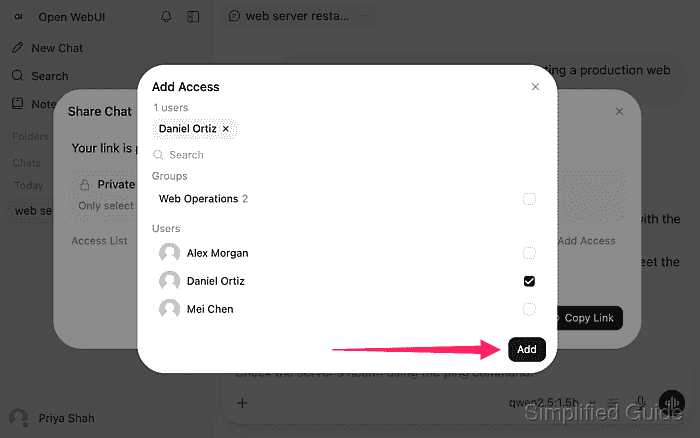
Adding the first person or group creates the share link and lists the recipient with READ access.
- Click Update and Copy Link.
The Copied shared chat URL to clipboard! message confirms the copy. The link has the form
http://<your-open-webui-address>/s/<share-id>. With Sharing mode left at Clone only, recipients get a read-only copy with a Clone Chat button, and messages you add later reach them only after you click Update and Copy Link again, which keeps the same address. Allow replies instead sends recipients to your live conversation with its message box. - Send the copied link to the colleague through your usual messaging channel.
Someone outside the access list who receives the link cannot read the conversation. A signed-in account without access lands on its own empty New Chat page.
- Confirm the colleague sees the conversation when they open the link while signed in to their own account.
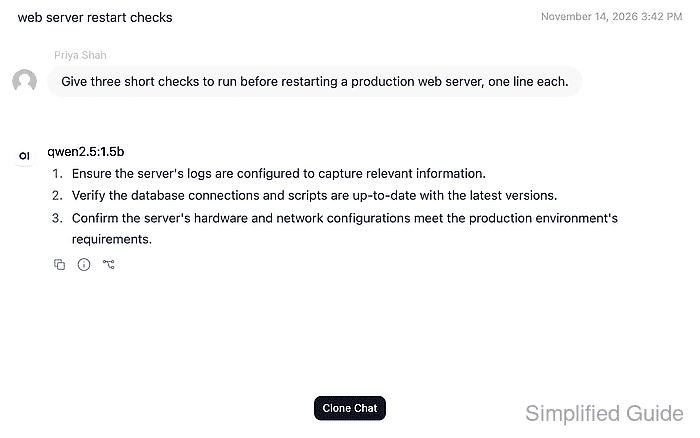
The shared view shows the title, your prompt and the assistant reply, with no message box for adding to the conversation.
- Confirm a browser that is not signed in to Open WebUI shows the sign-in page instead of the conversation when it opens the link.
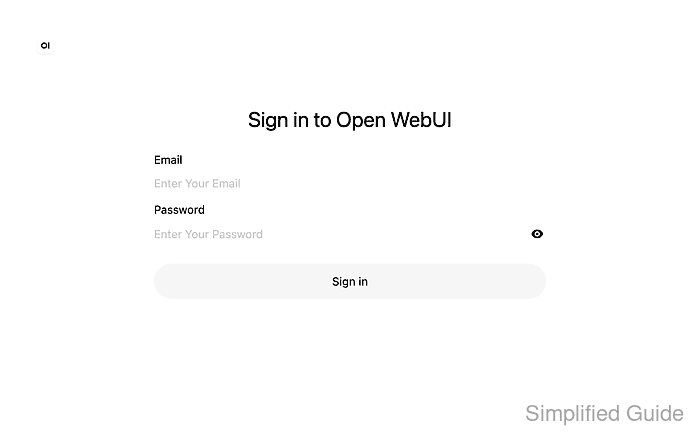
A private browser window gives a signed-out session without affecting your own.
- Click the ellipsis button beside the chat title again when the colleague no longer needs the conversation.
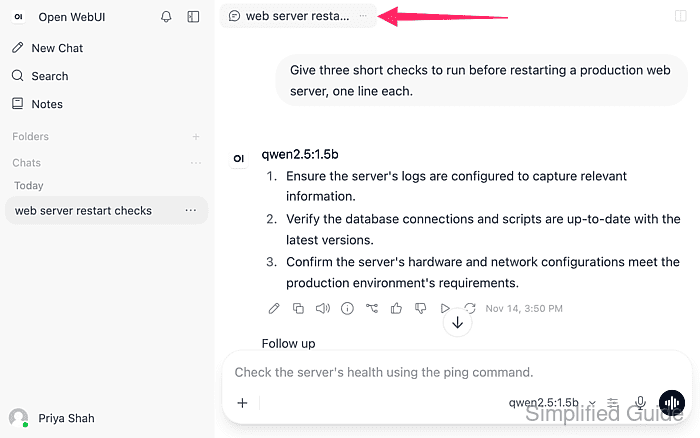
- Click Share in the chat menu to reopen the Share Chat dialog.
- Click delete this link in the Share Chat dialog.
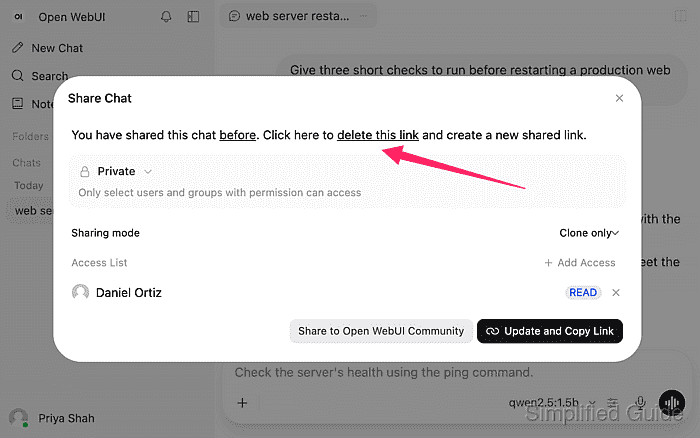
Deleting the link takes it away from every recipient at once and clears the access list. Sharing the conversation again creates a different link address that recipients need to receive again.
- Confirm the dialog shows No access grants. Private to you. with the conversation still open behind it.
- Confirm the colleague's copy of the link now opens an empty New Chat page instead of the conversation.