Corporate networks may require downloads to pass through an approved proxy. Ollama uses HTTPS_PROXY on its server process to send model downloads through that proxy, including when the server runs in Docker.
A TLS connection to a corporate proxy needs a certificate that the container trusts. Adding the organization's public root CA to the Ollama image supplies that trust without disabling certificate checks; installing it on the Docker host alone does not update the container.
A named Docker volume preserves models when the CPU container is replaced. Docker must be able to retrieve the base image, and an administrator must supply a reachable HTTPS proxy, its approved CA certificate and access to its log. Local client requests run inside the container, so no API port needs to be published.
Steps to configure Ollama to use an HTTPS proxy in Docker:
- Confirm the existing ollama container stores its models in a named volume.
$ docker container inspect --format '{{range .Mounts}}{{println .Type .Name .Destination}}{{end}}' ollama
volume ollama /root/.ollama
The replacement commands use the container name ollama and volume name ollama. Your actual container and volume names must replace those names throughout. If /root/.ollama is absent from the mounts, removing the container can delete its models; the replacement must wait until the data is preserved. Custom GPU, network, port and other runtime options must also be retained when recreating an existing deployment.
Related: Inspect Docker container details - Place your administrator-approved public CA certificate in a new build directory as proxy-ca.crt.
A trusted root can authorize certificates presented to the container. Its identity and fingerprint must be confirmed through a trusted administrator, rather than accepted from a failed connection. The file must contain one PEM-encoded public CA certificate, never a private key.
- Create a file named Dockerfile beside proxy-ca.crt using your text editor.
- Dockerfile
FROM ollama/ollama:0.40.16
COPY proxy-ca.crt /usr/local/share/ca-certificates/proxy-ca.crt
RUN update-ca-certificates
The base release shown is 0.40.16. For an existing deployment, the tag must match its approved Ollama release; changing the tag also changes the server version. The COPY and RUN instructions install the public root in the container's system trust store. Only the Dockerfile and public certificate belong in this build directory.
Related: Create a Dockerfile - Build the ollama-with-proxy-ca image from that directory.
$ docker build -t ollama-with-proxy-ca .
The certificate update should report 1 added. A rehash warning about ca-certificates.crt containing more than one certificate is normal for the combined trust bundle.
Related: Build a Docker image - Stop the existing ollama container.
This interrupts its active requests until the replacement starts. The named model volume remains available.
$ docker stop ollama
ollama
- Remove the stopped ollama container.
This removes the container's writable layer, so only data already stored in its volume survives. The command leaves the named volume intact.
$ docker rm ollama ollama - Start the replacement with your proxy's address and port in HTTPS_PROXY instead of https://proxy.example.test:3129.
$ docker run -d \
  -e HTTPS_PROXY=https://proxy.example.test:3129 \
  -v ollama:/root/.ollama \
  --name ollama \
  ollama-with-proxy-ca
The https:// prefix means the connection to the proxy itself uses TLS. The variable is set on the server at container creation; setting it only for a later docker exec client does not reconfigure the server. Do not set HTTP_PROXY or http_proxy because model pulls use HTTPS and an HTTP proxy can interrupt local client connections.
Related: Ollama proxy configurationIf the new container cannot start, it can be stopped and removed before recreating the previous image with its original options and the same model volume. A running container cannot acquire a new environment through docker restart alone.
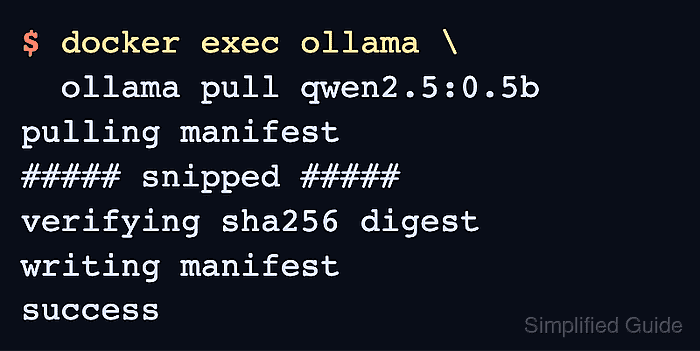
- Pull qwen2.5:0.5b through the configured server. Example output:
$ docker exec ollama ollama pull qwen2.5:0.5b
pulling manifest
##### snipped #####
verifying sha256 digest
writing manifest
success
The first download needs about 398 MB. A model not already present is needed to check download traffic; a cached model alone cannot prove the proxy is working. An x509: certificate signed by unknown authority error means the required CA is still untrusted. A proxy connection or DNS error means the container cannot reach the supplied endpoint; an HTTP 407 means the proxy requires authentication.
- Locate the model download in your proxy's access log. Example output:
1794515846.669 91057 192.0.2.10 TCP_TUNNEL/200 4523 CONNECT registry.ollama.ai:443 - HIER_DIRECT/104.18.16.170 -
The Squid entry shows a completed registry tunnel from the client address 192.0.2.10. A successful pull should also correspond to allowed CONNECT requests for the model storage hosts, whose names can change. In Squid, completed tunnels appear as TCP_TUNNEL/200 with transferred bytes; persistent connections may not be logged until they close. If the pull succeeds without matching traffic, it has not established that the download used this proxy.
- Run a prompt through the container's local Ollama client. Example output:
$ docker exec ollama ollama run qwen2.5:0.5b \
  "What is 17 plus 25? Answer in one short sentence."
The sum of 17 and 25 is 42.
The wording can vary. A generated reply confirms that the local client can still reach the server and use the downloaded model after the proxy change.