Building a Docker image converts a build context and Dockerfile into a versioned image that can be run, inspected, tagged, and promoted. The useful proof is not only that the build completed, but that the resulting image starts with the expected command.
Modern Docker builds use BuildKit through docker build and docker buildx build. The build context path decides which files are available to COPY and ADD instructions, while the image tag gives the result a stable name for follow-up commands.
Keep the first build local until the image starts cleanly. Push to a registry only after the tag, default command, healthcheck, and basic runtime behavior match the release expectation.
Related: How to create a Dockerfile
Related: How to tag and push a Docker image
Tool: Dockerfile Security Basics Checker
Steps to build a Docker image:
- Change into the build context directory.
$ cd /srv/app
- Build the image with a clear local tag.
$ docker build --tag sg-guide-app:1.0 .
[+] Building 0.4s (9/9) FINISHED
##### snipped #####
 => naming to docker.io/library/sg-guide-app:1.0
- List the image that was created.
$ docker image ls sg-guide-app
REPOSITORY       TAG     IMAGE ID       SIZE
sg-guide-app     1.0     798a59f4ad85   120MB
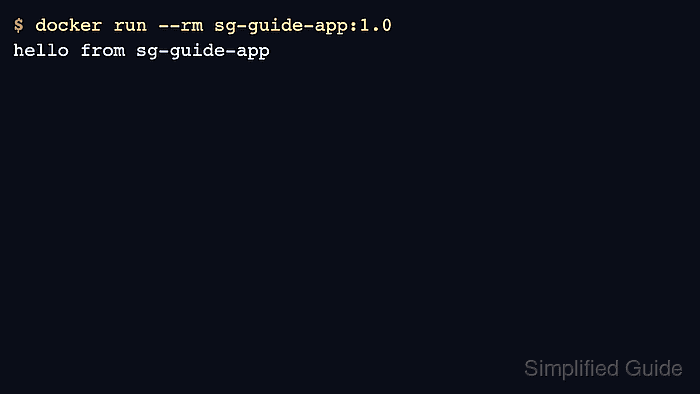
- Run the image and check the default command output.
$ docker run --rm sg-guide-app:1.0
hello from sg-guide-app
- Inspect the image metadata that matters for runtime checks.
$ docker image inspect sg-guide-app:1.0 [ { "Config": { "Cmd": [ "app" ], "Healthcheck": { "Test": [ "CMD-SHELL", "app health" ] } } } ] - Tag the verified image for the target registry when it is ready to publish.
$ docker image tag sg-guide-app:1.0 registry.example.com/team/sg-guide-app:1.0
Related: How to tag and push a Docker image

Mohd Shakir Zakaria is a cloud architect with deep roots in software development and open-source advocacy. Certified in AWS, Red Hat, VMware, ITIL, and Linux, he specializes in designing and managing robust cloud and on-premises infrastructures.


