Nextcloud upgrades replace the server code and then run database and app migrations that match the new release. A shell-driven upgrade is useful on self-hosted servers because the long-running migration phase stays visible in the terminal instead of depending on a browser request.
The built-in updater downloads and replaces the Nextcloud code, but its internal backup covers the old code base only. It does not protect the data directory or database, so a restorable backup must exist before the updater changes files or enables maintenance mode.
A standard web-root installation keeps updater/updater.phar and occ under a path such as /var/www/nextcloud. Snap, container, and distribution package deployments replace code through their own package or image workflow, but the post-upgrade checks still need occ and the public status endpoint to report the new release without a pending database upgrade.
Related: How to create a Nextcloud backup
Related: How to enable Nextcloud maintenance mode
Related: How to run Nextcloud occ commands
Steps to upgrade Nextcloud from the server shell:
- Change to the Nextcloud installation directory.
$ cd /var/www/nextcloud
Use the directory that contains both occ and updater/updater.phar. Archive and package-style installs can use a different web root.
- Check the current Nextcloud status before the upgrade window starts.
$ sudo -E -u www-data php occ status
  - installed: true
  - version: 34.0.0.12
  - versionstring: 34.0.0
  - edition:
  - maintenance: false
  - needsDbUpgrade: false
  - productname: Nextcloud
  - extendedSupport: false
Replace www-data with the web-server user for the installation. On Debian and Ubuntu web-server installs, www-data is the usual account.
Related: How to run Nextcloud occ commands - Confirm that the file backup and database dump are present outside the web root.
$ ls -lh ~/nextcloud-backup/2026-06-29
total 12K
drwxr-x--- 3 admin admin 4.0K Jun 29 10:18 data
drwxr-xr-x 5 admin admin 4.0K Jun 29 10:18 nextcloud
-rw------- 1 admin admin 5.2K Jun 29 10:18 nextcloud.sql
The updater's own backup excludes the data directory and database. Stop here if the backup set cannot restore the web root, data directory, and database to the same point in time.
Related: How to create a Nextcloud backup - Run the command-line updater and stop before the migration command.
$ sudo -E -u www-data php updater/updater.phar
Nextcloud Updater - version: v35.0.0
Current version is 34.0.0.12.
Update to Nextcloud 35.0.0 available. (channel: "stable")
Continue update? [y/N] y
[✔] Check for expected files
[✔] Check for write permissions
[✔] Enable maintenance mode
[✔] Create backup
[✔] Downloading
[✔] Extracting
[✔] Replace entry points
[✔] Delete old files
[✔] Move new files in place
Should the "occ upgrade" command be executed? [Y/n] n
Please now execute "./occ upgrade" to finish the upgrade.
Choosing n keeps the database and app migration as a separate shell command with its own transcript. Choosing Y is also supported when the updater should run the same migration immediately.
- Run the occ migration step as the web-server user.
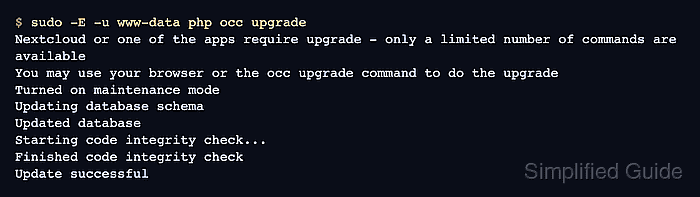
$ sudo -E -u www-data php occ upgrade
Nextcloud or one of the apps require upgrade - only a limited number of commands are available
You may use your browser or the occ upgrade command to do the upgrade
Turned on maintenance mode
Updating database schema
Updated database
Starting code integrity check...
Finished code integrity check
Update successful
occ upgrade runs the migration phase after the new code is already in place. It does not download or replace Nextcloud code files.
- Disable maintenance mode after the migration succeeds.
$ sudo -E -u www-data php occ maintenance:mode --off
Maintenance mode disabled
Do not disable maintenance mode after a failed migration. Keep the server closed to users until the failure is fixed or the backup is restored.
Related: How to enable Nextcloud maintenance mode - Check that occ reports the target version without a pending database upgrade.
$ sudo -E -u www-data php occ status
  - installed: true
  - version: 35.0.0.0
  - versionstring: 35.0.0
  - edition:
  - maintenance: false
  - needsDbUpgrade: false
  - productname: Nextcloud
  - extendedSupport: false
- Request the public status endpoint through the normal Nextcloud URL.
$ curl https://cloud.example.com/status.php
{"installed":true,"maintenance":false,"needsDbUpgrade":false,"version":"35.0.0.0","versionstring":"35.0.0","edition":"","productname":"Nextcloud","extendedSupport":false}
A successful response from https://cloud.example.com/status.php confirms that the web server, PHP runtime, and upgraded Nextcloud code can answer through the public hostname. Follow with the administration overview or security scan when the maintenance ticket requires post-upgrade warnings to be recorded.
Related: How to check Nextcloud administration overview warnings
Related: How to run a Nextcloud security scan

Mohd Shakir Zakaria is a cloud architect with deep roots in software development and open-source advocacy. Certified in AWS, Red Hat, VMware, ITIL, and Linux, he specializes in designing and managing robust cloud and on-premises infrastructures.


