A chart prepared for a slide, report, or image slot often has a fixed pixel rectangle to fill. Working backward from that output requirement gives a Matplotlib figure a deliberate canvas instead of relying on the default size.
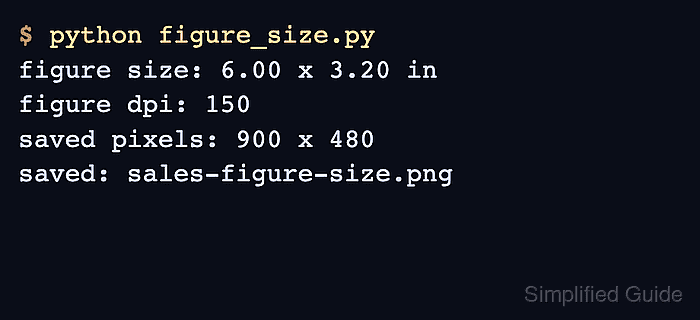
Matplotlib interprets figsize as width and height in inches, while DPI states how many raster pixels occupy each inch. Dividing a 900 by 480 pixel target by 150 DPI produces the required 6 by 3.2 inch figure.
Setting figsize, dpi, and layout=“constrained” when the figure is created gives the layout engine the final canvas while it positions titles and labels. Saving with the default bounding box preserves that canvas; bbox_inches=“tight” recrops the content and can change the exported pixel dimensions.
Steps to translate required pixels into Matplotlib figure inches:
- Create figure_size.py with the 900 by 480 pixel requirement and its conversion at 150 DPI.
- figure_size.py
from pathlib import Path

import matplotlib.image as mpimg
import matplotlib.pyplot as plt


target_pixels = (900, 480)
dpi = 150
figsize = tuple(pixels / dpi for pixels in target_pixels)
output = Path("sales-figure-size.png")
The conversion yields a figsize of 6 by 3.2 inches. Matching figure and export DPI keeps the requested pixel dimensions predictable.
Build the chart on the fixed canvas:
- Add the plotted data, labeled axes, and constrained-layout figure to figure_size.py.
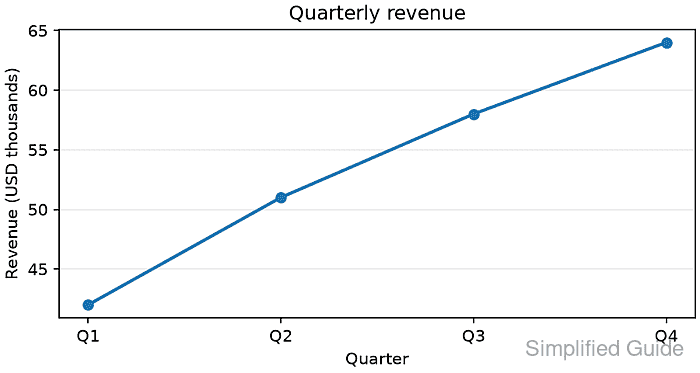
quarters = ["Q1", "Q2", "Q3", "Q4"]
revenue = [42, 51, 58, 64]
fig, ax = plt.subplots(
    figsize=figsize,
    dpi=dpi,
    layout="constrained",
)

ax.plot(quarters, revenue, marker="o", linewidth=2.0)
ax.set_title("Quarterly revenue")
ax.set_xlabel("Quarter")
ax.set_ylabel("Revenue (USD thousands)")
ax.grid(True, axis="y", alpha=0.25)
layout=“constrained” adjusts the axes inside the existing figure rather than enlarging the 900 by 480 pixel canvas.
- Finish figure_size.py with a default-bounds PNG export and a saved-file dimension assertion.
fig.savefig(output)

saved_image = mpimg.imread(output)
actual_pixels = (saved_image.shape[1], saved_image.shape[0])
figure_width, figure_height = fig.get_size_inches()
plt.close(fig)

print(f"requested pixels: {target_pixels[0]} x {target_pixels[1]}")
print(f"figure size: {figure_width:.2f} x {figure_height:.2f} in at {dpi} DPI")
print(f"saved pixels: {actual_pixels[0]} x {actual_pixels[1]}")

if actual_pixels != target_pixels:
    raise RuntimeError(f"expected {target_pixels}, saved {actual_pixels}")

print(f"saved: {output}")
A bbox_inches=“tight” export replaces the full figure canvas with a content-based bounding box, so its pixel dimensions can differ from the requested canvas.
Verify the saved Matplotlib figure dimensions:
- Run figure_size.py to produce the 900 by 480 pixel PNG and its dimension report.
$ python3 figure_size.py
requested pixels: 900 x 480
figure size: 6.00 x 3.20 in at 150 DPI
saved pixels: 900 x 480
saved: sales-figure-size.png

Mohd Shakir Zakaria is a cloud architect with deep roots in software development and open-source advocacy. Certified in AWS, Red Hat, VMware, ITIL, and Linux, he specializes in designing and managing robust cloud and on-premises infrastructures.


