A live clock gives a chat model a current reading in a chosen timezone. The llama.cpp server can obtain the UTC datetime from a trusted local Model Context Protocol (MCP) server and display its returned result in the web UI.
The server-side MCP integration uses stdio, so llama-server starts the configured executable as a child process. It discovers the available tools at startup and starts the child again when a tool is called; no separate HTTP MCP service or MCP proxy is needed.
A Linux installation needs a build with the experimental MCP options, Python 3.10 or later with virtual-environment support, and a model capable of requesting tools. Qwen2.5-1.5B-Instruct Q4_K_M works with its embedded template; a model that answers ordinary chat questions may still fail to call a tool.
Steps to add an MCP server to the llama.cpp server:
- Check that your installed llama-server recognizes the MCP configuration option.
$ llama-server --help | grep -- --mcp-servers-config
--mcp-servers-config PATH               experimental: path to JSON file with MCP server definitions
A matching line names --mcp-servers-config PATH. No match means this executable lacks the feature; a current source build is needed before continuing. The experimental MCP options and UI can change between builds; they are present in b12375. The executable must be available on PATH.
Related: How to start the llama.cpp server - Create a separate Python environment for the time server.
$ python3 -m venv "$HOME/mcp-time"
The directory ~/mcp-time must be unused, and the commands run as your regular user. If Python reports that venv is unavailable on Ubuntu or Debian, its python3-venv package is needed. A Docker-based llama.cpp server needs the executable and configuration inside its own image or container; a host installation is not visible there.
- Install the reference time server and its compatible MCP library in that environment.
An MCP executable runs with the same privileges as llama-server and can access its files and network. Only trusted commands belong in the configuration; the time server provides read-only time queries, but MCP itself does not sandbox other servers.
$ "$HOME/mcp-time/bin/pip" install \
  mcp-server-time==2026.1.26 mcp==1.26.0
The reference time package supports stdio. These compatible versions stay isolated from other Python applications; installing an unpinned newer package can change the MCP library version.
- Create mcp.json in your server's working directory using your text editor.
- mcp.json
{
  "mcpServers": {
    "time": {
      "command": "/home/user/mcp-time/bin/mcp-server-time",
      "args": ["--local-timezone", "UTC"]
    }
  }
}
The command must be the absolute executable path in your own home directory, replacing /home/user. JSON does not expand ~/mcp-time or $HOME. The entry name time prefixes the discovered tools as time_get_current_time and time_convert_time. If mcp.json already exists, add the time entry inside its existing mcpServers object without replacing other entries.
- Save mcp.json in your text editor.
- Prepare an owner-only API-key file at ~/.config/llama.cpp/api-key using the API-key setup steps.
An existing key file can be reused. The key will be entered into the web UI, so it must remain private and must not appear in startup arguments.
Stopping the server interrupts active conversations and requests. The previous launch command and configuration provide a recovery path if the MCP-enabled start fails.
- Stop the existing foreground llama-server process with Ctrl+C.
- Start llama-server with mcp.json, your existing model path, and your required runtime settings.
$ llama-server --model /path/to/tool-model.gguf \
  --alias local-tools --jinja --ctx-size 4096 \
  --parallel 1 --threads 2 \
  --host 127.0.0.1 --port 8080 \
  --api-key-file "$HOME/.config/llama.cpp/api-key" \
  --mcp-servers-config mcp.json
/path/to/tool-model.gguf stands for your existing tool-capable GGUF file. The tool-calling setup provides the Qwen model download and template settings. --jinja enables tool-aware template rendering; the context, slot and thread limits suit a small CPU deployment. Existing model and runtime settings still apply alongside the added MCP option. The terminal remains occupied while it runs. A missing executable or startup error requires correcting the absolute command path in mcp.json before restarting; a running server alone does not prove discovery.
The loopback listener limits direct access to the same machine. Remote access also needs encrypted transport and network restrictions. A non-loopback bind requires an API key for server tools; --allow-unauthenticated-tools removes that safeguard. --ui-mcp-proxy is a separate public-MCP feature and does not enable local stdio tools.
- Open http://127.0.0.1:8080 in a browser on the server's machine.
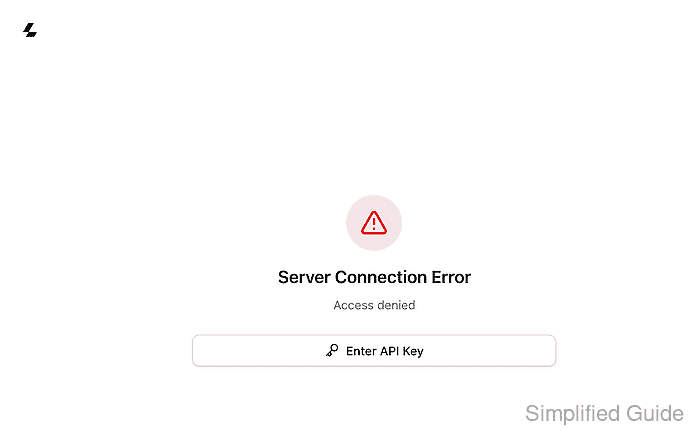
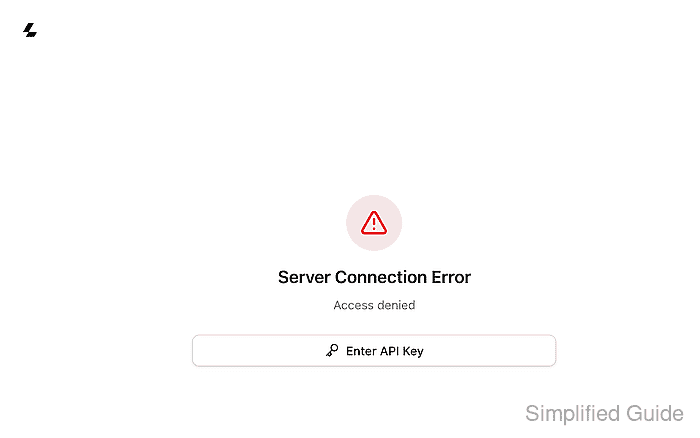
The reachable UI shows Access denied and offers Enter API Key when authentication is required. If the browser reports a network failure or cannot load the page, startup errors or an incorrect host/port need resolving before authentication.
Related: How to use the llama.cpp server web UI - Click Enter API Key.
- Sign in with the key from ~/.config/llama.cpp/api-key using API Key and Save & Retry.
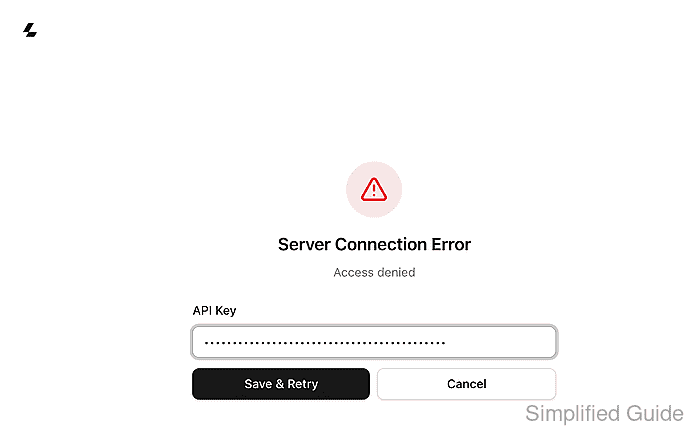
An accepted key opens the conversation. Another key prompt or Invalid API Key means the entered key does not match the file loaded at startup.
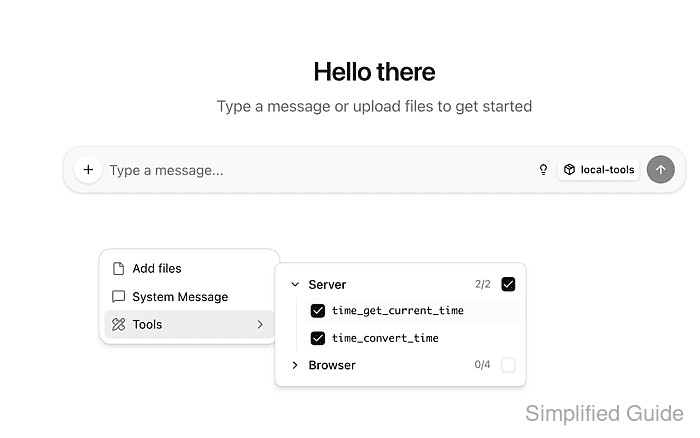
- Click the plus button beside the message editor.
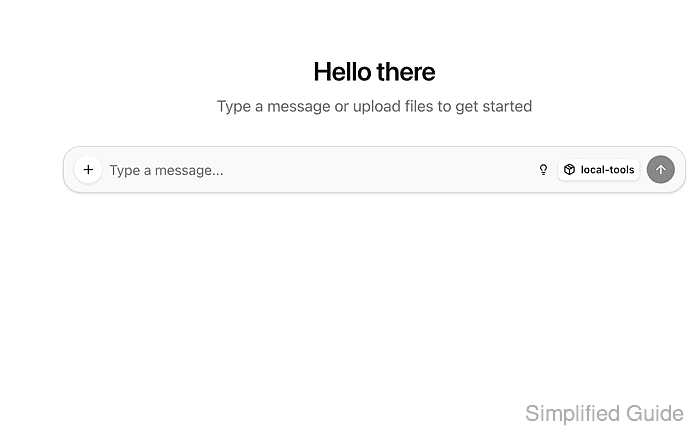
Its accessible name is Add files, prompts, tools or MCP Servers.
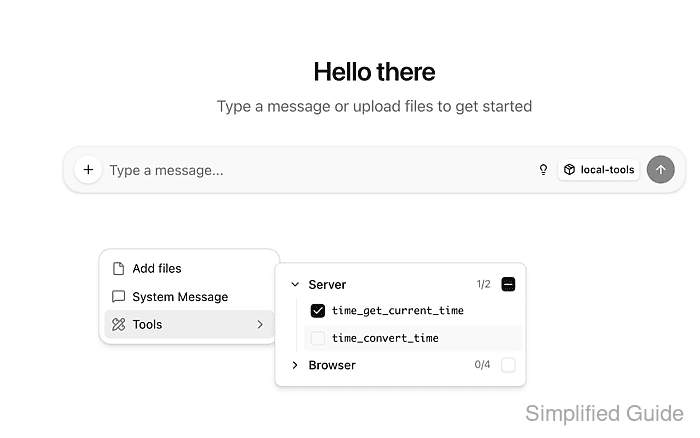
- Choose Tools from the menu.
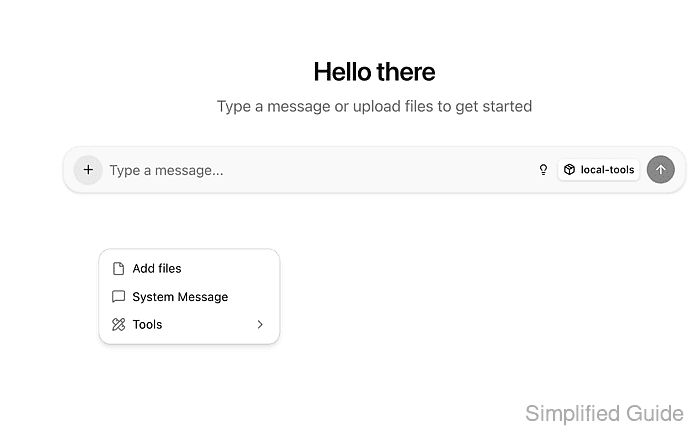
- Clear the checkbox beside Browser.
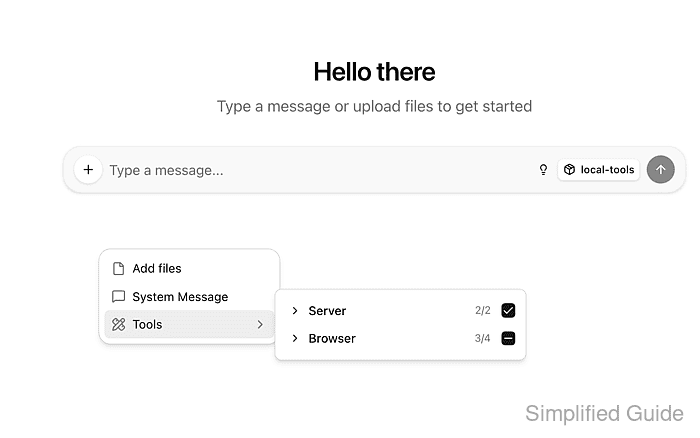
This disables the independent browser tools, including get_datetime, so a browser result cannot be mistaken for the configured MCP time server.
- Expand the Server tool group.
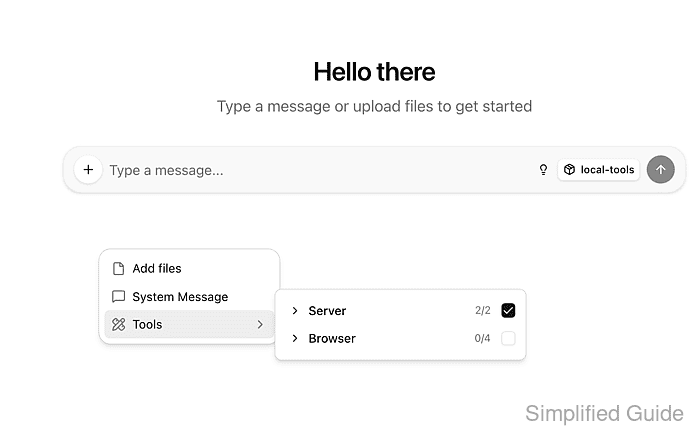
The group should contain time_get_current_time and time_convert_time. If it is absent, server logs can distinguish an unrecognized option, invalid JSON or a missing executable; a populated group confirms discovery but not execution.
- Clear time_convert_time to leave only time_get_current_time selected.
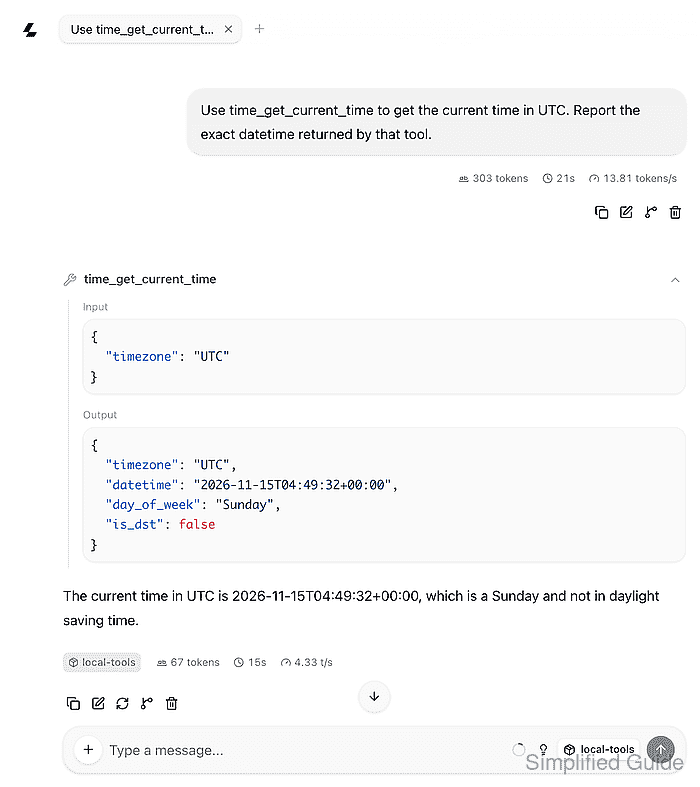
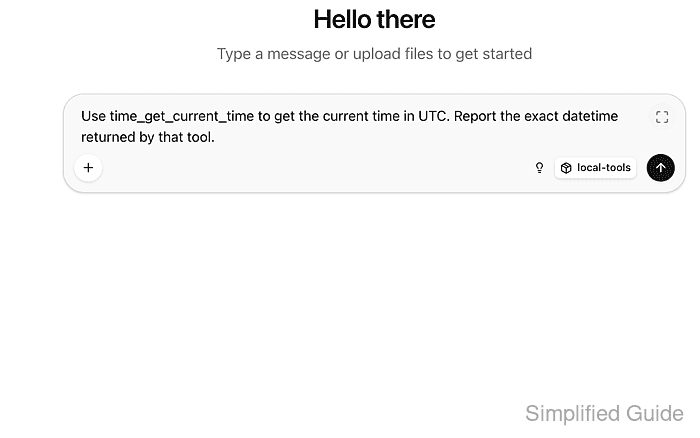
- Enter Use time_get_current_time to get the current time in UTC. Report the exact datetime returned by that tool. in the message editor.
The editor is labelled Type a message….
- Click the upward-arrow Send button.
- Approve the requested time_get_current_time call with Allow once.
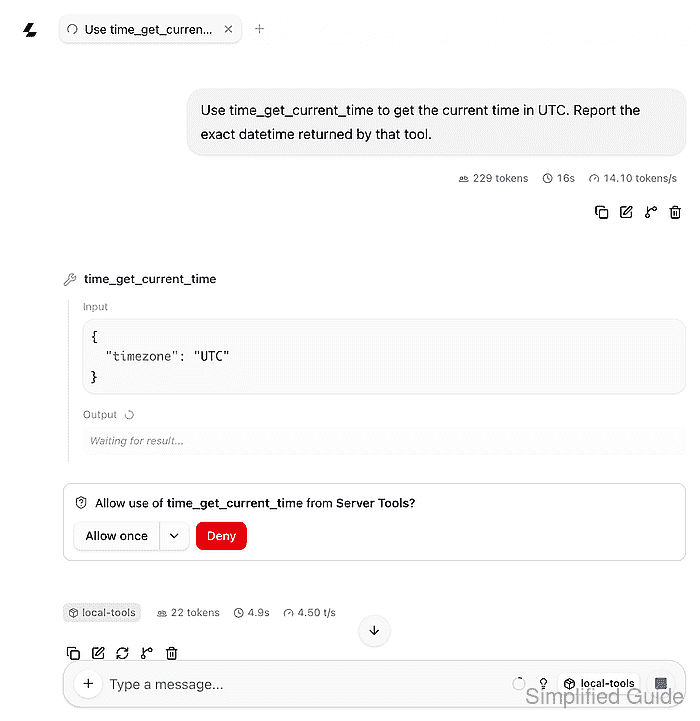
The prompt identifies Server Tools and the requested tool. If the model answers without a call, the server tool must be selected and the model must support tool calling; an ordinary time-looking answer is insufficient.
- Expand the completed time_get_current_time tool card with Toggle content.
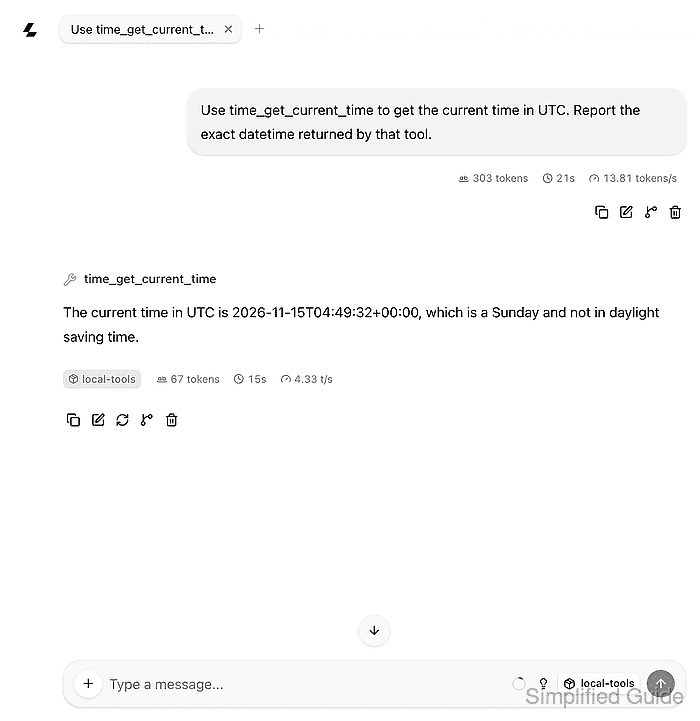
- Confirm that the tool's Output contains a UTC datetime matching the completed assistant answer. Example output:
{
  "timezone": "UTC",
  "datetime": "2026-11-15T04:49:32+00:00",
  "day_of_week": "Sunday",
  "is_dst": false
}
The Input should contain "timezone": "UTC". The returned time and reply wording vary. A missing output, error, mismatched datetime or unfinished reply means the exchange has not completed successfully; the expanded result distinguishes tool output from model-generated text.