The llama.cpp server includes a browser chat interface on the same HTTP listener used by its API endpoints. Using that built-in Web UI is a quick way to confirm a loaded GGUF model can answer prompts before connecting an application, coding agent, or OpenAI-compatible client.
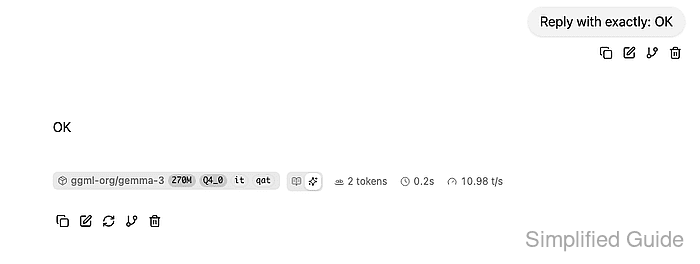
llama-server serves the Web UI from the same process that answers health, model-list, and chat-completion requests. A working page should show the loaded model and return generated text without a separate Open WebUI or reverse proxy.
Keep the UI bound to the loopback interface for local testing unless remote users intentionally need access. A browser session can submit prompts, upload local context files, and read model output, so exposing the listener on a shared network should be treated like exposing the API itself.
Related: How to start the llama.cpp server
Related: How to check llama.cpp server health
Related: How to call the llama.cpp chat completions API
Steps to use the llama.cpp server web UI:
- Start llama-server with a loaded model and the Web UI enabled.
$ llama-server \
  --hf-repo ggml-org/gemma-3-270m-it-qat-GGUF:Q4_0 \
  --host 127.0.0.1 \
  --port 8080
llama_server: model loaded
llama_server: listening on http://127.0.0.1:8080
The Web UI is enabled by default unless llama-server starts with --no-ui. Replace the --hf-repo value with the GGUF model repo, quant, or local -m path used for normal inference.
Related: How to start the llama.cpp server
Related: How to set llama.cpp server host and port - Confirm the server reports ready state.
$ curl --silent http://127.0.0.1:8080/health
{"status":"ok"}
An HTTP 503 response means the model is still loading. Wait for /health to return ok before using the browser.
Related: How to check llama.cpp server health - Open the Web UI URL in a browser.
http://127.0.0.1:8080
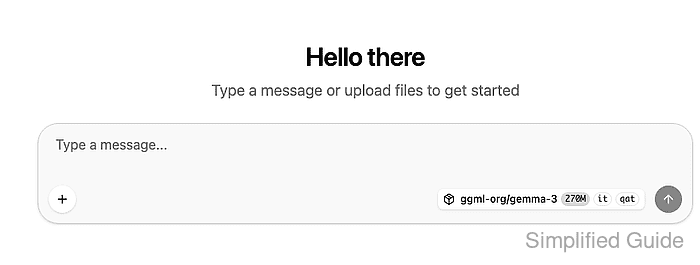
The model chip beside Send should match the model loaded by llama-server. If the server was started in router mode without a model, load a model before sending a chat prompt.
- Enter a short prompt in the message box.
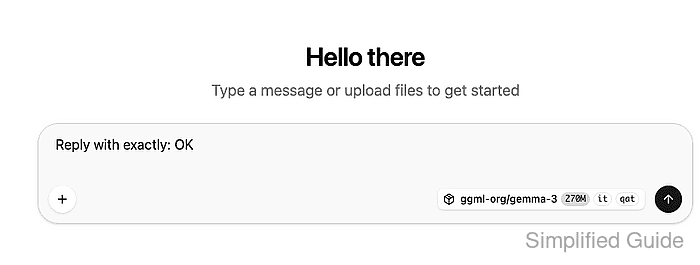
- Click Send and wait for the assistant response.
The response area should show generated text plus generation details such as token count, elapsed time, or tokens per second.
- Confirm the model endpoint lists the same model shown in the browser.
$ curl --silent http://127.0.0.1:8080/v1/models
{
  "object": "list",
  "data": [
    {
      "id": "ggml-org/gemma-3-270m-it-qat-GGUF:Q4_0",
      "owned_by": "llamacpp"
    }
  ]
}

Mohd Shakir Zakaria is a cloud architect with deep roots in software development and open-source advocacy. Certified in AWS, Red Hat, VMware, ITIL, and Linux, he specializes in designing and managing robust cloud and on-premises infrastructures.


