A cron job should be edited when the same scheduled task needs a new command, cadence, output path, or environment line. Replacing the existing entry keeps the owning account and crontab history intact while avoiding duplicate runs from an old line left behind.
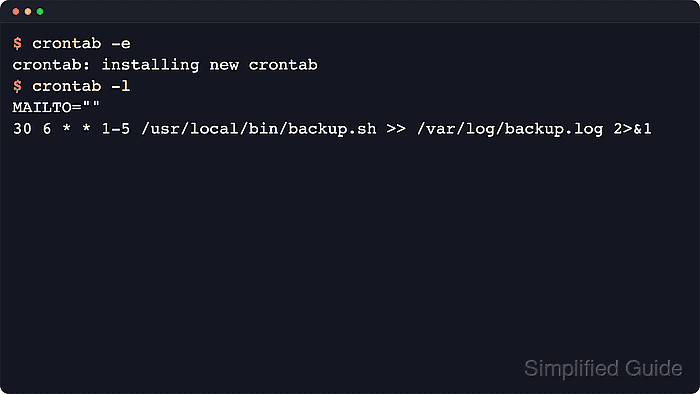
Per-user cron jobs are changed with crontab -e, which opens a temporary copy of the current user's crontab and installs the saved version after the editor exits. Use the account that owns the job before editing. System-wide entries in /etc/crontab or files under /etc/cron.d include an extra username field and should be edited in their owning file instead of copied into a user crontab.
Cron starts commands with a smaller environment than an interactive shell. Keep explicit environment lines, absolute command paths, and output redirection when editing a job. A harmless one-minute proof command is easy to validate during a change window; production jobs can use the same replacement pattern and should be checked through their normal logs after the next scheduled run.
Related: How to list cron jobs in Linux
Related: How to create a cron job in Linux
Related: How to remove a cron job in Linux
Steps to edit a cron job in Linux:
- List the current user's crontab and identify the exact line to replace.
$ crontab -l
SHELL=/bin/sh
PATH=/usr/local/sbin:/usr/local/bin:/usr/sbin:/usr/bin:/sbin:/bin
MAILTO=""
* * * * * /usr/bin/printf 'before-edit\n' >> /tmp/cron-edit-proof.log 2>&1
If crontab -l says there is no crontab for the current account, create the job first instead of editing a missing table.
Related: How to create a cron job in Linux - Open the current user's crontab in the editor.
$ crontab -e
The editor comes from $VISUAL or $EDITOR on common cron implementations. If the wrong editor opens, change the default editor before editing again.
Related: How to change the default editor in Linux - Replace only the target cron line and keep any environment lines that still apply.
SHELL=/bin/sh
PATH=/usr/local/sbin:/usr/local/bin:/usr/sbin:/usr/bin:/sbin:/bin
MAILTO=""
* * * * * /usr/bin/printf 'after-edit\n' >> /tmp/cron-edit-proof.log 2>&1
Do not leave the old and new lines in the same crontab unless the command should run twice.
When changing the five time fields, preview the new expression before saving it.
Tool: Cron Expression Parser - Save the file and exit the editor.
crontab installs the saved version automatically. A separate cron service restart is not normally required for a user crontab edited through crontab -e.
- List the crontab again and confirm that the replacement line is installed.
$ crontab -l
SHELL=/bin/sh
PATH=/usr/local/sbin:/usr/local/bin:/usr/sbin:/usr/bin:/sbin:/bin
MAILTO=""
* * * * * /usr/bin/printf 'after-edit\n' >> /tmp/cron-edit-proof.log 2>&1
For a job owned by another account, use sudo crontab -u username -e and sudo crontab -u username -l after confirming the account name. System cron files under /etc/crontab and /etc/cron.d keep the username field between the schedule and command.
- Wait for the next scheduled run and inspect the proof output.
$ cat /tmp/cron-edit-proof.log
after-edit
For a production job that does not run every minute, check the job's normal log, output file, email, or application state after its next scheduled run.
- Remove the temporary proof log when testing is finished.
$ rm /tmp/cron-edit-proof.log

Mohd Shakir Zakaria is a cloud architect with deep roots in software development and open-source advocacy. Certified in AWS, Red Hat, VMware, ITIL, and Linux, he specializes in designing and managing robust cloud and on-premises infrastructures.


