Removing the wrong cron entry can stop valid maintenance, while leaving an obsolete entry lets a retired script keep running in the background. A safe removal starts by proving which account owns the schedule and matching the exact command line before changing the crontab.
Most Linux cron jobs installed by users are managed with crontab. The current account's table is listed with crontab -l and edited with crontab -e; another account's table requires the -u option through sudo. Files such as /etc/crontab and /etc/cron.d/job-name are system cron files, so they should be edited in place and kept in their username-column format.
Removing one job means deleting one schedule line, not clearing the whole table. The crontab -r option removes the entire user crontab, and cron reloads saved crontab changes automatically, so the final check is a fresh listing that no longer includes the target command.
Steps to remove a cron job in Linux:
- List the current account's crontab and identify the exact line to remove.
$ crontab -l
MAILTO=""
0 5 * * * /usr/local/bin/backup.sh
15 * * * * /usr/local/bin/rotate-logs.sh
crontab -l shows only the current account's personal crontab. If it prints no crontab for username, check the account that owns the job or the system cron files under /etc/crontab and /etc/cron.d.
Related: How to list cron jobs in Linux
Tool: Cron Expression Parser - Open the same crontab in the editor.
$ crontab -e
The editor comes from $VISUAL or $EDITOR. Use sudo crontab -u username -e when the job runs under another account such as root.
- Delete only the obsolete schedule line and leave environment lines plus other jobs in place.
MAILTO=""
15 * * * * /usr/local/bin/rotate-logs.sh
Do not use crontab -r unless every job in that user's crontab should be removed.
- Save the file and exit the editor.
crontab: installing new crontab
If the job is defined in /etc/crontab or a file under /etc/cron.d, use sudoedit on that file and keep the extra username field on every remaining schedule line.
- List the crontab again and confirm the deleted command is absent.
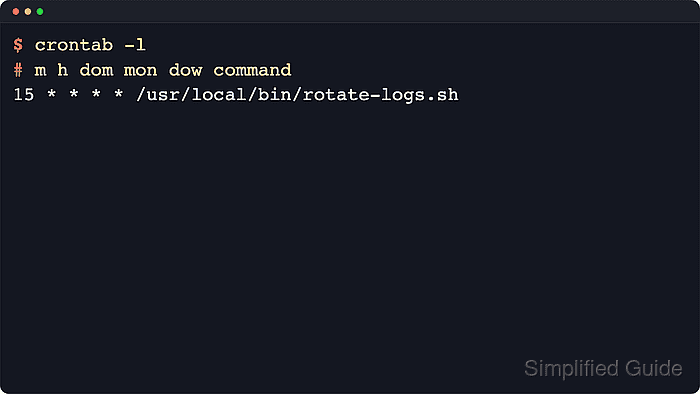
$ crontab -l
MAILTO=""
15 * * * * /usr/local/bin/rotate-logs.sh
Saving through crontab installs the updated table. A cron service restart is not normally required after crontab -e.

Mohd Shakir Zakaria is a cloud architect with deep roots in software development and open-source advocacy. Certified in AWS, Red Hat, VMware, ITIL, and Linux, he specializes in designing and managing robust cloud and on-premises infrastructures.


