A cron job belongs in a crontab when a maintenance command must keep running on schedule after the operator logs out. Backups, report scripts, cleanup commands, and health probes all need the same proof before handoff. The right account owns the entry, the command path is explicit, and a first scheduled run leaves visible output.
A per-user crontab is managed with crontab, and each active job line contains five time fields followed by the command. The cron daemon checks installed crontabs once per minute and reloads changed tables automatically, so saving through crontab -e installs the schedule without editing files under /var/spool/cron directly.
Cron starts jobs with a smaller environment than an interactive shell. Use absolute paths, explicit environment lines, and output redirection while testing. Some current cron implementations support a CRON_TZ environment line for a crontab-specific timezone, but Vixie/Debian-style cron may handle jobs in the daemon's timezone, so confirm timezone behavior on the target host before scheduling time-sensitive work. Escape any % inside the command as \% because cron treats unescaped percent signs as input separators.
Related: How to automate Linux backups
Tool: Crontab Generator
Steps to create a cron job in Linux:
- Decide on the schedule and command before opening the crontab.
# m h dom mon dow command
*/15 * * * * /usr/local/bin/report-health.sh
0 2 * * * /usr/local/bin/backup-home.sh
@daily /usr/local/bin/cleanup-temp.sh
The five fields are minute, hour, day of month, month, and day of week. Shorthand forms such as @hourly, @daily, and @reboot are supported by common Linux cron implementations.
If both day-of-month and day-of-week are restricted, many cron implementations run the command when either field matches.
- Open the current user's crontab.
$ crontab -e
The editor comes from $VISUAL or $EDITOR. Use sudo crontab -e only when the scheduled command truly needs to run as root.
- Add environment lines and a proof job that appends a UTC timestamp to /tmp/cron-proof.log every minute.
SHELL=/bin/sh
PATH=/usr/local/sbin:/usr/local/bin:/usr/sbin:/usr/bin:/sbin:/bin
MAILTO=""
* * * * * /bin/date -u +\%Y-\%m-\%dT\%H:\%M:\%SZ >> /tmp/cron-proof.log 2>&1
Use absolute paths for commands, scripts, and log files because cron usually runs with a minimal PATH. Escape each % in date format strings as \%.
- Save the file and exit the editor.
The crontab command installs the updated schedule for the current account. Do not edit /var/spool/cron or /var/spool/cron/crontabs directly.
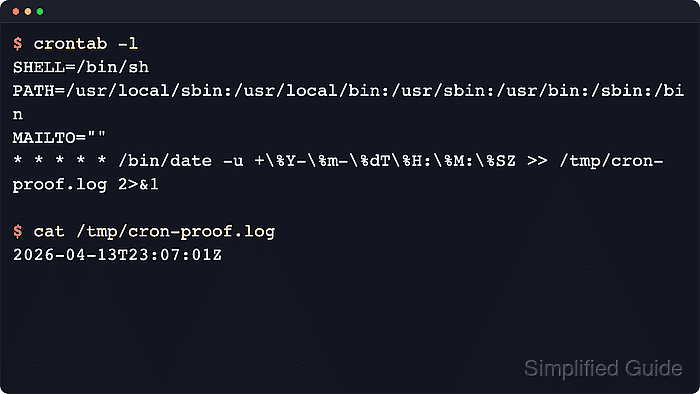
- List the current user's crontab and confirm that the job is installed.
$ crontab -l
SHELL=/bin/sh
PATH=/usr/local/sbin:/usr/local/bin:/usr/sbin:/usr/bin:/sbin:/bin
MAILTO=""
* * * * * /bin/date -u +\%Y-\%m-\%dT\%H:\%M:\%SZ >> /tmp/cron-proof.log 2>&1
Saving through crontab is normally enough. The cron daemon reloads changed crontabs automatically, so a service restart is not usually required.
Related: How to list cron jobs in Linux - Wait for the next scheduled minute, then inspect the proof output.
$ cat /tmp/cron-proof.log
2026-06-13T02:03:01Z
A timestamp in the proof file confirms that cron matched the schedule and ran the command.
- Replace the proof command with the real workload after the schedule is confirmed.
$ crontab -e
Keep the verified time fields when the interval is correct, then swap only the command and output path for the production job.
- Remove the temporary proof log when it is no longer needed.
$ rm /tmp/cron-proof.log

Mohd Shakir Zakaria is a cloud architect with deep roots in software development and open-source advocacy. Certified in AWS, Red Hat, VMware, ITIL, and Linux, he specializes in designing and managing robust cloud and on-premises infrastructures.


