Listing cron jobs in Linux shows which commands still run on a schedule for personal accounts, service accounts, and the system itself. That inventory matters when recurring mail, duplicate maintenance, unexpected load, or old automation needs to be traced back to the crontab that owns it.
The crontab command lists per-user schedules, while system cron entries can live in /etc/crontab, files under /etc/cron.d/, and periodic directories called by run-parts. A complete check follows those storage locations instead of assuming every job appears in the current user's crontab.
System-wide cron files usually need sudo to read, and /etc/crontab plus files under /etc/cron.d/ include a username field between the schedule and the command. A user account with no personal crontab can return no crontab for alice, which only means that account has no schedule installed through crontab.
Steps to list cron jobs in Linux:
- List the current user's crontab.
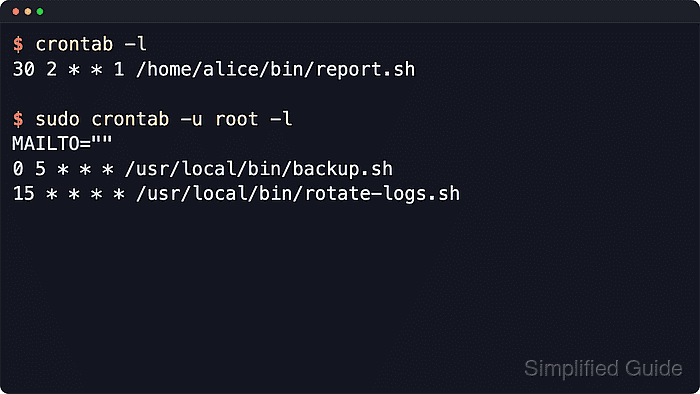
$ crontab -l
30 2 * * 1 /home/alice/bin/report.sh
If the account has no installed user crontab, crontab -l prints a message such as no crontab for alice instead of schedule lines.
Related: How to create a cron job in Linux
Related: How to edit a cron job in Linux
Related: How to remove a cron job in Linux
Tool: Cron Expression Parser - List the saved crontab owners from the cron spool.
$ sudo ls -1 /var/spool/cron/crontabs
alice
root
Do not edit files under /var/spool/cron or /var/spool/cron/crontabs directly. Use crontab -e so ownership, permissions, and syntax checks stay intact. Debian-style cron stores per-user crontabs under /var/spool/cron/crontabs, while some distributions use /var/spool/cron.
- List root's crontab or another account's crontab.
$ sudo crontab -u root -l
MAILTO=""
0 5 * * * /usr/local/bin/backup.sh
15 * * * * /usr/local/bin/rotate-logs.sh
Replace root with another owner from the spool listing when a scheduled job belongs to a service or administrative account. The -u option changes which personal crontab is shown.
- Read the system crontab.
$ sudo cat /etc/crontab
# /etc/crontab: system-wide crontab
# Unlike any other crontab you don't have to run the `crontab'
# command to install the new version when you edit this file
# and files in /etc/cron.d. These files also have username fields,
# that none of the other crontabs do.

SHELL=/bin/sh
# You can also override PATH, but by default, newer versions inherit it from the environment
#PATH=/usr/local/sbin:/usr/local/bin:/usr/sbin:/usr/bin:/sbin:/bin

# Example of job definition:
# .---------------- minute (0 - 59)
# |  .------------- hour (0 - 23)
# |  |  .---------- day of month (1 - 31)
# |  |  |  .------- month (1 - 12) OR jan,feb,mar,apr ...
# |  |  |  |  .---- day of week (0 - 6) (Sunday=0 or 7) OR sun,mon,tue,wed,thu,fri,sat
# |  |  |  |  |
# *  *  *  *  * user-name command to be executed
17 *	* * *	root	cd / && run-parts --report /etc/cron.hourly
25 6	* * *	root	test -x /usr/sbin/anacron || { cd / && run-parts --report /etc/cron.daily; }
47 6	* * 7	root	test -x /usr/sbin/anacron || { cd / && run-parts --report /etc/cron.weekly; }
52 6	1 * *	root	test -x /usr/sbin/anacron || { cd / && run-parts --report /etc/cron.monthly; }
Entries in /etc/crontab add a username field between the time fields and the command, unlike personal crontabs shown with crontab -l.
- List the drop-in cron files under /etc/cron.d/.
$ sudo ls -1 /etc/cron.d
backup-audit
e2scrub_all
Files under /etc/cron.d/ are system crontabs. They use the same schedule, username, and command format as /etc/crontab, but they do not inherit environment lines from /etc/crontab.
- Read the drop-in file that contains the schedule being investigated.
$ sudo cat /etc/cron.d/backup-audit
SHELL=/bin/sh
PATH=/usr/local/sbin:/usr/local/bin:/usr/sbin:/usr/bin:/sbin:/bin
30 3 * * 0 root /usr/local/sbin/backup-audit
Replace backup-audit with the actual file name from /etc/cron.d/. Package-managed cron files may contain comments or environment lines before the schedule entries.
- List the periodic directories called by run-parts.
$ sudo ls -1 /etc/cron.hourly /etc/cron.daily /etc/cron.weekly /etc/cron.monthly
/etc/cron.daily:
apt-compat
dpkg

/etc/cron.hourly:

/etc/cron.monthly:

/etc/cron.weekly:
A script inside one of these directories is still part of cron scheduling when /etc/crontab calls run-parts for that interval.

Mohd Shakir Zakaria is a cloud architect with deep roots in software development and open-source advocacy. Certified in AWS, Red Hat, VMware, ITIL, and Linux, he specializes in designing and managing robust cloud and on-premises infrastructures.


