A Jupyter Notebook session becomes reachable from another machine only when its web server listens on a network address and the network path allows the chosen port. Remote access fits a single-user workstation, lab server, or development host where a browser on another machine needs to open the Notebook interface.
Notebook 7 is served by Jupyter Server, so persistent listener settings belong in /~/.jupyter/jupyter_server_config.py as ServerApp traits. The bind address controls which server interfaces accept browser connections, while the hostname check controls which Host header values Jupyter treats as intentional.
Treat direct remote access as single-user exposure, not as a multi-user notebook platform. Set a password or keep token authentication enabled, use HTTPS before crossing an untrusted network, and restrict the firewall to known client addresses instead of opening the Notebook port broadly.
Steps to configure remote access to Jupyter Notebook:
- Choose the browser hostname, Notebook port, and trusted client network.
Use notebooks.example.net, port 8899, and client network 198.51.100.0/24 as replaceable sample values.
- Show the active Jupyter configuration directory.
$ jupyter --config-dir
/home/analyst/.jupyter
- Generate the Jupyter Server config file if it does not already exist.
$ jupyter server --generate-config
Writing default config to: '/home/analyst/.jupyter/jupyter_server_config.py'
If /~/.jupyter/jupyter_server_config.py already exists, save a backup before overwriting a file that contains custom settings.
- Open the Jupyter Server config file.
$ vi ~/.jupyter/jupyter_server_config.py
- Add the remote listener settings.
c.ServerApp.ip = "0.0.0.0"
c.ServerApp.open_browser = False
c.ServerApp.port = 8899
c.ServerApp.port_retries = 0
c.ServerApp.local_hostnames = ["notebooks.example.net"]
0.0.0.0 listens on all IPv4 interfaces. Use a specific server address when only one interface should accept Notebook traffic. If clients must connect by bare IP address, the broader c.ServerApp.allow_remote_access = True fallback disables Jupyter's non-local Host header protection, so use it only with authentication, HTTPS, and a restrictive firewall.
- Confirm Notebook reads the remote listener settings.
$ jupyter notebook --show-config
Loaded config files:
  /home/analyst/.jupyter/jupyter_server_config.py

ServerApp
  .ip = '0.0.0.0'
  .local_hostnames = ['notebooks.example.net']
  .open_browser = False
  .port = 8899
  .port_retries = 0
- Allow the Notebook port from the trusted client network.
$ sudo ufw allow from 198.51.100.0/24 to any port 8899 proto tcp
Use the equivalent host firewall, cloud security group, or network ACL rule when the server does not use UFW. Avoid a global 0.0.0.0/0 allow rule unless the server is intentionally public and protected by a stronger access layer.
- Start Jupyter Notebook without opening a browser on the server.
$ jupyter notebook --no-browser
[I ServerApp] Serving notebooks from local directory: /home/analyst/notebooks
[I ServerApp] Jupyter Server 2.20.0 is running at:
[I ServerApp] http://notebooks.example.net:8899/tree?token=<token>
The token in startup output grants access to the running session. Do not paste a real token URL into shared tickets, screenshots, or logs.
- List the running Jupyter server.
$ jupyter server list
Currently running servers:
http://notebooks.example.net:8899/?token=<token> :: /home/analyst/notebooks
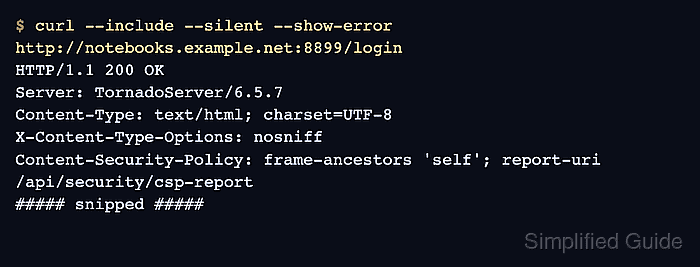
- Check the login page from an allowed client.
$ curl --include --silent --show-error http://notebooks.example.net:8899/login
HTTP/1.1 200 OK
Server: TornadoServer/6.5.7
Content-Type: text/html; charset=UTF-8
X-Content-Type-Options: nosniff
Content-Security-Policy: frame-ancestors 'self'; report-uri /api/security/csp-report
##### snipped #####
Use https://notebooks.example.net:8899/login when ServerApp.certfile and ServerApp.keyfile are configured. An HTTP 200 OK login page proves the listener, hostname check, firewall path, and Notebook web app are reachable; successful login still requires the configured password or token.

Mohd Shakir Zakaria is a cloud architect with deep roots in software development and open-source advocacy. Certified in AWS, Red Hat, VMware, ITIL, and Linux, he specializes in designing and managing robust cloud and on-premises infrastructures.


