A Jupyter Notebook server can use a saved password instead of asking for the one-time token URL printed at startup. This fits a single-user Notebook session that is opened repeatedly from the same browser, a remote workstation, or a managed service account where copying tokenized URLs from the terminal is awkward.
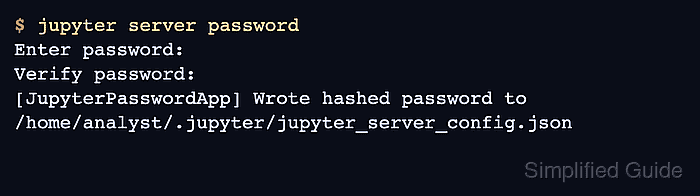
Notebook 7 is served by Jupyter Server, so the password command is jupyter server password even when the interface is started with jupyter notebook. Jupyter prompts twice, stores an Argon2 hash in /~/.jupyter/jupyter_server_config.json, and does not write the cleartext password to the configuration file.
Password authentication does not replace transport security or access control. Use HTTPS before sending the login form across a network, bind the server only to the intended address, and keep token URLs, config files, and command transcripts out of shared tickets or screenshots unless secrets are masked.
Steps to set a Jupyter Notebook password:
- Choose a unique password for this Notebook server.
Store the password in a password manager and avoid reusing a shell, database, or account password.
Tool: Secure Password Generator - Run the Jupyter Server password command.
$ jupyter server password
Enter password:
Verify password:
[JupyterPasswordApp] Wrote hashed password to /home/analyst/.jupyter/jupyter_server_config.json
The prompt does not echo typed characters. Re-run the same command later to replace a lost or exposed password.
- Show the active Jupyter configuration directory.
$ jupyter --config-dir
/home/analyst/.jupyter
- Confirm the saved password hash in the generated JSON config file.
$ python -m json.tool ~/.jupyter/jupyter_server_config.json
{
    "IdentityProvider": {
        "hashed_password": "argon2:$argon2id$v=19$m=10240,t=10,p=8$##### snipped #####"
    }
}
Current Jupyter Server writes IdentityProvider.hashed_password. Older examples may show ServerApp.password or a manual setting in /~/.jupyter/jupyter_server_config.py.
- Start Jupyter Notebook without opening a browser automatically.
$ jupyter notebook --no-browser --port=8899
[I ServerApp] Serving notebooks from local directory: /srv/notebooks
[I ServerApp] Jupyter Server is running at:
[I ServerApp] http://localhost:8899/tree
The startup URL no longer includes a ?token= query string after the password hash is active.
- List the running server URL.
$ jupyter server list
Currently running servers:
http://localhost:8899/ :: /srv/notebooks
A listed URL without ?token= means the normal login path is the password form for this server.
Related: How to stop a running Jupyter Server

Mohd Shakir Zakaria is a cloud architect with deep roots in software development and open-source advocacy. Certified in AWS, Red Hat, VMware, ITIL, and Linux, he specializes in designing and managing robust cloud and on-premises infrastructures.


