A remote Jupyter Notebook session can stay bound to the remote host's loopback address while SSH carries the browser traffic back to the local workstation. This fits personal Notebook work on a remote Linux machine where SSH is already allowed but the Notebook port should not be opened to the network.
Notebook 7 is served by Jupyter Server, so the server output and configuration names use ServerApp even when the interface starts with jupyter notebook. Starting Notebook without browser auto-open on the remote loopback address prints a tokenized local URL on the remote shell, and the SSH client forwards a different workstation port, such as 8899, to the remote Notebook port.
The tunnel protects the listener from direct network exposure, but it does not remove Notebook authentication. Treat token URLs as secrets, keep the SSH tunnel terminal open while using the browser, and use a separate multi-user service or secured public-server setup when shared access is needed.
Steps to access Jupyter Notebook through an SSH tunnel:
- Open an SSH shell on the remote host that runs Jupyter Notebook.
$ ssh analyst@notebook.example.com
- Start Jupyter Notebook on the remote host without opening a browser.
$ jupyter notebook --no-browser --ip=127.0.0.1 --port=8888
[I ServerApp] Serving notebooks from local directory: /srv/notebooks
[I ServerApp] Jupyter Server is running at:
[I ServerApp] http://127.0.0.1:8888/tree?token=<token>
The token in the startup URL grants access to the running Notebook session. Do not paste a real token into shared tickets, screenshots, or logs.
- List the running server from another remote shell when the startup URL is no longer visible.
$ jupyter server list
Currently running servers:
http://127.0.0.1:8888/?token=<token> :: /srv/notebooks
The listed URL should point to 127.0.0.1 or localhost on the remote host, not a public interface.
Related: How to find a Jupyter Notebook login token - Start the SSH tunnel from a local terminal.
$ ssh -N -L 8899:127.0.0.1:8888 analyst@notebook.example.com
The first port, 8899, is the local browser port. The last port, 8888, is the remote Notebook port. Change 8899 if that port is already in use locally.
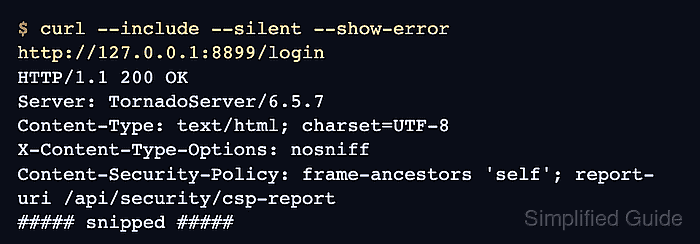
- Check the forwarded login page from another local terminal.
$ curl --include --silent --show-error http://127.0.0.1:8899/login
HTTP/1.1 200 OK
Server: TornadoServer/6.5.7
Content-Type: text/html; charset=UTF-8
X-Content-Type-Options: nosniff
Content-Security-Policy: frame-ancestors 'self'; report-uri /api/security/csp-report
##### snipped #####
- Open the forwarded Notebook URL in a local browser.
http://127.0.0.1:8899/tree?token=<token>
Replace <token> with the token printed by the remote Notebook server, or use the Notebook password if the server has one configured.
- Stop the local tunnel when the browser session is finished.
Press Ctrl-C in the terminal running the ssh -N -L command. Closing the tunnel disconnects the browser path but does not stop the remote Notebook server.
- Stop the remote Notebook server when the session is complete.
$ jupyter server stop 8888
[JupyterServerStopApp] Shutting down server on 8888...
Related: How to stop a running Jupyter Server

Mohd Shakir Zakaria is a cloud architect with deep roots in software development and open-source advocacy. Certified in AWS, Red Hat, VMware, ITIL, and Linux, he specializes in designing and managing robust cloud and on-premises infrastructures.


