Hybrid Android screens can render important state inside a WebView where normal Espresso view matchers stop at the native widget. Espresso-Web crosses that boundary by running WebDriver-style atoms inside the document, so a test can find DOM elements, type into fields, click controls, and assert rendered page text.
The espresso-web artifact belongs in the app module's androidTest classpath alongside espresso-core. The test still launches an activity with ActivityScenarioRule; only the interactions after the WebView boundary use onWebView(), findElement(), and webMatches().
Start with a screen whose HTML exposes stable IDs and whose page state is deterministic. JavaScript must be available for Espresso-Web atoms; forceJavascriptEnabled() can enable it during the test, but the call may reload the WebView, so run it before selecting DOM nodes.
Related: How to write a first Espresso test
Related: How to wait for UI elements in Espresso
Steps to test WebView content with Espresso-Web:
- Add Espresso-Web to the app module's instrumented test dependencies.
- build.gradle.kts
val espressoVersion = "3.7.0"

dependencies {
    androidTestImplementation(
        "androidx.test.espresso:" +
            "espresso-core:$espressoVersion"
    )
    androidTestImplementation(
        "androidx.test.espresso:" +
            "espresso-web:$espressoVersion"
    )
}
Use the project's existing version catalog when it already manages AndroidX Test versions. Keep espresso-core and espresso-web on the same release.
Related: How to configure an Android project for Espresso - Target stable DOM IDs in the page loaded by the WebView.
<form id="checkout-form">
  <input id="email" type="email" />
  <button id="submit" type="submit">Submit</button>
</form>
<p id="receipt"></p>
Locator.ID selects HTML element IDs, not Android resource IDs. Use withId(R.id.checkout_webview) separately when the activity contains more than one WebView.
- Create the Espresso-Web test class under the app module's androidTest source set.
- WebViewCheckoutTest.kt
package com.example.app

import androidx.test.espresso.matcher.ViewMatchers.withId
import androidx.test.espresso.web.assertion.WebViewAssertions.webMatches
import androidx.test.espresso.web.sugar.Web.onWebView
import androidx.test.espresso.web.webdriver.DriverAtoms.clearElement
import androidx.test.espresso.web.webdriver.DriverAtoms.findElement
import androidx.test.espresso.web.webdriver.DriverAtoms.getText
import androidx.test.espresso.web.webdriver.DriverAtoms.webClick
import androidx.test.espresso.web.webdriver.DriverAtoms.webKeys
import androidx.test.espresso.web.webdriver.Locator
import androidx.test.ext.junit.rules.ActivityScenarioRule
import androidx.test.ext.junit.runners.AndroidJUnit4
import androidx.test.filters.LargeTest
import org.hamcrest.Matchers.containsString
import org.junit.Rule
import org.junit.Test
import org.junit.runner.RunWith

@RunWith(AndroidJUnit4::class)
@LargeTest
class WebViewCheckoutTest {

    @get:Rule
    val activityRule =
        ActivityScenarioRule(WebCheckoutActivity::class.java)

    @Test
    fun submittingEmailShowsReceipt() {
        onWebView(withId(R.id.checkout_webview))
            .forceJavascriptEnabled()
            .withElement(findElement(Locator.ID, "email"))
            .perform(clearElement())
            .perform(webKeys("buyer@example.com"))
            .withElement(findElement(Locator.ID, "submit"))
            .perform(webClick())
            .withElement(findElement(Locator.ID, "receipt"))
            .check(
                webMatches(
                    getText(),
                    containsString("buyer@example.com")
                )
            )
    }
}
- Replace the sample activity, WebView resource ID, DOM IDs, input value, and receipt assertion with values from the app under test.
If a click loads another document, call reset() before selecting elements on the new page. Keep the final assertion on the rendered DOM state that proves the hybrid screen handled the input.
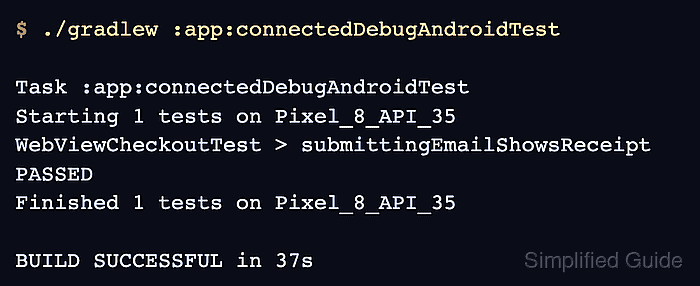
- Run the connected Espresso test task on an emulator or device.
$ ./gradlew :app:connectedDebugAndroidTest

Task :app:connectedDebugAndroidTest
Starting 1 tests on Pixel_8_API_35
WebViewCheckoutTest > submittingEmailShowsReceipt PASSED
Finished 1 tests on Pixel_8_API_35

BUILD SUCCESSFUL in 37s
The task name changes with the module and variant. Android projects with product flavors may expose a task such as :app:connectedFreeDebugAndroidTest.
Related: How to run Espresso tests locally

Mohd Shakir Zakaria is a cloud architect with deep roots in software development and open-source advocacy. Certified in AWS, Red Hat, VMware, ITIL, and Linux, he specializes in designing and managing robust cloud and on-premises infrastructures.


