Local Espresso runs give an Android developer the quickest feedback on whether an instrumented UI test still passes on the emulator or device in front of them. A connected test run installs the app APK and test APK, executes the test package through AndroidJUnitRunner, and returns a Gradle result before the same suite moves into CI.
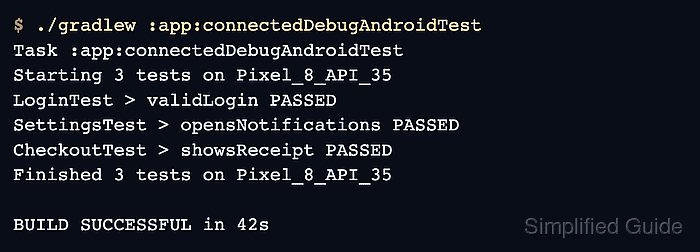
The Gradle connected Android test task uses every ready emulator or device that adb reports. A module-specific task such as :app:connectedDebugAndroidTest keeps the local loop on the app module and debug variant while still writing the connected HTML report and result files under that module's build directory.
Start from an app module that already declares Espresso dependencies, an AndroidJUnitRunner, and at least one test under androidTest. If adb shows no ready device, Gradle fails before any test result can prove the app behavior.
Steps to run Espresso tests locally:
- Confirm that adb sees a ready emulator or device.
$ adb devices
List of devices attached
emulator-5554    device
Rows ending in device are ready for a connected test run. Fix unauthorized, offline, or an empty list before starting Gradle.
- Run the connected Espresso task for the app module and variant.
$ ./gradlew :app:connectedDebugAndroidTest
Task :app:connectedDebugAndroidTest
Starting 3 tests on Pixel_8_API_35
LoginTest > validLogin PASSED
SettingsTest > opensNotifications PASSED
CheckoutTest > showsReceipt PASSED
Finished 3 tests on Pixel_8_API_35

BUILD SUCCESSFUL in 42s
Use the task printed by the project for its module and build variant, such as :mobile:connectedFreeDebugAndroidTest. The generic ./gradlew connectedAndroidTest task can run connected tests across all modules when that broader local pass is wanted.
- Treat a failed connected task as a test result, not only a build problem.
$ ./gradlew :app:connectedDebugAndroidTest
Task :app:connectedDebugAndroidTest

CheckoutTest > showsReceipt[emulator-5554] FAILED
    androidx.test.espresso.NoMatchingViewException: No views in hierarchy found matching: with text: "Receipt"

FAILURE: Build failed with an exception.
##### snipped #####
Keep the failing class, method, device, and first failure message together before rerunning a narrower scope.
Related: How to retry failed Espresso tests
Related: How to view device logs for Espresso tests - Confirm that Gradle wrote the connected HTML report.
$ ls app/build/reports/androidTests/connected/debug/index.html
app/build/reports/androidTests/connected/debug/index.html
Replace app and debug with the module and variant used by the connected task. Open this file in a browser when the console summary is not enough.
- Confirm that the connected result directory contains machine-readable test output.
$ ls app/build/outputs/androidTest-results/connected/debug
Pixel_8_API_35 - 35
TEST-Pixel8.xml
test-result.pb
The human report lives under build/reports/androidTests/connected/. JUnit-style XML for local tooling or CI import lives under build/outputs/androidTest-results/connected/.
Related: How to generate a JUnit report from Espresso tests

Mohd Shakir Zakaria is a cloud architect with deep roots in software development and open-source advocacy. Certified in AWS, Red Hat, VMware, ITIL, and Linux, he specializes in designing and managing robust cloud and on-premises infrastructures.


