Integrating DRBD with Pacemaker lets the cluster manager start, promote, demote, and monitor a replicated block device instead of leaving those role changes to manual drbdadm commands. Use this handoff when a single-writer service needs one DRBD node in the Primary role and another node ready for failover.
The integration uses the ocf:linbit:drbd resource agent as a Pacemaker promotable clone. Pacemaker starts one agent instance per eligible node, promotes one instance, keeps the other instance unpromoted, and exposes that role to filesystem, IP address, database, or application resources through constraints.
Start with an existing DRBD resource that parses on every node and has either DRBD quorum protection or a tested fencing design. After Pacemaker owns the resource, avoid enabling standalone systemd DRBD targets or running manual promotion commands unless the cluster is in a deliberate maintenance state.
Related: How to create a DRBD resource
Related: How to configure DRBD quorum
Related: How to configure DRBD fencing
Related: How to create a promotable resource in Pacemaker
Steps to integrate DRBD with Pacemaker:
- Confirm the Pacemaker cluster is online and has quorum.
$ sudo pcs status
Cluster name: storage-ha
Cluster Summary:
  * Stack: corosync (Pacemaker is running)
  * Current DC: node-a (version 2.1.7) - partition with quorum
  * 2 nodes configured
  * 0 resource instances configured

Node List:
  * Online: [ node-a node-b ]
Run pcs configuration changes from one cluster node only. Resolve quorum, fencing, or failed-action problems before adding a storage resource to the CIB.
Related: How to check Pacemaker cluster status - Check that the DRBD resource is connected and synchronized before handing it to the cluster.
$ sudo drbdadm status webdata
webdata role:Secondary
  volume:0 disk:UpToDate
  node-b role:Secondary
    volume:0 peer-disk:UpToDate
Replace webdata with the resource name from /etc/drbd.d. Do not continue while any peer is Inconsistent, Outdated, DUnknown, disconnected, or resynchronizing.
Related: How to check DRBD resource status
Related: How to verify DRBD synchronization state - Confirm the resource has a split-brain protection policy.
$ sudo drbdadm dump webdata
resource webdata {
    options {
        quorum           majority;
        on-no-quorum     io-error;
    }
##### snipped #####
}
DRBD quorum with on-no-quorum io-error is the usual protection path for current DRBD 9 clusters. A fencing-based design can be used instead when DRBD resource fencing and Pacemaker STONITH are both configured and tested.
Related: How to configure DRBD quorum
Related: How to configure DRBD fencing - Stop upper-layer writers before Pacemaker takes ownership of the resource.
$ sudo systemctl stop webapp.service
Replace webapp.service with the service, mount unit, database, or application that opens the DRBD device for writing. Skip this step only when no workload is using the resource yet.
- Demote the resource when it is still Primary outside cluster control.
$ sudo drbdadm secondary webdata
drbdadm secondary normally returns no output after a successful demotion. If the command fails because the device is busy, stop the remaining writer before retrying.
- Confirm the LINBIT DRBD resource agent is available to Pacemaker.
$ sudo pcs resource describe ocf:linbit:drbd
ocf:linbit:drbd - Manages a DRBD device as a promotable resource

Resource options:
  drbd_resource (required): The DRBD resource name from drbd.conf
On Debian and Ubuntu systems the agent is normally installed with drbd-utils. On RPM-based systems it can be packaged separately as drbd-pacemaker.
- Create a disabled Pacemaker primitive for the DRBD resource.
$ sudo pcs resource create p_drbd_webdata ocf:linbit:drbd drbd_resource=webdata op monitor interval=29s role=Promoted op monitor interval=31s role=Unpromoted --disabled
The drbd_resource= value must match the DRBD resource name, not the Pacemaker resource ID. Older stacks may show Master and Slave role names instead of Promoted and Unpromoted.
- Convert the primitive into a promotable clone.
$ sudo pcs resource promotable p_drbd_webdata ms_drbd_webdata meta promoted-max=1 promoted-node-max=1 clone-max=2 clone-node-max=1 notify=true
Use the clone ID, such as ms_drbd_webdata, for role-aware constraints and later promoted-role moves.
Related: How to create a promotable resource in Pacemaker - Check the saved Pacemaker resource definition.
$ sudo pcs resource config ms_drbd_webdata Clone: ms_drbd_webdata Meta Attrs: clone-max=2 clone-node-max=1 notify=true promoted-max=1 promoted-node-max=1 promotable=true Resource: p_drbd_webdata (class=ocf provider=linbit type=drbd) Attributes: drbd_resource=webdata Operations: monitor: p_drbd_webdata-monitor-interval-29s interval=29s role=Promoted monitor: p_drbd_webdata-monitor-interval-31s interval=31s role=Unpromoted - Enable the promotable clone so Pacemaker can start and promote the resource.
$ sudo pcs resource enable ms_drbd_webdata --wait=180
Resource 'ms_drbd_webdata' is enabled
Do not enable standalone drbd.service or drbd@webdata.target for the same resource after this point. Pacemaker should be the owner of start, stop, promotion, and demotion decisions.
- Verify that one cluster node is promoted and the peer is unpromoted.
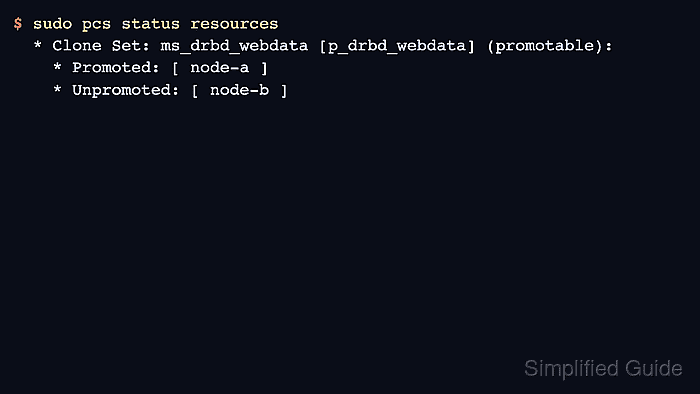
$ sudo pcs status resources
  * Clone Set: ms_drbd_webdata [p_drbd_webdata] (promotable):
    * Promoted: [ node-a ]
    * Unpromoted: [ node-b ]
Promoted corresponds to the DRBD Primary role. Unpromoted corresponds to Secondary.
- Compare the Pacemaker role with the live DRBD state.
$ sudo drbdadm status webdata
webdata role:Primary
  volume:0 disk:UpToDate
  node-b role:Secondary
    volume:0 peer-disk:UpToDate
The promoted node should show role:Primary, and every volume needed by the workload should remain UpToDate.
- Move the promoted role in a maintenance window to smoke-test cluster ownership.
$ sudo pcs resource move ms_drbd_webdata node-b --promoted --wait=180
Location constraint to move resource 'ms_drbd_webdata' has been created
Waiting for the cluster to apply configuration changes...
This role move can interrupt any dependent filesystem or application resource. Use the application-specific HA guide when the resource already has a mounted filesystem, IP address, or service group.
Related: How to set up DRBD-backed filesystem high availability with PCS
Related: How to run a Pacemaker failover test with PCS - Verify that the promoted instance moved to the target node.
$ sudo pcs status resources * Clone Set: ms_drbd_webdata [p_drbd_webdata] (promotable): * Promoted: [ node-b ] * Unpromoted: [ node-a ] - Clear the temporary move constraint after the smoke test.
$ sudo pcs resource clear ms_drbd_webdata --promoted --wait=120
Removing constraint: cli-ban-ms_drbd_webdata-on-node-a
Clearing the constraint lets normal placement rules, stickiness, and future failures decide where the DRBD role should run.

Mohd Shakir Zakaria is a cloud architect with deep roots in software development and open-source advocacy. Certified in AWS, Red Hat, VMware, ITIL, and Linux, he specializes in designing and managing robust cloud and on-premises infrastructures.


