Minimal Debian installations do not always include a daemon for inbound SSH logins. Installing the OpenSSH server package gives administrators a managed sshd service, generated host keys, and a standard port 22 listener that can be checked before remote access depends on it.
Debian provides the server through the openssh-server package from the enabled APT repositories. The package installs /usr/sbin/sshd, adds the systemd unit ssh.service, keeps sshd.service as an alias, and uses /etc/ssh/sshd_config plus included files under /etc/ssh/sshd_config.d/ for daemon settings.
Remote login still depends on a permitted user account, an authentication method, network reachability, and any local or cloud firewall in front of the host. Treat the install as complete only after the package is present, the ssh unit is active, the daemon parses its configuration, port 22 is listening, and a separate client can run a test command over SSH.
Steps to install an SSH server on Debian:
- Open a terminal on the Debian host with an account that can use sudo.
$ whoami
admin
Use How to add a sudo user on Debian first if the account cannot run privileged package and service commands.
- Refresh the local APT package index.
$ sudo apt update
- Install the OpenSSH server package.
$ sudo apt install openssh-server
The package also pulls in the OpenSSH client and SFTP helper packages when they are not already installed.
- Confirm that the server package is installed.
$ dpkg-query -W openssh-server
openssh-server  1:10.0p1-7+deb13u4
The exact package revision changes with Debian point releases and security updates. The important result is that openssh-server is listed by dpkg-query.
- Enable the Debian ssh service at boot and start it now.
$ sudo systemctl enable --now ssh
Debian uses ssh.service as the packaged service name. The sshd.service alias exists for compatibility, but using ssh keeps commands aligned with the packaged unit.
- Validate the packaged sshd configuration.
$ sudo sshd -t
No output means sshd parsed /etc/ssh/sshd_config, included drop-ins, and host-key references successfully.
Related: How to test SSH server configuration
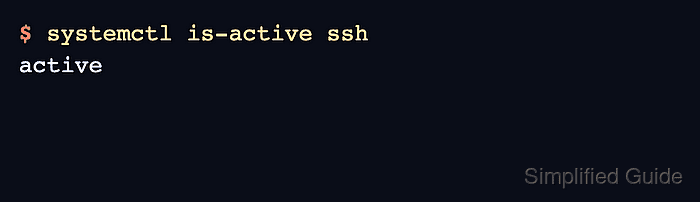
- Confirm that the SSH service is active.
$ systemctl is-active ssh
active
- Confirm that the daemon is listening for inbound SSH connections.
$ sudo ss -ltnp 'sport = :ssh'
State  Recv-Q Send-Q Local Address:Port Peer Address:Port Process
LISTEN 0      4096         0.0.0.0:22      0.0.0.0:*     users:(("sshd",pid=1402,fd=3))
LISTEN 0      4096            [::]:22         [::]:*     users:(("sshd",pid=1402,fd=4))
A listener on port 22 proves that the daemon is ready locally. Remote clients still need firewall and network rules that allow TCP port 22 to reach this host.
- If the host uses UFW, allow inbound SSH traffic.
$ sudo ufw allow 22/tcp
Rule added
Rule added (v6)
Skip this step when UFW is not installed or another firewall stack controls the host. Apply the equivalent TCP port 22 rule in nftables, iptables, a cloud security group, or the network firewall when that layer is authoritative.
Related: How to enable UFW on Debian - Record the server host-key fingerprint for first-connection verification.
$ ssh-keygen -lf /etc/ssh/ssh_host_ed25519_key.pub
256 SHA256:W8JdNBQbOLbfHYW4TeYr5i2x95TaTYG9MTc/q4FJZYc root@debian-host (ED25519)
Share the fingerprint through a trusted channel so users can compare it with the first SSH prompt instead of accepting an unknown host key blindly.
Related: How to verify SSH host key fingerprints before connecting
Tool: SSH Key Fingerprint Checker - Test a login from a separate client using an account that is allowed to authenticate.
$ ssh admin@server.example.net hostname
debian-host
A successful remote command proves that package installation, service state, listener reachability, account access, and authentication all line up for real SSH use.
Related: How to log in to an SSH server from Linux

Mohd Shakir Zakaria is a cloud architect with deep roots in software development and open-source advocacy. Certified in AWS, Red Hat, VMware, ITIL, and Linux, he specializes in designing and managing robust cloud and on-premises infrastructures.


