A Debian host can have the UFW package installed while the firewall is still inactive, leaving inbound services governed by the current Netfilter ruleset instead of a simple host policy. Enabling UFW should happen after the management port and any required service ports are allowed, because the enable step reloads firewall chains and can interrupt remote access.
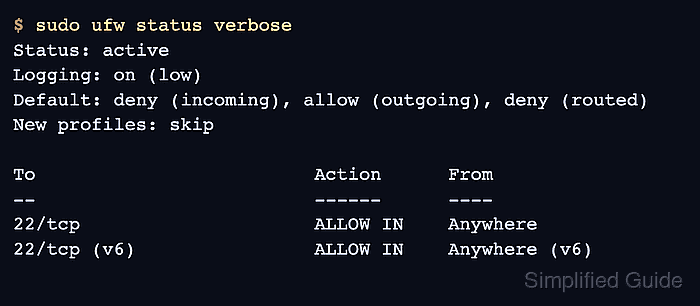
UFW provides a command-line front end for host firewall rules. On Debian, the package installs disabled by default, uses a default policy of denying incoming traffic and allowing outgoing traffic, and reports the active rules with ufw status.
A safe enablement sequence installs UFW when needed, sets the default policies explicitly, allows SSH on TCP port 22, enables the firewall, and verifies the active policy. Replace 22/tcp with the actual management port before enabling UFW on a remote server, and keep console or out-of-band access available until the final status check passes.
Related: Install packages with APT on Debian
Related: Install an SSH server on Debian
Related: Enable a service using systemctl
Steps to enable UFW on Debian:
- Open a terminal on the Debian host with sudo privileges.
- Refresh the package index.
$ sudo apt update
Hit:1 http://deb.debian.org/debian trixie InRelease
Hit:2 http://deb.debian.org/debian trixie-updates InRelease
Hit:3 http://deb.debian.org/debian-security trixie-security InRelease
Reading package lists... Done
- Install the UFW package.
$ sudo apt install ufw
Reading package lists... Done
Building dependency tree... Done
Reading state information... Done
The following NEW packages will be installed:
  iptables nftables ufw
##### snipped #####
Setting up ufw (0.36.2-9) ...
Debian installs UFW disabled. Installing the package alone does not start filtering traffic.
- Confirm that UFW is not active before changing the host policy.
$ sudo ufw status verbose
Status: inactive
- Set the default incoming policy to deny.
$ sudo ufw default deny incoming
Default incoming policy changed to 'deny'
(be sure to update your rules accordingly)
- Set the default outgoing policy to allow.
$ sudo ufw default allow outgoing
Default outgoing policy changed to 'allow'
(be sure to update your rules accordingly)
- Allow the management SSH port before enabling the firewall.
$ sudo ufw allow 22/tcp
Rules updated
Rules updated (v6)
Enabling UFW without an allow rule for the active remote management port can block new SSH sessions. Use the actual port if sshd listens somewhere other than 22/tcp.
- Enable UFW without the interactive prompt.
$ sudo ufw --force enable
Firewall is active and enabled on system startup
Use sudo ufw enable instead when an interactive confirmation is preferred.
- Verify the active UFW policy and allowed management rule.
$ sudo ufw status verbose
Status: active
Logging: on (low)
Default: deny (incoming), allow (outgoing), deny (routed)
New profiles: skip

To                         Action      From
--                         ------      ----
22/tcp                     ALLOW IN    Anywhere
22/tcp (v6)                ALLOW IN    Anywhere (v6)
If required application ports are missing, add them before handing over the server, then repeat sudo ufw status verbose.

Mohd Shakir Zakaria is a cloud architect with deep roots in software development and open-source advocacy. Certified in AWS, Red Hat, VMware, ITIL, and Linux, he specializes in designing and managing robust cloud and on-premises infrastructures.


