When a Debian host no longer reaches a login prompt, repair work has to start outside the installed operating system. Debian installer rescue mode boots a small installer environment, detects local disks, and opens a shell against the installed root filesystem so bootloader, kernel, password, and filesystem repairs can be made without relying on the broken boot path.
The rescue entry is reached from Debian installer media by selecting rescue from the boot menu, typing rescue at the installer boot prompt, or booting with the rescue/enable=true parameter. It still shows early installer screens because the same hardware detection and storage setup code is used before the repair shell is offered.
Use installer media that matches the machine architecture and keep console access available for encrypted disks, LVM, RAID, and bootloader prompts. A working installed GRUB menu may also expose recovery entries, but installer rescue mode is the safer starting point when the bootloader, initramfs, or root filesystem handoff is already suspect.
Steps to boot Debian rescue mode from installer media:
- Attach Debian installer media to the machine.
Use a USB stick, optical image, virtual ISO, or network installer that matches the installed system's CPU architecture.
- Boot the machine from the installer media using the firmware or hypervisor boot menu.
- Start the installer rescue entry.
Select Advanced options → Rescue mode from the graphical installer menu when it is available. On a text boot prompt, type rescue. If editing boot parameters directly, add rescue/enable=true.
- Continue through the language, keyboard, network, and hostname screens until the installer asks for the root filesystem to repair.
Network setup can usually be skipped unless the repair needs package downloads, remote access, or network storage.
- Select the installed Debian root filesystem.
Do not choose the EFI system partition, a separate /boot partition, or a data disk as the root filesystem. For encrypted, LVM, RAID, or multipath installs, unlock or activate the storage when the installer prompts for it.
- Choose the shell option for the selected root filesystem.
The normal choice is Execute a shell in <device>. If that fails because the filesystem is damaged, choose Execute a shell in the installer environment; the selected root filesystem is mounted under /target there.
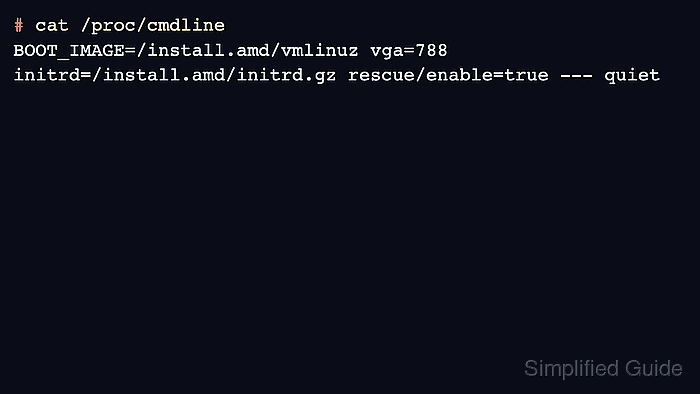
- Confirm that the current boot used rescue mode.
# cat /proc/cmdline
BOOT_IMAGE=/install.amd/vmlinuz vga=788 initrd=/install.amd/initrd.gz rescue/enable=true --- quiet
The exact kernel image path and video options vary by installer image. The important proof is rescue/enable=true on the kernel command line.
- Confirm that the selected root filesystem belongs to the installed Debian system.
# cat /etc/debian_version
13.5
When using the installer-environment shell instead of the selected-root shell, run cat /target/etc/debian_version because the installed system is mounted under /target.
- Run only the repair command needed for the failure being handled.
Use How to update GRUB on Debian after entering the installed Debian shell when the boot menu needs regeneration. Use How to recover the GRUB bootloader in Linux when the bootloader must be reinstalled to the disk or EFI system partition.
- Leave the rescue shell when the repair is complete.
# exit
Debian installer rescue mode returns to the rescue menu or reboots after the shell exits, depending on the path used to enter the shell.
- Remove the installer media before the next boot attempt.
- Boot the machine normally and confirm that Debian reaches the expected login prompt, boot menu, or repaired service state.

Mohd Shakir Zakaria is a cloud architect with deep roots in software development and open-source advocacy. Certified in AWS, Red Hat, VMware, ITIL, and Linux, he specializes in designing and managing robust cloud and on-premises infrastructures.


