Changing a Debian host's GRUB settings is not finished until the generated boot menu file is rebuilt. The editable defaults and generator scripts feed the file that GRUB reads at startup, so stale output can leave old kernel options, timeout values, or custom entries in the next boot.
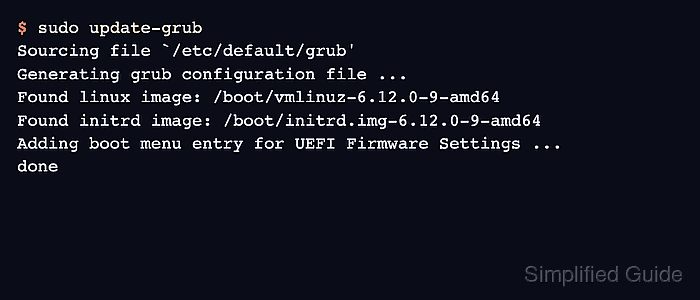
Debian provides update-grub as a wrapper around grub-mkconfig that writes /boot/grub/grub.cfg. Running it as root reads the configured defaults, executes the generator scripts, detects installed kernels, and rewrites the boot menu for the next startup.
Run the update from the installed Debian system or from a rescue chroot that has the target boot filesystem and device files mounted. Containers and incomplete chroots often fail during grub-probe because the boot device cannot be resolved, and update-grub is not the same as reinstalling the bootloader to a disk or EFI system partition.
Related: Show the kernel version in Linux
Related: How to boot Debian rescue mode
Related: How to recover the GRUB bootloader in Linux
Steps to update GRUB on Debian:
- Open a terminal on the Debian system with sudo privileges.
- Confirm the generated GRUB configuration path exists.
$ ls -l /boot/grub/grub.cfg
-r--r--r-- 1 root root 24573 Jun 12 10:18 /boot/grub/grub.cfg
Do not edit /boot/grub/grub.cfg directly. Debian regenerates this file from /etc/default/grub and scripts under /etc/grub.d/.
- Back up the current generated configuration before changing boot menu settings.
$ sudo cp /boot/grub/grub.cfg /boot/grub/grub.cfg.before-update
The backup is a rollback reference for the generated file. Keep a console, rescue boot option, or out-of-band access available before changing boot parameters on a remote host.
- Edit the GRUB defaults that need to be applied.
$ sudo vi /etc/default/grub
GRUB_TIMEOUT=5
GRUB_CMDLINE_LINUX_DEFAULT="quiet"
Keep /etc/default/grub valid as shell input. Quote values that contain spaces, and use scripts under /etc/grub.d/ only for custom menu entries or advanced generator behavior.
- Check /etc/default/grub for shell syntax errors.
$ sudo sh -n /etc/default/grub
No output means the file passed the shell syntax check. This catches broken quotes and assignments before GRUB generation, but it does not prove every GRUB option is meaningful.
- Regenerate the GRUB configuration file.
$ sudo update-grub
Sourcing file `/etc/default/grub'
Generating grub configuration file ...
Found linux image: /boot/vmlinuz-6.12.0-9-amd64
Found initrd image: /boot/initrd.img-6.12.0-9-amd64
Adding boot menu entry for UEFI Firmware Settings ...
done
On Debian, update-grub writes /boot/grub/grub.cfg. Systems without that wrapper can use sudo grub-mkconfig -o /boot/grub/grub.cfg when GRUB is installed.
- Check the generated GRUB script for syntax errors.
$ sudo grub-script-check /boot/grub/grub.cfg
No output means /boot/grub/grub.cfg passed the GRUB script syntax check.
- Verify that the generated file was updated.
$ ls -l /boot/grub/grub.cfg
-r--r--r-- 1 root root 24631 Jun 12 10:25 /boot/grub/grub.cfg
- Reboot during a maintenance window when the changed setting needs boot-time verification.
$ sudo reboot
Do not reboot a remote system until update-grub has finished with the expected kernel entries and a recovery path is available.

Mohd Shakir Zakaria is a cloud architect with deep roots in software development and open-source advocacy. Certified in AWS, Red Hat, VMware, ITIL, and Linux, he specializes in designing and managing robust cloud and on-premises infrastructures.


