Creating a Checkmk user gives an operator access to the monitoring site. A local account can sign in to the web interface, receive notifications, and see the hosts and services allowed by its role and contact-group membership.
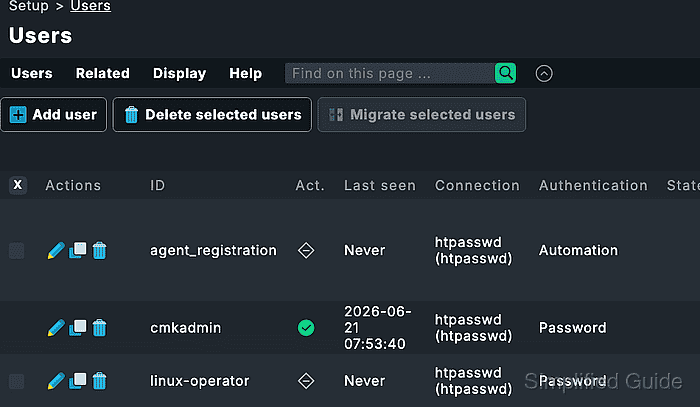
Checkmk separates permissions from responsibility. Roles such as Administrator, Normal monitoring user, and Guest user decide which actions the account may perform, while contact groups decide which hosts and services the user can see and receive notifications for.
Use Normal user login with password for a person who signs in through the web interface. Use an automation user or automation secret only when scripts or API clients need credentials, and keep at least one administrator account with normal login access before changing machine-account settings.
Steps to create a Checkmk user:
- Open the Checkmk site as an administrator with permission to manage users.
- Open Setup → Users → Users.
- Click Add user.
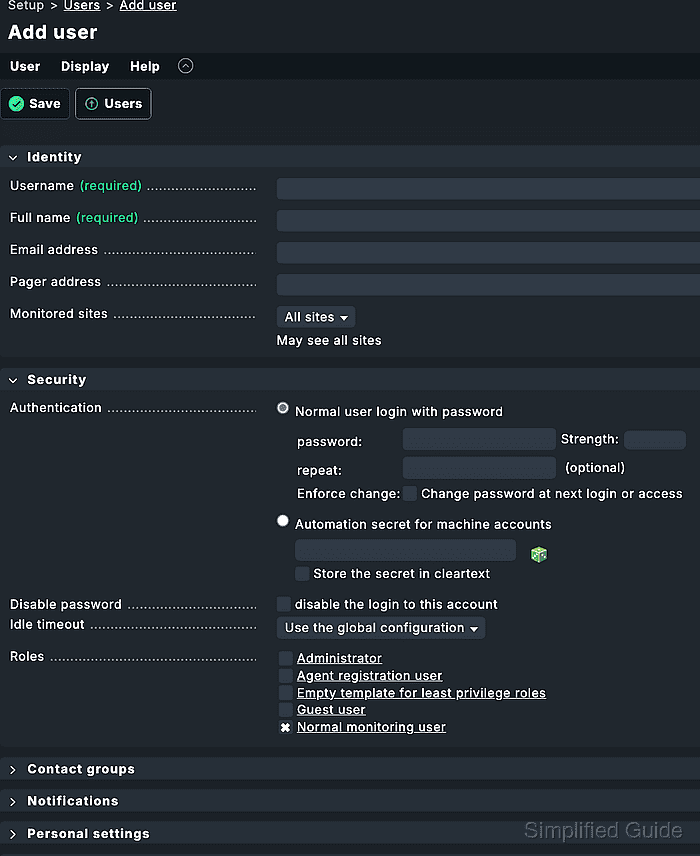
- Enter the internal Username.
The username is the login name. Use Full name for the display name that may change later.
- Enter the user's Full name.
- Enter an Email address when the user should receive email notifications.
Notification delivery also requires responsible contact-group membership and a notification rule that sends to those contacts.
Related: How to create a Checkmk notification rule - Keep Normal user login with password selected in the Security box for a human user.
- Enter an initial password that satisfies the local password policy.
By default, Checkmk requires at least 12 characters for local user passwords unless the site policy has been changed under Global settings → User management.
- Select one or more Roles for the account.
Roles grant permissions. If several roles are assigned, Checkmk grants the combined permissions from those roles.
- Select the required Contact groups for the account.
Select Everything only when the account should be responsible for every host and service assigned to the predefined all contact group.
- Review Personal settings and Interface settings only when the account needs a non-default language, theme, start page, or notification profile.
- Save the user.
- Confirm the new username appears in the Users list.
- Activate pending changes if the Changes menu shows a pending user or contact-group update.
User and responsibility changes that appear in the pending bundle are not part of the monitoring environment until activation completes.
Related: How to activate Checkmk pending changes - Open a private browser window.
- Log in with the new username and initial password.
- Confirm the dashboard opens under the new account.
- Open Monitor → All hosts as the new user and confirm the visible hosts match the assigned contact groups.
- Test a notification for an assigned host when the user should receive alerts.
Use Setup → Events → Test notifications without sending a real message first, then check Predicted notifications for the new user.
Related: How to test Checkmk notification rules

Mohd Shakir Zakaria is a cloud architect with deep roots in software development and open-source advocacy. Certified in AWS, Red Hat, VMware, ITIL, and Linux, he specializes in designing and managing robust cloud and on-premises infrastructures.


