Creating a Checkmk notification rule lets an administrator route selected host or service events to the right contact, contact group, or notification method without changing every monitored object. Use a separate rule when a team needs narrower recipients, a different method such as HTML email or a ticket-system script, or a suppression rule for a known class of alerts.
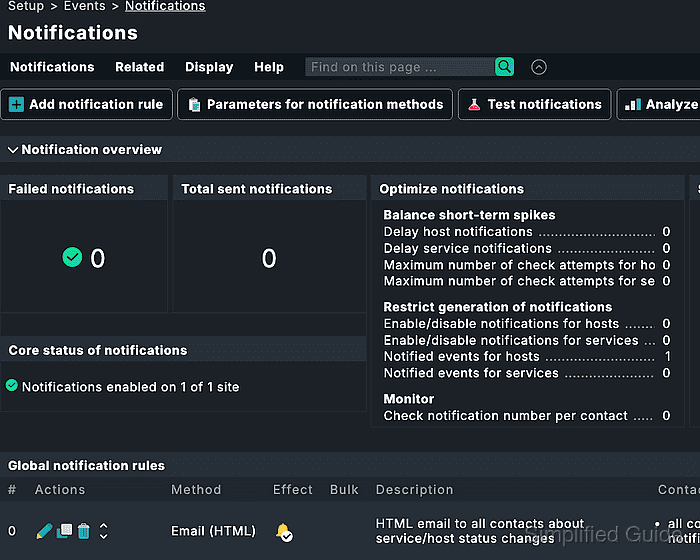
Global notification rules live under Setup → Events → Notifications and are evaluated by the notification module whenever the monitoring core produces a raw notification. Rules can add notifications, restrict recipients, or suppress earlier notifications for the selected method, and their order matters when several rules match the same event.
Notification-rule changes take effect immediately in Checkmk, so build the rule against a lab host or a tightly scoped condition before relying on it for production alerting. The safest first pass uses Guided mode, saves with Apply & test notification rule, and confirms the result in Test notifications without sending a real message.
Related: How to test Checkmk notification rules
Related: How to create a Checkmk user
Steps to create a Checkmk notification rule:
- Open Setup → Events → Notifications.
- Review the existing Global notification rules order.
When multiple rules match, earlier rules can add notifications and later rules can add or suppress them. Place narrow exception rules where they fit the intended chain.
- Click Add notification rule.
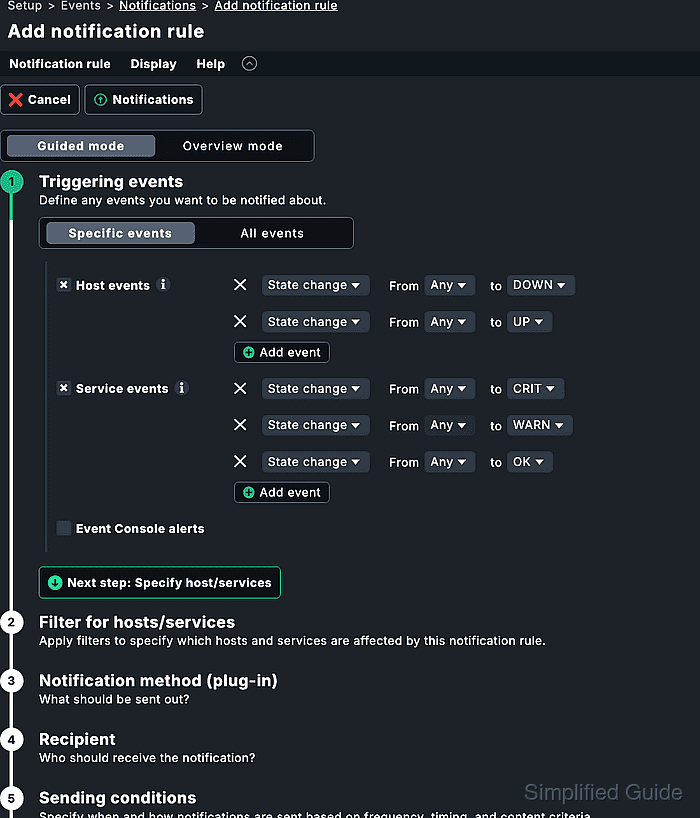
- Select Guided mode.
- Set the event type conditions for the rule.
Select only host events or only service events when the rule should match one object type. If both host and service event conditions are selected, Checkmk treats those two condition groups as alternatives for matching either event type; other selected conditions still need to match.
- Set host, folder, label, service, or contact-group filters that limit the rule to the intended objects.
A rule with no conditions can match every monitoring event. Add at least one scope condition unless the rule is meant to be site-wide.
- Select the notification action and method.
Use Send notification for a new alert delivery path. Use Suppress all previous only when this rule is meant to remove notifications created by earlier rules for the selected method.
- Select the recipient source with Add recipient.
All contacts of the notified object follows Checkmk contact assignments. Use explicit users, contact groups, or email addresses only when the rule needs recipients beyond the object contacts.
- Leave Sending conditions empty unless the rule needs a time period, notification number, or escalation condition.
- Add a description under General properties.
A description such as NTP service CRIT to Linux on-call makes the rule identifiable in the test result and rule chain.
- Click Apply & test notification rule.
- In Test notifications, choose Host or Service and select an object that should match the rule.
- Select a matching state-change event, such as Service goes CRIT or Host goes DOWN.
- Leave Send out notification for specific method disabled for a simulation-only test.
Enable sending only when the selected recipient, method, and target object are safe for a real alert.
- Click Test notifications.
- Confirm the result shows the expected matching rule under Global notification rules and the expected recipient and method under Predicted notifications.
- Return to Setup → Events → Notifications and move the rule if the test shows a different rule order is needed.
Notification-rule edits do not create pending setup changes; the saved rule is active immediately.

Mohd Shakir Zakaria is a cloud architect with deep roots in software development and open-source advocacy. Certified in AWS, Red Hat, VMware, ITIL, and Linux, he specializes in designing and managing robust cloud and on-premises infrastructures.


