Creating a Checkmk contact group gives a team responsibility for selected hosts and services. Contact groups also decide which objects a restricted user can see and which contacts receive the default notifications for those objects.
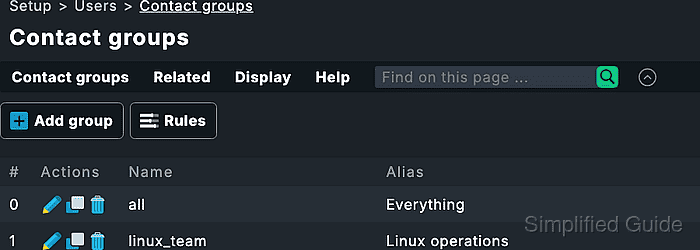
Contact groups are managed under Setup → Users → Contact groups. A new group needs an internal Name and a readable Alias, then users are attached from their user properties and monitored objects are attached from host properties, folder properties, or contact-group rules.
A host-level assignment fits one host or a small test set. Services inherit the host contact groups unless a service-level contact-group rule assigns a different group, so avoid service-specific assignments unless application responsibility really differs from host responsibility.
Related: How to create a Checkmk user
Related: How to create a Checkmk notification rule
Steps to create and assign a Checkmk contact group:
- Open the Checkmk site as an administrator with permission to edit users, contact groups, and hosts.
- Open Setup → Users → Contact groups.
- Click Add group.
- Enter the internal Name for the group, such as linux_team.
The internal name is used in rules, filters, and status queries. Use a short name that will still make sense after team names change.
- Enter the Alias that operators should see, such as Linux operations.
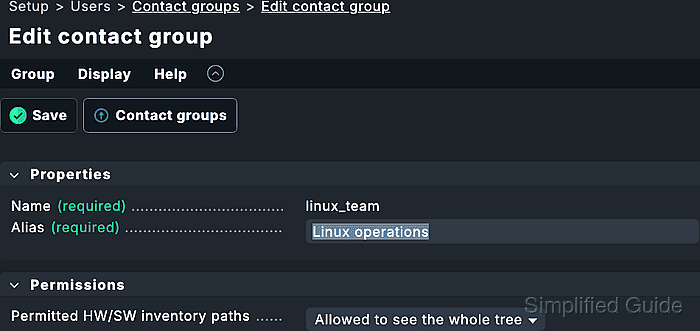
- Save the contact group.
- Confirm that the new group appears in the contact group list.
- Open Setup → Users → Users.
- Open the user who should receive responsibility for the group.
- Select the new group in the Contact groups box.
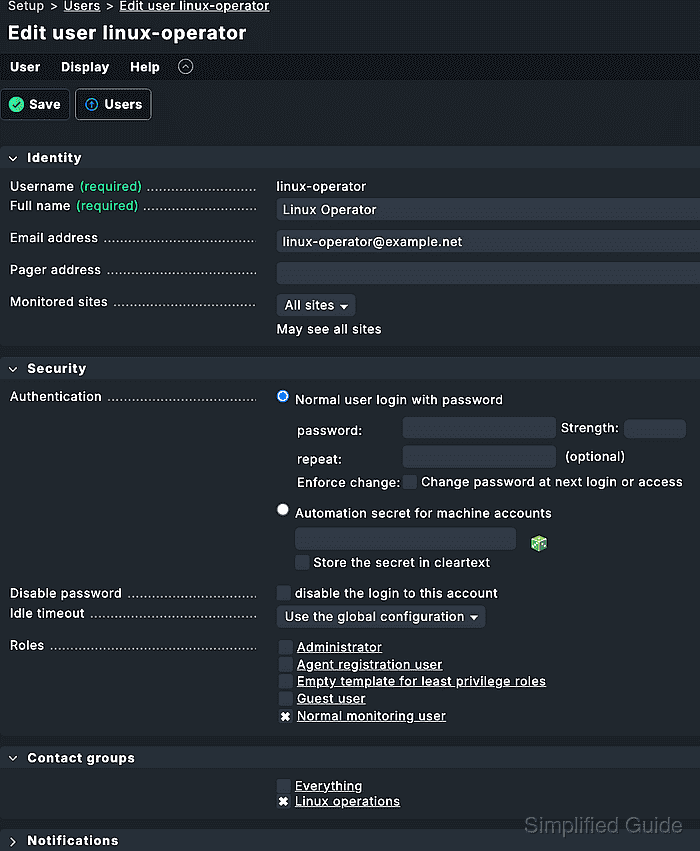
- Save the user.
- Open Setup → Hosts → Hosts.
- Open the lab host or target host that should belong to the group.
- Enable Permissions in the Basic settings box.
- Move the new contact group from Available to Selected.
- Select Add these contact groups to the host.
- Leave Always add host contact groups also to its services disabled unless services need explicit contact entries.
Services inherit the host contact groups by default. Use the service assignment rule set only when a service should belong to a different team from the host.
- Save the host.
- Activate the pending changes.
Activation moves the saved user, host, and contact-group assignments into the monitoring environment.
Related: How to activate Checkmk pending changes - Sign in as the assigned user in a separate browser session.
- Open Monitor → All hosts and confirm that the assigned host is visible to that user.
- Test notification routing for the assigned host without sending a real message.
Use Setup → Events → Test notifications, select the host, leave real sending disabled, and confirm Predicted notifications contains the expected user or contact from the new group.
Related: How to test Checkmk notification rules - Query the contact groups from the site shell when terminal evidence is required.
OMD[monitoring]:~$ lq "GET contactgroups\nColumns: name alias members"
all;Everything;cmkadmin
linux_team;Linux operations;linux-operator

Mohd Shakir Zakaria is a cloud architect with deep roots in software development and open-source advocacy. Certified in AWS, Red Hat, VMware, ITIL, and Linux, he specializes in designing and managing robust cloud and on-premises infrastructures.


