Resetting a Checkmk local user password restores access when an operator forgets a web login or the initial cmkadmin password needs rotation after setup. The supported command-line reset uses cmk-passwd from the Checkmk site environment, so the old password is not required and the new secret does not need to appear in shell history.
Each Checkmk site has its own Linux site user and its own password file inside the site directory. Run the reset from the correct site environment, especially on servers that host several sites or Docker containers that use the default cmk site name.
The cmk-passwd reset applies to local Checkmk accounts that use password login. LDAP, Active Directory, automation users, and two-factor authentication recovery use separate controls; if the user still cannot log in after the reset, check the account source, lockout state, and second-factor requirement before changing the password again.
Related: How to create a Checkmk user
Related: How to start and stop a Checkmk site
Steps to reset a Checkmk local user password:
- Confirm the internal Checkmk username to reset.
Use the login name, such as cmkadmin, not the full display name. cmk-passwd changes the password entry; roles, contact groups, and notification settings remain in user management.
- Open a shell on the Checkmk server with permission to become the site user.
For a Docker-based site, enter the running container as the site user first. The official container uses cmk as the default site name unless CMK_SITE_ID was changed.
- Switch to the Checkmk site environment.
$ sudo omd su mysite
OMD[mysite]:~$
Replace mysite with the site name from the web URL path, for example https://monitoring.example.net/mysite/. The site prompt confirms that cmk-passwd will update that site's password store.
- Run cmk-passwd for the target user.
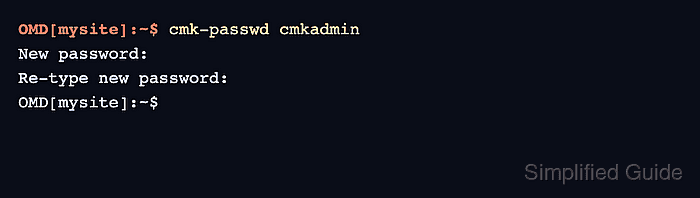
OMD[mysite]:~$ cmk-passwd cmkadmin
New password:
Re-type new password:
Type the new secret only at the interactive prompts. Do not pass it as a command argument, paste it into logs, or save it in the article evidence.
- Leave the site shell.
OMD[mysite]:~$ exit
logout
- Open a fresh browser session to the Checkmk site URL.
https://monitoring.example.net/mysite/
Use a private window or a different browser profile so an existing Checkmk session does not hide the login test.
- Log in with the username and new password.
- Confirm the Checkmk dashboard opens under the expected account.
A two-factor prompt after the password is accepted means the password reset worked, but the user still needs the configured second factor or an administrator must remove that factor from Setup → Users → Users.

Mohd Shakir Zakaria is a cloud architect with deep roots in software development and open-source advocacy. Certified in AWS, Red Hat, VMware, ITIL, and Linux, he specializes in designing and managing robust cloud and on-premises infrastructures.


