Monitoring a Kubernetes cluster in Checkmk connects the cluster API, the Checkmk Kubernetes collectors, and Checkmk service discovery so nodes, pods, workloads, and usage data appear in monitoring. The connection matters when Kubernetes objects change often enough that manual host creation cannot keep pace with the cluster.
Checkmk reads basic cluster state through the Kubernetes special agent, while the Checkmk Node Collector and Cluster Collector provide usage data such as CPU, memory, and filesystem metrics. The collectors are installed in the cluster with the official Helm chart, and Checkmk queries the API server plus the Cluster Collector endpoint from a dedicated cluster host.
A NodePort Cluster Collector endpoint is shown because it is easy to verify from the shell. Use an Ingress endpoint instead when that is the approved exposure path for the cluster, and keep the service account token and CA certificate out of screenshots, shell history, and saved troubleshooting notes.
Steps to monitor a Kubernetes cluster in Checkmk:
- Add the official Checkmk Helm repository.
$ helm repo add checkmk-chart https://checkmk.github.io/checkmk_kube_agent
"checkmk-chart" has been added to your repositories
- Check the current Checkmk Kubernetes chart metadata.
$ helm show chart checkmk-chart/checkmk
apiVersion: v2
appVersion: 1.11.0
description: Helm chart for Checkmk - Your complete IT monitoring solution
icon: https://checkmk.com/application/files/thumbnails/low_res/9515/9834/3872/checkmk_icon_main.png
kubeVersion: '>=1.19.0-0'
name: checkmk
type: application
version: 1.11.0
The current chart declares the Kubernetes version range it supports. Stop here if the cluster is older than the chart's kubeVersion value.
- Create a values.yaml file for the Cluster Collector endpoint.
- values.yaml
clusterCollector:
  service:
    type: NodePort
    nodePort: 30035
Use the chart's clusterCollector.ingress settings instead when the cluster exposes services through Ingress. Keep the same endpoint choice through the Checkmk rule so the monitoring server queries the reachable address.
- Install the Checkmk collectors into the cluster.
$ helm upgrade --install --create-namespace --namespace checkmk-monitoring myrelease checkmk-chart/checkmk -f values.yaml
Release "myrelease" has been upgraded. Happy Helming!
NAME: myrelease
NAMESPACE: checkmk-monitoring
STATUS: deployed
REVISION: 1
TEST SUITE: None
NOTES:
You can access the checkmk cluster-collector via:
NodePort:
  http://10.0.12.40:30035
The collectors run with permissions that let Checkmk read cluster, node, pod, and workload state. Install them in a dedicated namespace and review the chart values before applying them to a production cluster.
- Confirm that Helm reports the release as deployed.
$ helm status --namespace checkmk-monitoring myrelease
NAME: myrelease
NAMESPACE: checkmk-monitoring
STATUS: deployed
REVISION: 1
- Check the Cluster Collector service endpoint.
$ kubectl get service --namespace checkmk-monitoring myrelease-checkmk-cluster-collector
NAME                                  TYPE       CLUSTER-IP     EXTERNAL-IP   PORT(S)          AGE
myrelease-checkmk-cluster-collector   NodePort   10.96.178.75   <none>        8080:30035/TCP   2m
For NodePort access, combine a reachable node address with the node port. For Ingress access, use the hostname or URL shown by the ingress controller.
- Store the service account token in a temporary shell variable.
$ TOKEN=$(kubectl get secret myrelease-checkmk-checkmk --namespace checkmk-monitoring --output jsonpath='{.data.token}' | base64 --decode)Do not print real tokens into shared logs or screenshots. Copy the token directly into the Checkmk password store in the next Checkmk-side step.
- Print the service account CA certificate for Checkmk import.
$ kubectl get secret myrelease-checkmk-checkmk --namespace checkmk-monitoring --output jsonpath='{.data.ca\.crt}' | base64 --decode
-----BEGIN CERTIFICATE-----
MIIBdjCCAR2gAwIBAgIBADAKBggqhkjOPQQDAjAjMSEwHwYDVQQDDBhrM3Mtc2Vy
##### snipped #####
-----END CERTIFICATE-----
Copy the full certificate, including the BEGIN CERTIFICATE and END CERTIFICATE lines.
- Test the Cluster Collector metadata endpoint.
$ curl --header "Authorization: Bearer $TOKEN" http://10.0.12.40:30035/metadata
{
  "cluster_collector_metadata": {
    "host_name": "myrelease-checkmk-cluster-collector-7d8c6f8b5d-lxq2m",
    "checkmk_kube_agent": {
      "project_version": "1.11.0"
    }
  }
}
Replace the URL with the NodePort or Ingress endpoint that the Checkmk server can reach.
- Store the token in Checkmk at Setup → General → Passwords → Add password.
Use a title such as Kubernetes production token so the later Kubernetes rule can select the entry without exposing the token value.
- Import the CA certificate in Checkmk at Setup → General → Global settings → Site management → Trusted certificate authorities for SSL.
The Kubernetes rule can then use certificate verification instead of disabling TLS checks for the API server.
- Create a cluster host in Checkmk with No IP as the IP address family.
The cluster host receives the special-agent and piggyback data at cluster level; it is not a host that Checkmk should ping directly.
Related: How to create a Checkmk piggyback host - Configure dynamic host management for Kubernetes piggyback hosts when the site supports it.
In commercial editions, create a connection under Setup → Hosts → Dynamic host management and restrict the source host to the cluster host. In Checkmk Community, use the piggyback orphan list and create the Kubernetes object hosts manually.
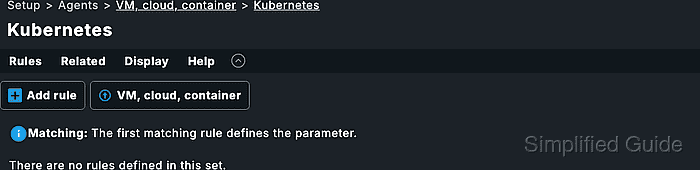
- Create the Kubernetes special agent rule at Setup → Agents → VM, cloud, container → Kubernetes.
Set the cluster name, select the stored token, enter the Kubernetes API server endpoint, enable certificate verification, enable Enrich with usage data from Checkmk Cluster Collector, and enter the Cluster Collector endpoint.
Related: How to create a Checkmk rule for selected hosts - Restrict the Kubernetes special agent rule to the cluster host.
Set Conditions → Explicit hosts to the cluster host. A broader condition can run the Kubernetes special agent for unrelated hosts and create confusing discovery results.
- Run service discovery on the cluster host.
Accept the Kubernetes API and Cluster Collector services when discovery finds them.
Related: How to run Checkmk service discovery - Activate the pending Checkmk changes.
Activation sends the saved host, rule, password-store, certificate, and discovery changes to monitoring.
Related: How to activate Checkmk pending changes - Check the cluster host services and Kubernetes dashboard.
The cluster host should show Kubernetes API with Live, Ready in the summary, and Cluster Collector should show the collector version. In commercial editions, Monitor → Applications → Kubernetes should show CPU and memory resource data, and the Kubernetes Cluster dashboard should show Primary datasource, Cluster collector, and API health as OK.

Mohd Shakir Zakaria is a cloud architect with deep roots in software development and open-source advocacy. Certified in AWS, Red Hat, VMware, ITIL, and Linux, he specializes in designing and managing robust cloud and on-premises infrastructures.


