Renaming a host in Checkmk changes the monitored object's unique name without deleting and recreating the host. Use it when a server name changes in DNS, a temporary onboarding name needs to match the inventory standard, or a monitored device was added with the wrong production name.
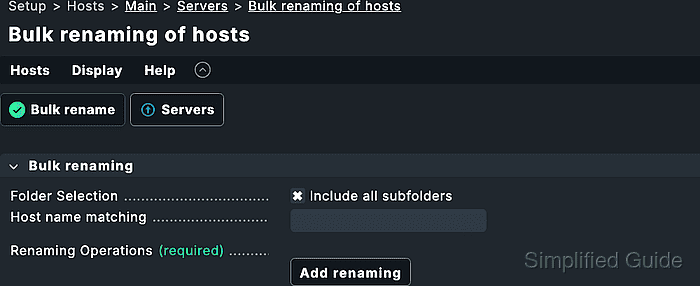
Checkmk treats the host name as a key for configuration, URLs, rules, dashboards, reports, BI aggregations, log data, and performance data. The supported single-host action is available from the host properties page under Host → Rename because editing the Host name field directly is not the same operation once monitoring data exists.
Run production renames during a maintenance window and keep a current site backup before changing established names. The rename can stop monitoring while Checkmk updates references, and external scripts, bookmarks, notification filters, or documentation that mention the old name may still need a separate review after activation.
Related: How to add a host in Checkmk
Related: How to remove a host from Checkmk
Related: How to activate Checkmk pending changes
Related: How to back up a Checkmk site
Steps to rename a Checkmk host:
- Sign in to the Checkmk site with an account that can edit hosts and activate changes.
- Open Setup → Hosts → Hosts.
- Search for the current host name.
- Open the host that should be renamed.
- Confirm that the host is the intended target.
Check the folder, alias, IP address, monitoring site, and agent or SNMP settings before renaming. Hosts created by automation may have locked attributes that should be changed through the owning automation instead.
- Search Setup for the planned new host name.
Do not continue if another host already uses the new name. Checkmk host names are unique identifiers, not display aliases.
- Confirm that a current site backup exists.
A host rename updates references in several parts of the site. A backup gives a known recovery point if the rename affects more objects than expected.
Related: How to back up a Checkmk site - Open Host → Rename from the host properties page.
- Enter the new host name.
- Review the rename confirmation.
Use the supported rename action so Checkmk can update host references across configuration, monitoring data, rules, dashboards, reports, and related objects.
- Confirm the rename.
- Wait for the rename result overview.
- Review the result overview for updated references and warnings.
Stop and investigate any warning that names a rule, report, dashboard, BI aggregation, or file that Checkmk could not update automatically.
- Activate the pending changes.
Activation moves the renamed host into the monitoring environment.
Related: How to activate Checkmk pending changes - Search Setup for the new host name.
- Confirm that the renamed host opens from the expected folder.
- Search Setup for the old host name.
- Confirm that the old host object is absent.
- Open Monitor → All hosts.
- Filter the host view to the new host name.
- Confirm that the host appears with its expected state and services.
If an Agent Controller host stops communicating after the rename, check the monitored host with cmk-agent-ctl status and re-register the agent with the new --hostname value when the saved remote host name is still old.
Related: How to register a Checkmk agent host - Check saved operational references for the old name.
Review custom dashboards, notification rules, bookmarks, external automation, documentation, and monitoring handover notes when they may contain literal host-name filters outside the objects updated by Checkmk.
- Query the host from the site shell when terminal evidence is required.
OMD[monitoring]:~$ lq
GET hosts
Columns: name alias state
Filter: name = web02.example.net
ColumnHeaders: on

name;alias;state
web02.example.net;Production web server;0
Replace web02.example.net with the renamed host. State 0 means UP in the host table.
Related: How to query Checkmk status data with Livestatus

Mohd Shakir Zakaria is a cloud architect with deep roots in software development and open-source advocacy. Certified in AWS, Red Hat, VMware, ITIL, and Linux, he specializes in designing and managing robust cloud and on-premises infrastructures.


