Removing a retired host from Checkmk clears the host object from Setup and stops it from appearing in monitoring after activation. Use this when a server, appliance, cloud object, or test host should no longer be monitored and should not keep stale services in views or notifications.
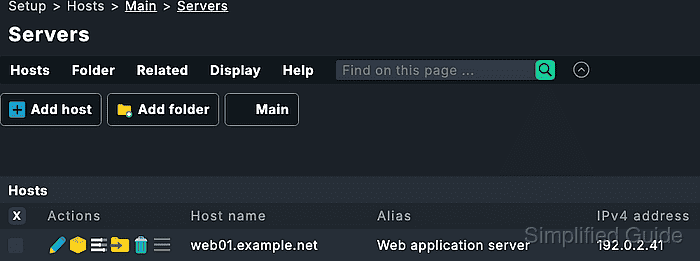
Host deletion starts in Setup → Hosts → Hosts because Checkmk separates saved configuration from the running monitoring environment. The host remains active until the pending deletion is activated, so the Changes bundle must be reviewed before applying it to the selected site.
Deleting the host object does not uninstall a Checkmk agent from the retired system or remove external DNS, cloud, or CMDB records. If the host was created by network scanning, auto-registration, dynamic host management, or an automatic host removal rule, check that the source automation will not recreate it.
Related: How to add a host in Checkmk
Related: How to rename a host in Checkmk
Steps to remove a host from Checkmk:
- Open the Checkmk site as a user with permission to manage hosts and activate changes.
- Open Setup → Hosts → Hosts.
- Navigate to the folder that contains the host.
Use Display → Search hosts from Main when the folder is unknown. Setup search can find configuration hosts that may not yet exist in monitoring.
- Select the checkbox beside the host that should be removed.
Select only the retired or mistaken host. The Hosts menu can apply bulk actions to every selected host in the current folder.
- Open Hosts → Delete hosts from the On selected hosts section.
- Confirm the deletion prompt.
- Click the Changes menu and review the pending host deletion.
Checkmk records saved Setup changes as pending until activation. A host deletion may share the same activation bundle with unrelated changes from the same site.
- Activate the pending changes for the intended site.
- Search for the host under Monitor after activation.
The host should no longer appear in host views, service views, or the monitoring search results for the selected site.
- Open a shell as the Checkmk site user when terminal verification is available.
$ sudo su - mysite
OMD[mysite]:~$
Replace mysite with the site name.
- List configured hosts and confirm the removed name is absent.
OMD[mysite]:~$ cmk -l
db01
router01
web02
cmk -l lists host names configured in Setup. If the removed host still appears, check for unactivated changes or an automation rule that recreated it.

Mohd Shakir Zakaria is a cloud architect with deep roots in software development and open-source advocacy. Certified in AWS, Red Hat, VMware, ITIL, and Linux, he specializes in designing and managing robust cloud and on-premises infrastructures.


