A host folder in Checkmk groups monitored systems and can assign settings to every host placed below it. Creating the folder before adding hosts keeps team ownership, site boundaries, labels, and other repeated attributes attached to the folder instead of copied onto individual hosts.
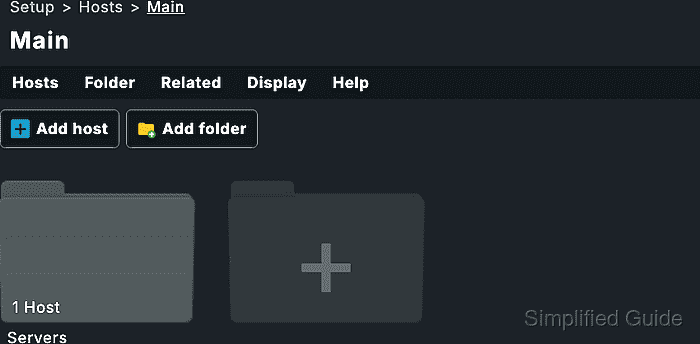
Folders are managed from Setup → Hosts → Hosts. The Main folder is the root of the host tree, and Folder → Properties controls attributes that can flow to lower folders and hosts, including Permissions contact groups, host tags, labels, parents, and monitoring-agent choices.
Use a lab host before moving production hosts into a folder that changes visibility or monitoring behavior. Values set directly on a host or in a lower folder can override broader folder settings, so confirm the inherited state on one host before activating the pending changes.
Related: How to create and assign a Checkmk contact group
Related: How to add a host in Checkmk
Related: How to activate Checkmk pending changes
Steps to create a Checkmk host folder with inherited settings:
- Sign in to the Checkmk site as an administrator with permission to edit hosts and folders.
- Open Setup → Hosts → Hosts.
- Open the parent folder that should contain the new host folder, or stay in Main for a top-level folder.
- Click Add folder.
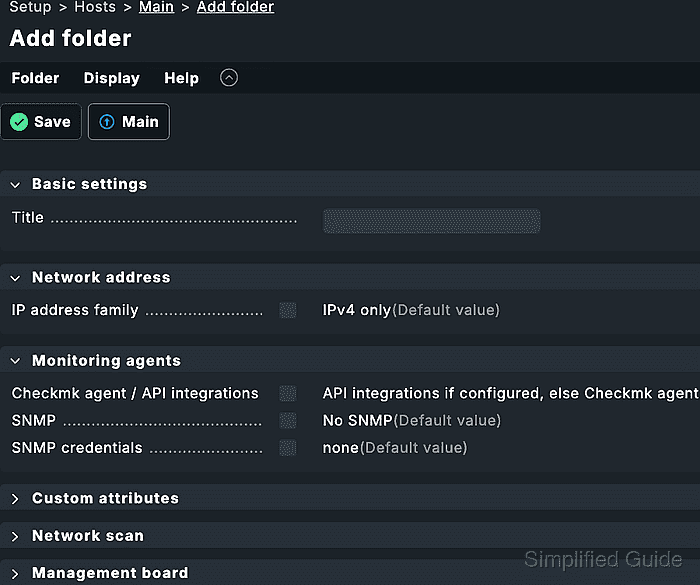
- Enter the folder title under Basic settings, such as Linux production.
- Save the folder.
- Open the new folder.
- Open Folder → Properties.
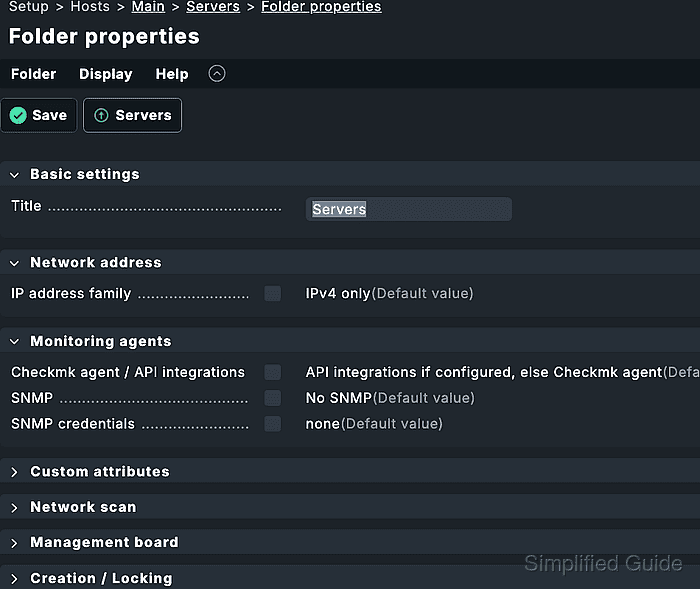
- Enable Permissions for the folder.
- Select the contact group that should own hosts in this folder.
Create the contact group first when it is not already available.
Related: How to create and assign a Checkmk contact group - Apply the contact group to subfolders only when lower folders should inherit the same responsibility.
Folder contact-group assignments are cumulative with parent folders when the subfolder option is enabled.
- Decide whether services should explicitly receive the folder contact group.
Services normally inherit host contact groups. Add explicit service contact groups only when service-level ownership must stay visible in notification and permission checks.
- Save the folder properties.
- Create or move a lab host into the new folder.
Use a disposable host first when the folder changes contact groups, monitoring-agent choices, parent relationships, host tags, or labels.
Related: How to add a host in Checkmk - Open the lab host properties from Setup → Hosts → Hosts.
- Confirm that the host is stored in the new folder path.
- Activate the pending changes.
Folder, host, and permission changes remain in Setup until activation loads them into the monitoring environment.
Related: How to activate Checkmk pending changes - Open Monitor → All hosts.
- Filter the host list to the new folder and confirm the lab host is visible.
- Open the lab host details and confirm Host contact groups contains the selected contact group.
- Sign in as a user assigned to the contact group in a separate browser session.
- Confirm that the restricted user can see the lab host.
- Check a host outside the folder with the same restricted user.
Administrator accounts can see objects that restricted contacts cannot, so do not use an administrator session as the permission test.

Mohd Shakir Zakaria is a cloud architect with deep roots in software development and open-source advocacy. Certified in AWS, Red Hat, VMware, ITIL, and Linux, he specializes in designing and managing robust cloud and on-premises infrastructures.


