A Java Appium smoke test proves that Maven, the Appium Java client, the server, and the selected mobile target can create one WebDriver session before a larger test suite hides setup errors. Running a tiny test first makes dependency, capability, driver, and device failures easier to separate.
The example uses JUnit and the official io.appium:java-client dependency to open the built-in Android Settings app with UiAutomator2. It uses the current Appium server root URL at http://127.0.0.1:4723 and Java option classes instead of old raw DesiredCapabilities setup.
Keep the Appium server and Android target ready before running the Java test. The sample uses com.android.settings so no project APK is required, but the same structure works for an installed app when the package, activity, locator, and assertion are changed to match that app.
Related: How to start the Appium server
Related: How to install the Appium Android driver
Related: How to configure Appium capabilities
Steps to run an Appium test in Java:
- Check that the Appium server is accepting sessions.
$ curl --silent http://127.0.0.1:4723/status
{"value":{"ready":true,"message":"The server is ready to accept new connections","build":{"version":"3.5.0"}}}
Start the server first if the status endpoint does not answer. Current Appium servers use the root path by default, so the Java client should point at http://127.0.0.1:4723 unless the server was started with a legacy base path.
Related: How to start the Appium server - Confirm the Android device or emulator is visible to adb.
$ adb devices
List of devices attached
emulator-5554	device
Use a specific udid capability when more than one Android target is connected.
Related: How to run an Appium session on an Android emulator
Related: How to run an Appium session on an Android real device - Add the Appium Java client and JUnit dependencies to the Maven test project.
  <properties>
    <maven.compiler.release>11</maven.compiler.release>
    <project.build.sourceEncoding>UTF-8</project.build.sourceEncoding>
  </properties>

  <dependencies>
    <dependency>
      <groupId>io.appium</groupId>
      <artifactId>java-client</artifactId>
      <version>10.1.1</version>
      <scope>test</scope>
    </dependency>
    <dependency>
      <groupId>junit</groupId>
      <artifactId>junit</artifactId>
      <version>4.13.2</version>
      <scope>test</scope>
    </dependency>
  </dependencies>
Add these entries inside the existing pom.xml project element. Appium Java client version 10.1.1 is published under io.appium:java-client and requires Java 11 or newer.
- Create the Android Settings smoke test class.
package guide;

import io.appium.java_client.AppiumBy;
import io.appium.java_client.android.*;
import io.appium.java_client.android.options.*;
import org.junit.*;
import org.openqa.selenium.WebElement;

import java.net.URI;

public class AndroidSettingsTest {
    @Test
    public void opensBatterySettings() throws Exception {
        UiAutomator2Options options = new UiAutomator2Options()
                .setPlatformName("Android")
                .setAutomationName("UiAutomator2")
                .setDeviceName("Android")
                .setAppPackage("com.android.settings")
                .setAppActivity(".Settings")
                .setLanguage("en")
                .setLocale("US");

        AndroidDriver driver = new AndroidDriver(
                new URI("http://127.0.0.1:4723").toURL(),
                options
        );

        try {
            System.out.println("Session: " + driver.getSessionId());
            WebElement battery = driver.findElement(
                    AppiumBy.xpath("//*[@text=\"Battery\"]")
            );
            battery.click();
            Assert.assertNotNull(driver.getPageSource());
            System.out.println("Opened Battery settings");
        } finally {
            driver.quit();
        }
    }
}
Set udid in the options when the host has multiple connected Android targets. Use setApp for an APK path, or replace setAppPackage and setAppActivity with the identifiers for the installed app under test.
Related: How to install an app for an Appium session
Related: How to configure Appium capabilities - Run the Java test from the Maven project root.
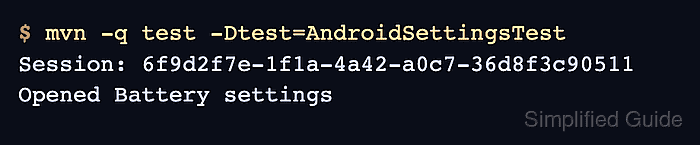
$ mvn -q test -Dtest=AndroidSettingsTest
Session: 6f9d2f7e-1f1a-4a42-a0c7-36d8f3c90511
Opened Battery settings
The session ID confirms that the Java client created an Appium session. The final line should appear after Android Settings opens and the Battery row is clicked.
- Check the Appium server log for the matching session lifecycle.
[HTTP] --> POST /session
[AppiumDriver@7b1f] Session created with session id: 6f9d2f7e-1f1a-4a42-a0c7-36d8f3c90511
[HTTP] --> POST /session/6f9d2f7e-1f1a-4a42-a0c7-36d8f3c90511/element
[HTTP] --> DELETE /session/6f9d2f7e-1f1a-4a42-a0c7-36d8f3c90511
A failed POST /session usually points to server, driver, capability, or device setup. A failure after the session is created usually points to the locator, app state, or wait timing.
Related: How to debug Appium session logs
Related: How to troubleshoot Appium timeout errors

Mohd Shakir Zakaria is a cloud architect with deep roots in software development and open-source advocacy. Certified in AWS, Red Hat, VMware, ITIL, and Linux, he specializes in designing and managing robust cloud and on-premises infrastructures.


