An Appium session can install a test build after the device is already under automation, which fits test flows that choose the app package at run time. The install request runs through the active driver, so the app file must be reachable by the Appium server before the client calls install_app.
The same Appium command sits behind client methods such as Python's driver.install_app() and the installApp device endpoint. The appPath value is an absolute path on the server host or a URL to an installable .apk, .app, or .ipa package, not a path that exists only on a remote client laptop.
The Python client with an Android UiAutomator2 session provides a concrete install check against an emulator or real device. For iOS, keep the same install pattern but replace the app file and identifier with the signed .app or .ipa and bundle ID expected by XCUITest. Cloud device providers often require their own upload API first, followed by a provider-specific URL or storage ID.
Steps to install an app during an Appium session with Python:
- Put the app build where the Appium server can read it.
Appium server host path: /home/developer/apps/api-demos-debug.apk
Remote server URL: https://downloads.example.com/mobile/api-demos-debug.apk
If the client and server run on different machines, use a URL or provider upload value for APP_PATH. A path on the client laptop is not enough unless the Appium server can read the same filesystem.
- Start the Appium server that will own the device session.
$ appium --address 127.0.0.1 --port 4723
[Appium] Appium REST http interface listener started
Related: How to start the Appium server
- Create the Python install script.
$ cat > appium-app-upload-install.py <<'PY'
from pathlib import Path

from appium import webdriver
from appium.options.android import UiAutomator2Options

APPIUM_SERVER = "http://127.0.0.1:4723"
APP_PATH = str(Path("/home/developer/apps/api-demos-debug.apk"))
APP_ID = "io.appium.android.apis"

options = UiAutomator2Options().load_capabilities({
    "platformName": "Android",
    "appium:automationName": "UiAutomator2",
    "appium:deviceName": "emulator-5554",
    "appium:appPackage": "com.android.settings",
    "appium:appActivity": ".Settings",
    "appium:noReset": True,
})

driver = webdriver.Remote(APPIUM_SERVER, options=options)

try:
    driver.install_app(APP_PATH)
    print("install_app returned")

    installed = driver.is_app_installed(APP_ID)
    print("is_app_installed:", installed)
    if not installed:
        raise RuntimeError(f"{APP_ID} was not installed")

    driver.activate_app(APP_ID)
    print("current_package:", driver.current_package)
finally:
    driver.quit()
PY
Replace emulator-5554 with the device name or UDID for the active device. If the test already creates a driver, keep that session setup and add only the install_app, is_app_installed, and activate_app calls.
Related: How to configure Appium capabilities - Run the script to install and open the app.
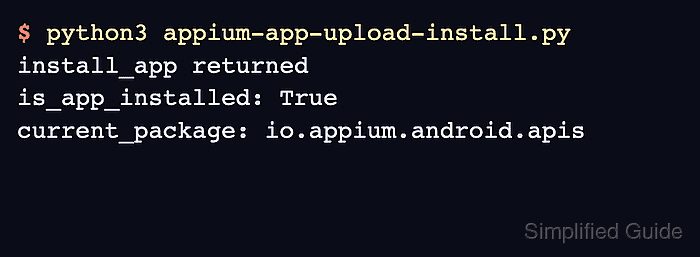
$ python3 appium-app-upload-install.py
install_app returned
is_app_installed: True
current_package: io.appium.android.apis
is_app_installed: True means the package is present on the device. The current_package line should match the app ID after launch.
- Remove the one-off install script when it was only used for the upload check.
$ rm appium-app-upload-install.py

Mohd Shakir Zakaria is a cloud architect with deep roots in software development and open-source advocacy. Certified in AWS, Red Hat, VMware, ITIL, and Linux, he specializes in designing and managing robust cloud and on-premises infrastructures.


