How to download files from a list with wget
Batch download jobs are easier to rerun and audit when every target URL lives in one plain-text file. Feeding that file to wget keeps the retrieval order explicit and avoids rebuilding a long command line every time the batch needs to run again.
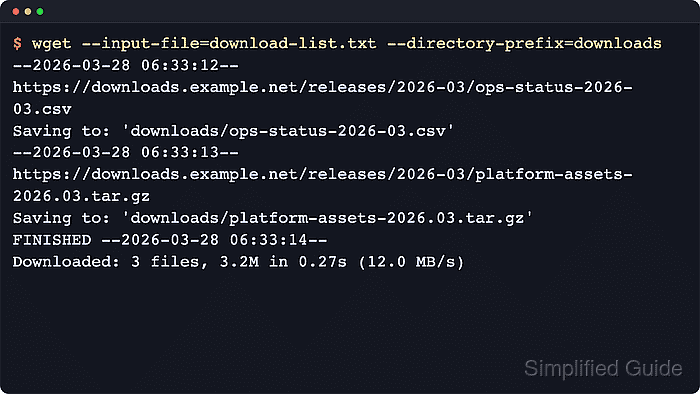
GNU wget reads the list with --input-file (-i) and saves the results normally unless you add other download controls. Pairing --input-file with --directory-prefix keeps the files together, while resume, freshness, pacing, and logging flags should be added only when the repeat run needs that specific behavior.
The list file is literal. Current GNU Wget still treats lines such as # nightly batch as URLs instead of comments, and duplicate remote filenames can still collide in the destination directory, so keep the file to plain URLs and verify the final download set before another job consumes it.
Steps to download files from a list with wget:
- Write the list with one complete URL on each non-blank line.
$ cat > download-list.txt <<'EOF'
https://downloads.example.net/releases/2026-04/ops-status-2026-04.csv
https://downloads.example.net/releases/2026-04/platform-assets-2026.04.tar.gz
https://downloads.example.net/releases/2026-04/compliance-handbook-2026.pdf
EOF
Keeping the manifest beside the job makes retries, reviews, and handoffs much easier.
- Run the batch download and place every file under one destination directory.
$ wget --input-file=download-list.txt --directory-prefix=downloads
--2026-06-06 02:27:45--  https://downloads.example.net/releases/2026-04/ops-status-2026-04.csv
Connecting to downloads.example.net (downloads.example.net)|203.0.113.50|:443... connected.
HTTP request sent, awaiting response... 200 OK
Length: 65536 (64K) [text/csv]
Saving to: 'downloads/ops-status-2026-04.csv'

##### snipped #####
--2026-06-06 02:27:45--  https://downloads.example.net/releases/2026-04/platform-assets-2026.04.tar.gz
Length: 2228224 (2.1M) [application/gzip]
Saving to: 'downloads/platform-assets-2026.04.tar.gz'

##### snipped #####
--2026-06-06 02:27:45--  https://downloads.example.net/releases/2026-04/compliance-handbook-2026.pdf
Length: 1048580 (1.0M) [application/pdf]
Saving to: 'downloads/compliance-handbook-2026.pdf'

##### snipped #####
FINISHED --2026-06-06 02:27:45--
Total wall clock time: 0.1s
Downloaded: 3 files, 3.2M in 0.1s (31.3 MB/s)
The list order is preserved, so log review and rate-limit troubleshooting stay predictable across reruns.
- Add a resume flag only when the same list is retrying partial files from an earlier run.
$ wget --input-file=download-list.txt --directory-prefix=downloads --continue
--continue resumes partial files. Use --timestamping instead when the server provides Last-Modified timestamps and the job should skip unchanged files, and add pacing options such as --wait or --random-wait only when the server or runbook requires delays.
- Save a dedicated log when the manifest is large or the job runs unattended.
$ wget --input-file=download-list.txt \
  --directory-prefix=downloads \
  --output-file=wget-batch.log
Use --append-output instead when each run should add to one existing log instead of replacing it.
- Verify that every expected file landed in the destination directory before another job consumes it.
$ ls -1 downloads
compliance-handbook-2026.pdf
ops-status-2026-04.csv
platform-assets-2026.04.tar.gz
The final directory should show one local file for each URL in download-list.txt.