How to speed up page load time
A browser cannot request a page's largest image until the image appears in the HTML or another early discovery signal. A hero inserted later by JavaScript can therefore dominate Largest Contentful Paint (LCP) even when the image file transfers quickly.
A server-rendered PHP storefront runs from /srv/storefront. Its active template is /srv/storefront/public/index.php, the Docker Compose build target is the web service, and that service runs the image tagged storefront-web:current.
Apply the image repair only when Lighthouse identifies the intended above-the-fold image as the LCP element and reports Resource load delay as the dominant subpart. A large Time to first byte, resource transfer duration, or element render delay needs a different repair.
Related: core-web-vitals-check
Related: How to set up Google Search Console for a website
Steps to speed up a server-rendered PHP page with Lighthouse:
- Change into the active storefront directory containing compose.yaml and the web build context.
$ cd /srv/storefront
- Create a unique audit directory for the two Lighthouse reports, the template backup, and audit-only browser data.
$ AUDIT_DIR=$(mktemp -d "${TMPDIR:-/tmp}/page-load-audit.XXXXXX")mktemp creates the directory atomically and exits nonzero instead of reusing an existing path.
- Create the baseline Chrome profile inside the new audit directory.
$ mkdir -m 700 "$AUDIT_DIR/chrome-before"
- Capture a mobile performance baseline for the public page served by this storefront.
$ lighthouse http://www.example.com:8080/ --form-factor=mobile --only-categories=performance --output=json --output-path="$AUDIT_DIR/lighthouse-before.json" --chrome-flags="--headless=new --no-first-run --disable-gpu --user-data-dir=$AUDIT_DIR/chrome-before" --disable-storage-reset --quiet
http://www.example.com:8080/ represents the public URL for the affected template; the baseline and retest URLs must be identical.
- Inspect every warning retained by the baseline report.
$ jq '.runWarnings' "$AUDIT_DIR/lighthouse-before.json"
[]
A nonempty array can indicate browser startup, storage, navigation, or measurement conditions that make the baseline unsuitable.
- Inspect the baseline LCP element, four subparts, and reconciled total.
$ jq '(.audits["lcp-breakdown-insight"].details.items[] | select(.type == "table").items) as $p | {observed_lcp_ms: .audits.metrics.details.items[0].observedLargestContentfulPaint, subparts: ($p | map({label, duration_ms: (.duration | round)})), subpart_total_ms: ($p | map(.duration) | add | round), element: (.audits["lcp-breakdown-insight"].details.items[] | select(.type == "node") | .snippet)}' "$AUDIT_DIR/lighthouse-before.json"
{
  "observed_lcp_ms": 1887,
  "subparts": [
    {"label":"Time to first byte","duration_ms":50},
    {"label":"Resource load delay","duration_ms":1814},
    {"label":"Resource load duration","duration_ms":2},
    {"label":"Element render delay","duration_ms":21}
  ],
  "subpart_total_ms": 1887,
  "element": "<img src=\"/images/hero.svg\" alt=\"Summer collection\">"
}
The displayed repair fits this result because the subparts reconcile to the observed 1,887 ms LCP and resource load delay accounts for 1,814 ms.
- Inspect the intrinsic dimensions of the LCP image in the storefront source tree.
$ magick identify -format 'width=%w height=%h\n' public/images/hero.svg
width=1620 height=838
- Back up the active PHP template inside the unique audit directory.
$ cp -p public/index.php "$AUDIT_DIR/index.php.before"
A shared home-page template affects every request using it; keep this byte-for-byte source backup until the new image is accepted.
- Preserve the currently deployed storefront image under the rollback tag.
$ docker image tag storefront-web:current storefront-web:rollback
The running container still uses its existing image while the replacement image is built.
- Replace the JavaScript-populated hero slot in /srv/storefront/public/index.php with the server-rendered LCP image element.
- public/index.php
<img class="hero" src="/images/hero.svg"
     width="1620" height="838"
     loading="eager" fetchpriority="high"
     alt="Summer collection">
The displayed dimensions belong to this storefront asset; another asset requires its own returned values.
- Remove the deferred /assets/hero-loader.js script tag from /srv/storefront/public/index.php.
The removal is limited to the tag that inserts this same hero image because a shared loader may control unrelated page behavior.
- Build the web service image from the edited storefront source.
$ docker compose build web
- Validate the PHP syntax inside the newly built storefront-web:current image.
$ docker run --rm storefront-web:current php -l /var/www/html/index.php
No syntax errors detected in /var/www/html/index.php
- Render the candidate PHP template into the audit directory without changing the running service.
$ docker run --rm storefront-web:current php /var/www/html/index.php > "$AUDIT_DIR/candidate.html"
- Confirm that the candidate rendering contains the server-rendered LCP image.
$ grep --fixed-strings '<img class="hero" src="/images/hero.svg"' "$AUDIT_DIR/candidate.html" <img class="hero" src="/images/hero.svg" - Recreate only the web service from the validated image with health-check waiting enabled.
$ docker compose up --detach --no-deps --force-recreate --wait web
This command replaces the public application container without recreating dependent services. The rollback tag and saved template preserve the previous deployment and source for recovery.
- Download the public page's initial HTML response without running JavaScript.
$ curl --fail --silent --show-error --output "$AUDIT_DIR/initial-after.html" http://www.example.com:8080/
- Confirm that the public initial HTML contains the server-rendered LCP image.
$ grep --fixed-strings '<img class="hero" src="/images/hero.svg"' "$AUDIT_DIR/initial-after.html"
    <img class="hero" src="/images/hero.svg"
No match makes grep exit nonzero and means the deployed response still hides the image from the preload scanner.
- Retag the rollback image as storefront-web:current if either public page check fails.
$ docker image tag storefront-web:rollback storefront-web:current
- Recreate only the web service from the restored image if either public page check fails.
$ docker compose up --detach --no-deps --force-recreate --wait web
- Create the retest Chrome profile after both public page checks pass.
$ mkdir -m 700 "$AUDIT_DIR/chrome-after"
- Capture a mobile retest for the unchanged public URL.
$ lighthouse http://www.example.com:8080/ --form-factor=mobile --only-categories=performance --output=json --output-path="$AUDIT_DIR/lighthouse-after.json" --chrome-flags="--headless=new --no-first-run --disable-gpu --user-data-dir=$AUDIT_DIR/chrome-after" --disable-storage-reset --quiet
- Inspect every warning retained by the retest report.
$ jq '.runWarnings' "$AUDIT_DIR/lighthouse-after.json"
[]
- Inspect the retest LCP value, element, and reconciled subpart total.
$ jq '(.audits["lcp-breakdown-insight"].details.items[] | select(.type == "table").items) as $p | {observed_lcp_ms: .audits.metrics.details.items[0].observedLargestContentfulPaint, subpart_total_ms: ($p | map(.duration) | add | round), element: (.audits["lcp-breakdown-insight"].details.items[] | select(.type == "node") | .snippet)}' "$AUDIT_DIR/lighthouse-after.json" { "observed_lcp_ms": 75, "subpart_total_ms": 75, "element": "<img class=\"hero\" src=\"/images/hero.svg\" width=\"1620\" height=\"838\" loading=\"eager\" fetchpriority=\"high\" alt=\"Summer collection\">" } - Remove the audit-only baseline Chrome profile.
$ rm -r "$AUDIT_DIR/chrome-before"
- Remove the audit-only retest Chrome profile.
$ rm -r "$AUDIT_DIR/chrome-after"
- Confirm that both audit-only Chrome profiles are absent.
$ test ! -e "$AUDIT_DIR/chrome-before" -a ! -e "$AUDIT_DIR/chrome-after"
The reports, source backup, candidate rendering, and public initial response remain as the deployment record.
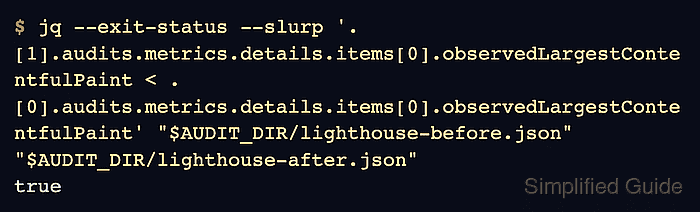
- Confirm that the cleaned audit records a lower LCP for the same public URL.
$ jq --exit-status --slurp '.[0].finalDisplayedUrl == .[1].finalDisplayedUrl and (.[1].audits.metrics.details.items[0].observedLargestContentfulPaint < .[0].audits.metrics.details.items[0].observedLargestContentfulPaint)' "$AUDIT_DIR/lighthouse-before.json" "$AUDIT_DIR/lighthouse-after.json"
true
The command exits nonzero when the reports target different final URLs or the retest did not improve.