How to start and stop Tomcat with systemd
Use the systemd service unit when Tomcat must be stopped for a maintenance window, started after a reboot, or restarted after a change that needs a new JVM. Sending lifecycle requests through systemd keeps the package service manager, logs, restart policy, and service state aligned.
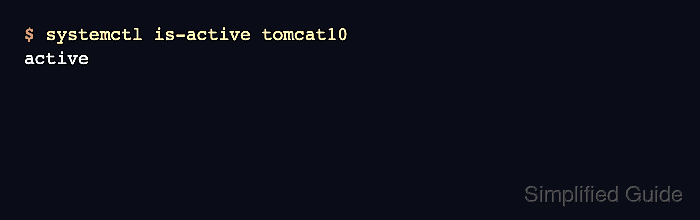
The commands use the tomcat10 unit from the current Ubuntu package. Other package families may use tomcat for the default service, and source-style installs often use a custom unit name, so confirm the unit before running stop or restart commands on a shared host.
Stopping Tomcat interrupts every application in that instance. A maintenance handoff checks the unit state before the change, confirms that the connector stops accepting requests, starts or restarts the service, and then proves that both systemd and the HTTP connector are back in the expected state.
Steps to start and stop Tomcat with systemd:
- Open a terminal on the Tomcat host with sudo privileges.
- Confirm the installed Tomcat unit name.
$ systemctl list-unit-files 'tomcat*.service'
UNIT FILE        STATE   PRESET
tomcat10.service enabled enabled

1 unit files listed.
Use the unit name shown on the host. The examples use tomcat10; replace it with tomcat or a custom unit name when that is what the package or local install provides.
- Check the current service state before changing it.
$ systemctl is-active tomcat10
active
If the unit is not active before the maintenance action, inspect the status and journal first so a pre-existing startup failure is not mistaken for the stop or restart command.
- Stop Tomcat when the maintenance window is ready.
$ sudo systemctl stop tomcat10
Stopping the service interrupts all applications and sessions running in that Tomcat instance.
- Confirm the unit is stopped.
$ systemctl is-active tomcat10
inactive
systemctl is-active returns a nonzero exit status for inactive. That is expected after a deliberate stop, but it matters when the command is used in a script.
- Confirm the local connector no longer accepts requests.
$ curl --include --silent --show-error --max-time 2 http://127.0.0.1:8080/
curl: (7) Failed to connect to 127.0.0.1 port 8080 after 0 ms: Could not connect to server
Use the connector port and hostname that match the instance. The default packaged Ubuntu connector listens on 127.0.0.1:8080 for a local check.
- Start Tomcat again.
$ sudo systemctl start tomcat10
systemctl prints no output when the start request is accepted successfully. Check the unit and connector before handing the host back to users.
- Confirm the unit returned to the active state.
$ systemctl is-active tomcat10
active
- Confirm the connector answers HTTP requests again.
$ curl --include --silent --show-error --max-time 5 http://127.0.0.1:8080/
HTTP/1.1 200
##### snipped #####
Content-Type: text/html
Content-Length: 1905
##### snipped #####
An HTTP response from the local connector proves more than a process state check. It shows that Tomcat has opened the connector and is serving the default web application or the deployed application behind that port.
- Restart Tomcat after changes that require a fresh JVM.
$ sudo systemctl restart tomcat10
A restart is a stop followed by a start, so it has the same application interruption risk as a planned stop.
The verified Ubuntu tomcat10 unit reports CanReload=no, so use restart instead of reload for changes that need the service to reread files.
- Check the service status after the restart.
$ systemctl status tomcat10 --no-pager
● tomcat10.service - Apache Tomcat 10 Web Application Server
     Loaded: loaded (/usr/lib/systemd/system/tomcat10.service; enabled; preset: enabled)
     Active: active (running) since Wed 2026-06-10 21:03:33 UTC; 2s ago
##### snipped #####
   Main PID: 412 (java)
##### snipped #####
If the unit fails to start, inspect sudo journalctl -u tomcat10 before retrying the restart. Related: How to troubleshoot Tomcat startup failures with systemd