How to run Tempo with Docker Compose
Running Tempo with Docker Compose gives a local trace backend for testing OpenTelemetry exporters, TraceQL queries, and Grafana trace views. The official quick start uses the Tempo repository's single-binary Compose example so the required support services and provisioning files start together.
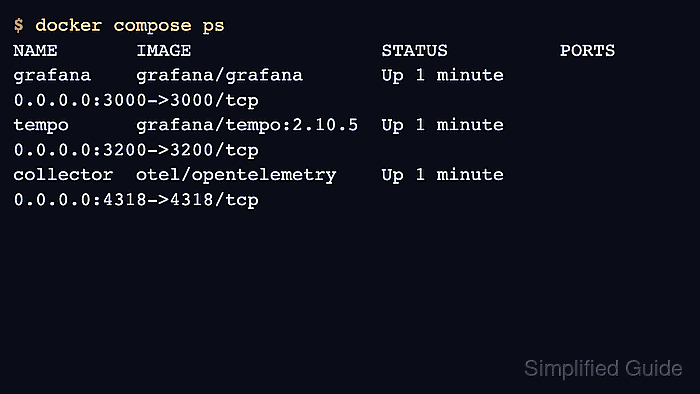
The single-binary example starts Tempo, Grafana, Prometheus, Alloy, Redpanda, and a trace generator. Tempo receives OTLP traffic on ports 4317 and 4318 and exposes its HTTP query API on port 3200.
Use this setup to learn Tempo behavior and verify trace ingestion. Production deployments need a reviewed storage backend, retention plan, tenant model, and deployment mode rather than the quick-start example.
Steps to run Tempo with Docker Compose:
- Clone the Tempo repository.
$ git clone https://github.com/grafana/tempo.git
Cloning into 'tempo'...
##### snipped #####
- Change into the single-binary example directory.
$ cd tempo/example/docker-compose/single-binary
- Start the example stack.
$ docker compose up -d
Container single-binary-redpanda-1    Started
Container single-binary-tempo-1       Started
Container single-binary-grafana-1     Started
Container single-binary-alloy-1       Started
Container single-binary-k6-tracing-1  Started
- List the Compose services.
$ docker compose ps
NAME                           SERVICE      STATUS    PORTS
single-binary-grafana-1        grafana      running   0.0.0.0:3000->3000/tcp
single-binary-tempo-1          tempo        running   0.0.0.0:3200->3200/tcp, 0.0.0.0:4317-4318->4317-4318/tcp
single-binary-prometheus-1     prometheus   running   0.0.0.0:9090->9090/tcp
single-binary-redpanda-1       redpanda     running   0.0.0.0:9092->9092/tcp
- Check the Tempo readiness endpoint.
$ curl --silent http://127.0.0.1:3200/ready
ready
- Open Grafana.
http://127.0.0.1:3000
The example stack provisions Grafana for local trace exploration.
- Open Explore and select the Tempo data source.
- Run a Search query and select a returned trace.
The trace generator can need a short warm-up period before recent traces appear.
- Stop the example stack when testing is complete.
$ docker compose down -v
Container single-binary-grafana-1     Removed
Container single-binary-tempo-1       Removed
Volume single-binary_tempo-data       Removed
The down -v option removes example volumes and stored traces.