How to list systemd unit files using systemctl
Listing installed systemd unit files shows which services, timers, sockets, paths, mounts, targets, and other units exist on disk together with their current unit-file state. That is useful before enabling, disabling, masking, or editing a unit because it confirms the exact unit name that systemd can load.
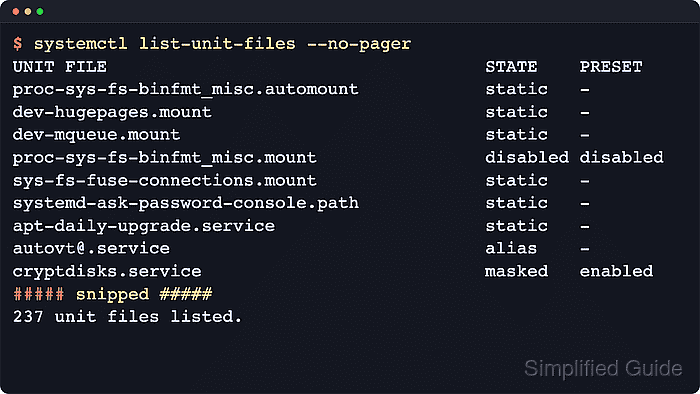
The systemctl list-unit-files subcommand reports the enablement state for each discovered unit file by the same model used by systemctl is-enabled. Unlike systemctl list-units, it is not limited to units that are already loaded into memory, so template units such as getty@.service also appear in the inventory.
The inventory comes from the active unit search path, so system units are read from locations such as /etc/systemd/system, /run/systemd/system, and /usr/lib/systemd/system, while --user switches to the separate per-user path under /~/.config/systemd/user and the XDG user-unit directories. The command is read-only and usually does not require sudo, but the PRESET column reflects vendor default policy rather than any local administrative change that was applied later.
Related: How to list systemd services using systemctl
Related: How to list systemd timers
Related: How to list systemd targets
Steps to list systemd unit files using systemctl:
- List the full installed unit-file inventory from the current system manager.
$ systemctl list-unit-files --no-pager
UNIT FILE                                    STATE    PRESET
apt-daily-upgrade.service                    static   -
apt-daily.service                            static   -
autovt@.service                              alias    -
console-getty.service                        disabled disabled
container-getty@.service                     static   -
cryptdisks-early.service                     masked   enabled
cryptdisks.service                           masked   enabled
dbus-org.freedesktop.hostname1.service       alias    -
dbus-org.freedesktop.locale1.service         alias    -
##### snipped #####

126 unit files listed.
STATE is the current unit-file state, and PRESET is the vendor default policy that package installation or preset rules would apply without local overrides.
- Limit the inventory to one unit type when the full list is too broad.
$ systemctl list-unit-files --type=timer --no-pager
UNIT FILE                      STATE    PRESET
apt-daily-upgrade.timer        enabled  enabled
apt-daily.timer                enabled  enabled
dpkg-db-backup.timer           enabled  enabled
e2scrub_all.timer              enabled  enabled
fstrim.timer                   enabled  enabled
motd-news.timer                enabled  enabled
systemd-sysupdate-reboot.timer disabled enabled
systemd-sysupdate.timer        disabled enabled
systemd-tmpfiles-clean.timer   static   -

9 unit files listed.
Common values for --type= include service, timer, socket, path, mount, automount, and target.
- Filter by unit-file state when only enabled, disabled, masked, or similar entries matter.
$ systemctl list-unit-files --type=service --state=enabled,masked --no-pager --no-legend
cryptdisks-early.service    masked  enabled
cryptdisks.service          masked  enabled
e2scrub_reap.service        enabled enabled
getty@.service              enabled enabled
hwclock.service             masked  enabled
networkd-dispatcher.service enabled enabled
systemd-pstore.service      enabled enabled
systemd-resolved.service    enabled enabled
systemd-timesyncd.service   enabled enabled
x11-common.service          masked  enabled
The printed states follow the same model as systemctl is-enabled, so other common results include disabled, static, alias, indirect, generated, and transient. Related: How to check whether a service is enabled using systemctl
- Query only the units that matter when the exact service names are already known.
$ systemctl list-unit-files dbus.service systemd-resolved.service --no-pager --no-legend
dbus.service             static  -
systemd-resolved.service enabled enabled
Pass one or more exact unit names to narrow the result immediately, or quote a glob pattern such as systemd-*.service when the family name is known. Related: How to edit a systemd unit override
- Switch to the user manager when the unit file belongs to a login session instead of the system instance.
$ systemctl --user list-unit-files --type=service --no-pager
UNIT FILE                      STATE    PRESET
systemd-exit.service           static   -
systemd-tmpfiles-clean.service static   -
systemd-tmpfiles-setup.service disabled enabled

3 unit files listed.
--user reads the separate user unit-file search path, beginning with /~/.config/systemd/user and continuing through the XDG and distribution user-unit directories.