How to reload a service using systemctl
Reloading a service with systemctl asks a reload-capable daemon to reread its own application configuration while the service keeps running. Use it when the software documents a safe in-place reload and a full restart would interrupt clients, clear in-memory state, or create an avoidable service gap.
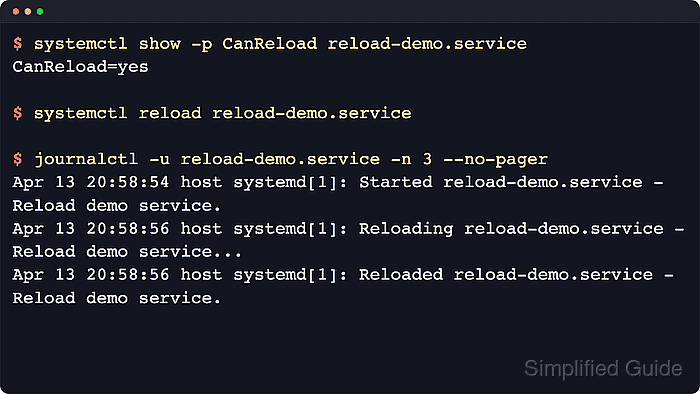
systemctl reload unit.service is different from systemctl daemon-reload. The reload action follows the unit's service-side reload path, usually through ExecReload= or Type=notify-reload, while daemon-reload only makes systemd reread unit files and drop-ins from disk.
The examples below use reload-demo.service as a stand-in unit name. Replace it with the real unit on the host, add sudo for system services, use systemctl --user for per-user services, and check CanReload first because a unit with no reload path fails immediately and usually needs restart instead.
Steps to reload a service using systemctl:
- Check whether the target unit supports a live reload before using the reload action.
$ systemctl show -p CanReload reload-demo.service
CanReload=yes
Replace reload-demo.service with the real unit name, such as nginx.service, apache2.service, or another service that documents an in-place reload path. A CanReload=no result means systemctl reload is not applicable for that unit.
- Run the reload command for the service.
$ sudo systemctl reload reload-demo.service
Use systemctl --user reload unit.service for a per-user service instead of the system manager. systemctl reload asks the running service to reread its own configuration, while unit-file or drop-in changes still need systemctl daemon-reload followed by the appropriate lifecycle action.
- Check the service status after the reload.
$ systemctl status --no-pager --full reload-demo.service
● reload-demo.service - Reload demo service
     Loaded: loaded (/etc/systemd/system/reload-demo.service; disabled; preset: enabled)
     Active: active (running) since Wed 2026-04-22 10:29:42 +08; 1min ago
    Process: 3735 ExecReload=/bin/kill -HUP $MAINPID (code=exited, status=0/SUCCESS)
   Main PID: 2923 (bash)
##### snipped #####
Apr 22 10:31:15 host systemd[1]: Reloading reload-demo.service - Reload demo service...
Apr 22 10:31:15 host reload-demo.sh[2923]: reload-demo: received reload request
Apr 22 10:31:15 host systemd[1]: Reloaded reload-demo.service - Reload demo service.
The Active: line should stay active (running) for a long-lived service, and the Process: line for ExecReload= confirms that the reload hook completed without a full restart.
- Read the unit journal when the reload returned an error or the application still behaves like it is using the old configuration.
$ sudo journalctl -u reload-demo.service -n 6 --no-pager
Apr 22 10:29:42 host systemd[1]: Started reload-demo.service - Reload demo service.
Apr 22 10:31:15 host systemd[1]: Reloading reload-demo.service - Reload demo service...
Apr 22 10:31:15 host reload-demo.sh[2923]: reload-demo: received reload request
Apr 22 10:31:15 host systemd[1]: Reloaded reload-demo.service - Reload demo service.
journalctl -u is the clearer follow-up when the short status view does not explain whether the reload hook ran, timed out, or returned an application error.
- Restart the service instead when the unit does not support reload or the changed setting is only read at process start.
$ sudo systemctl restart reload-demo.service
Reload support is optional. When CanReload=no, use the lifecycle action that the service documentation actually supports instead of assuming every daemon can reread its configuration in place.