How to configure a Redmine workflow
A Redmine workflow is the role-and-tracker rule set that controls which status changes are available on an issue. It matters when developers, support agents, managers, or clients should follow different issue lifecycles inside the same project.
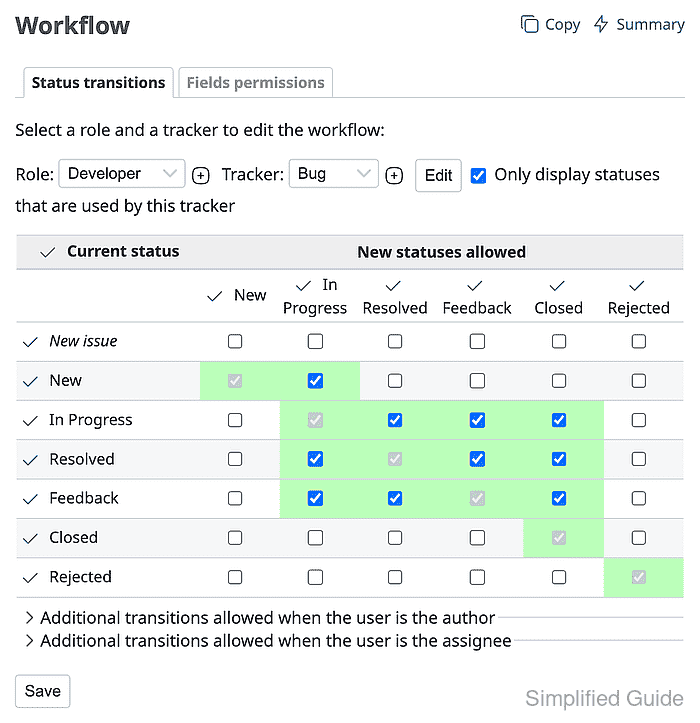
Redmine separates workflow settings into two main tabs. Status transitions controls the next statuses a role can choose for a tracker, while Fields permissions can leave a field editable, make it read-only, or require a value for a specific issue status.
Use a test account with only the target project role before handing the workflow to a team. Redmine combines permissions from multiple roles, so an account with extra roles can still see transitions or fields that the target role alone should not allow.
Related: How to set Redmine role permissions
Related: How to create a Redmine tracker
Related: How to create a Redmine issue
Steps to configure a Redmine workflow:
- Sign in to Redmine with an administrator account and open Administration → Workflow → Summary.
https://redmine.example.net/workflows
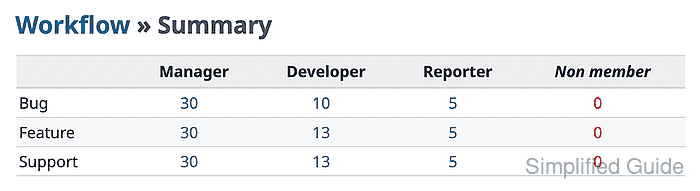
Replace the hostname with the URL for your Redmine site.
- Click the transition count where the target role intersects the target tracker.
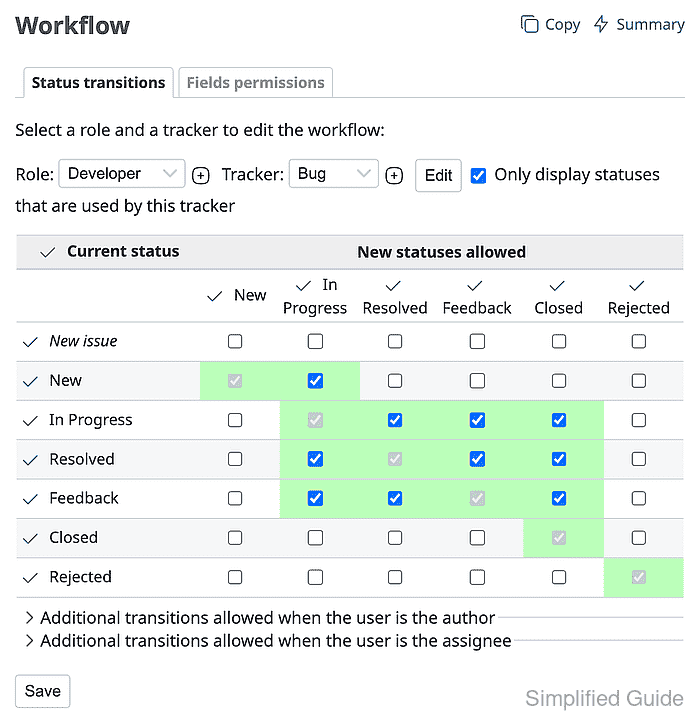
A role/tracker pair such as Developer and Bug controls one set of issue status choices. Use the pair that matches the project team being tested.
- Keep the intended next status checked in the current-status row and clear any direct transition that should be blocked.
For a first triage workflow, New can move to In Progress while direct New → Closed is left unchecked.
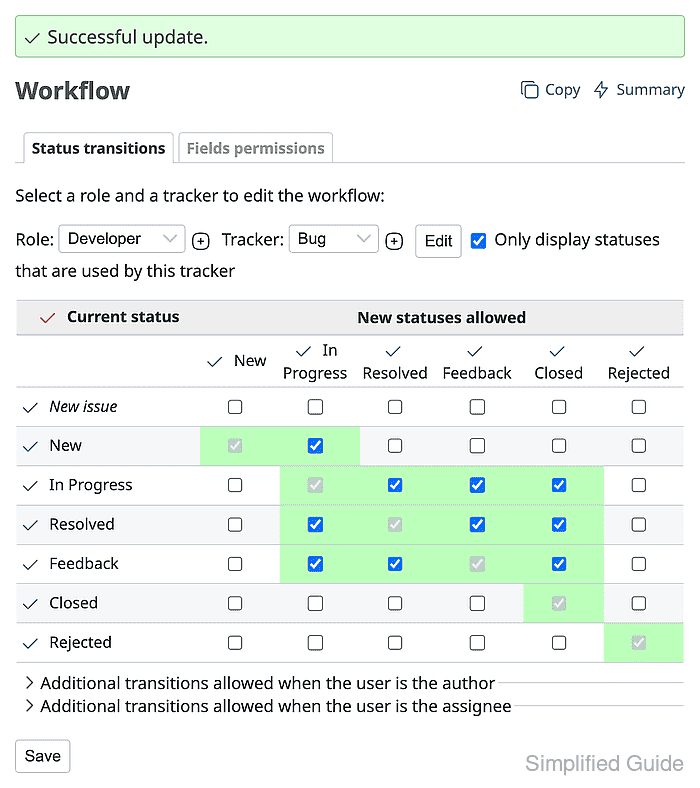
- Click Save and confirm Redmine reports a successful update.
- Open the Fields permissions tab for the same role and tracker.
- Set the target field permission for the issue status being controlled.
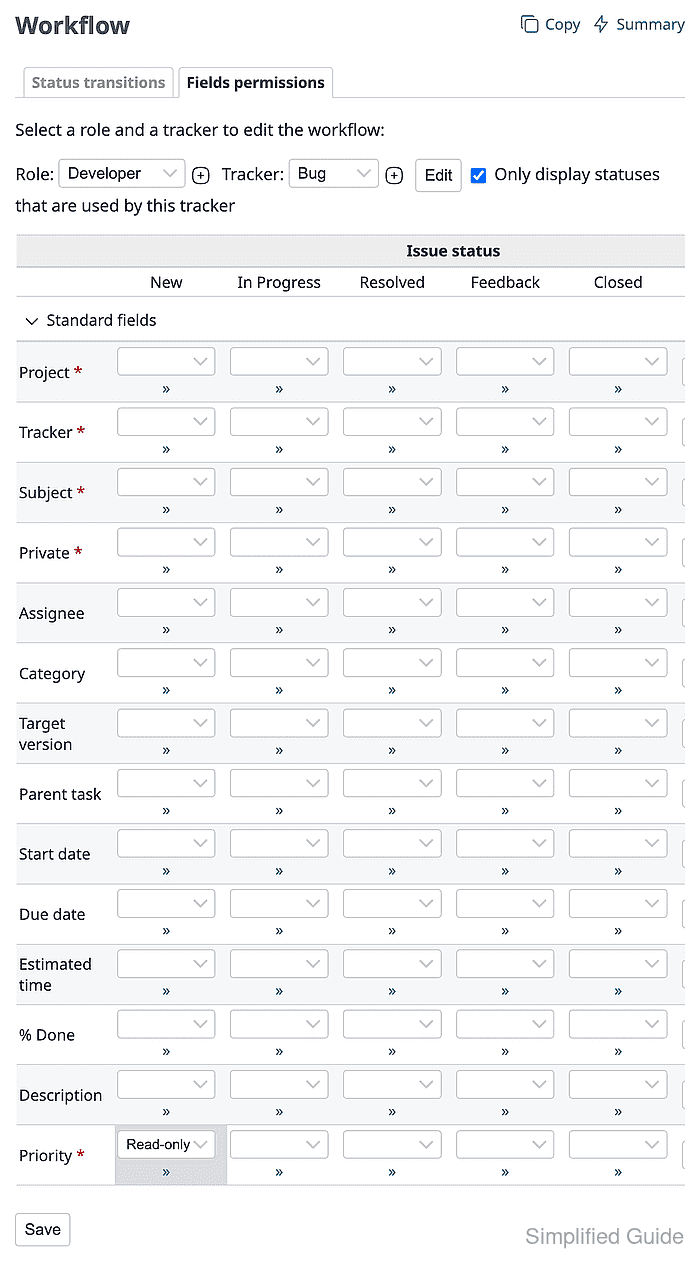
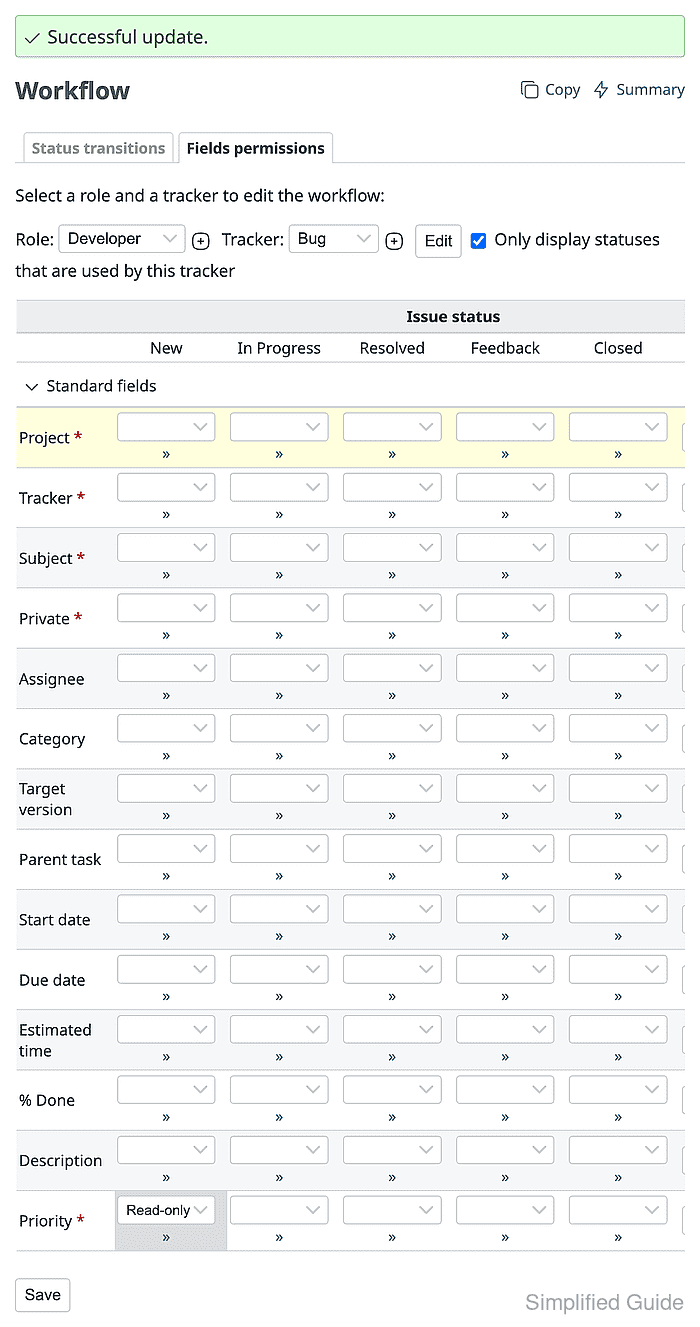
Setting Priority to Read-only under New removes that field from the edit form while the issue stays in New. Leave the field blank for the default editable behavior, or choose Required when the role must enter a value before saving.
- Click Save and confirm the field-permission update.
- Open a New issue with the target tracker as a test user who has only the target project role.
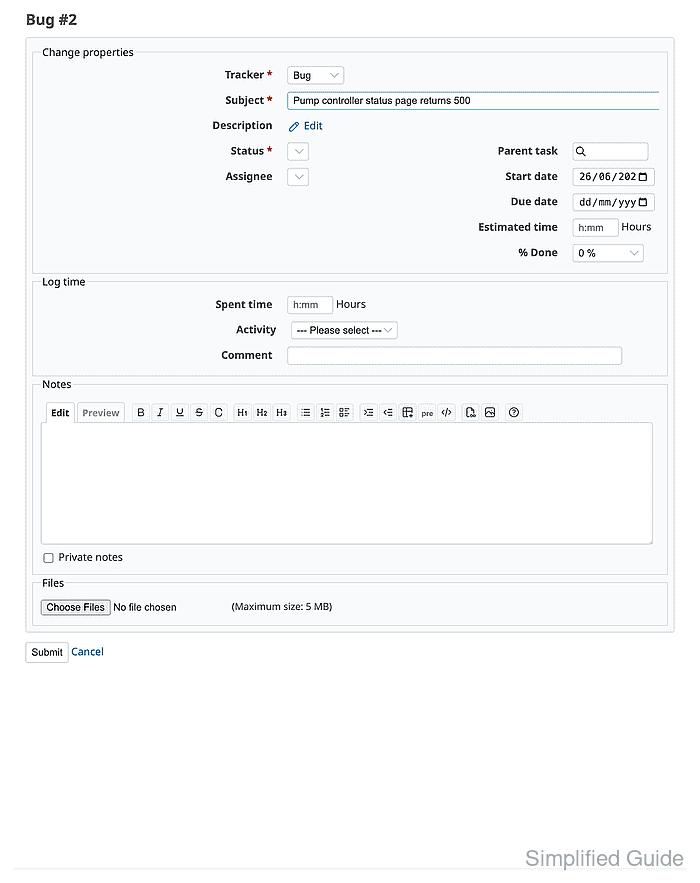
The Status list should include the allowed next status and omit the blocked status. The read-only field should be absent from the edit form for that status.
Related: How to add members to a Redmine project - Select the allowed next status and save the issue with a short note.
- Confirm the issue history records the allowed status transition.
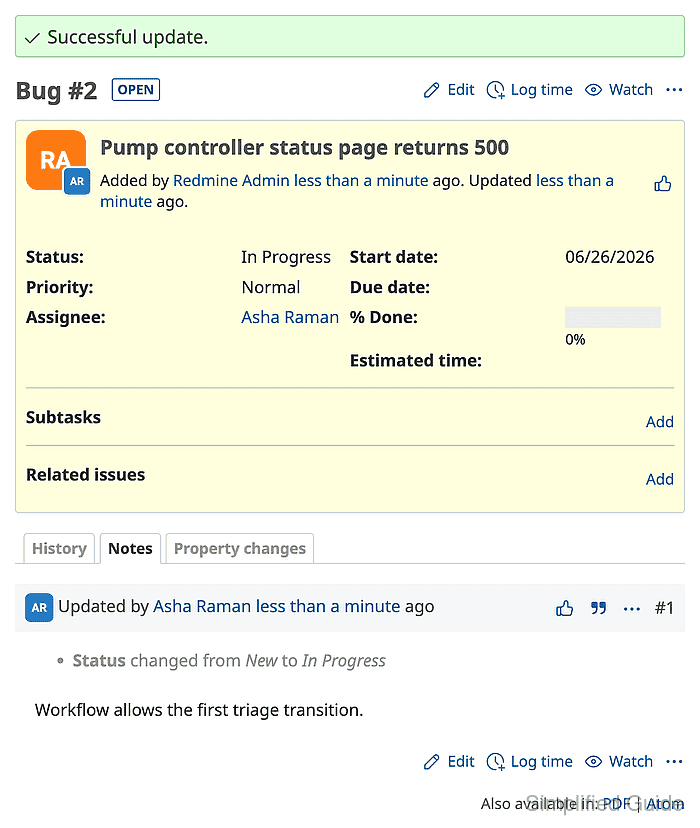
If the test user can still select a blocked status, check for another project role on the same user before changing the workflow matrix again.