Role permissions in Redmine define what a project member can see and change after a role is assigned. They matter when one team needs issue access without project administration rights, or when client-facing users need a narrower project surface than the default Manager or Developer roles.
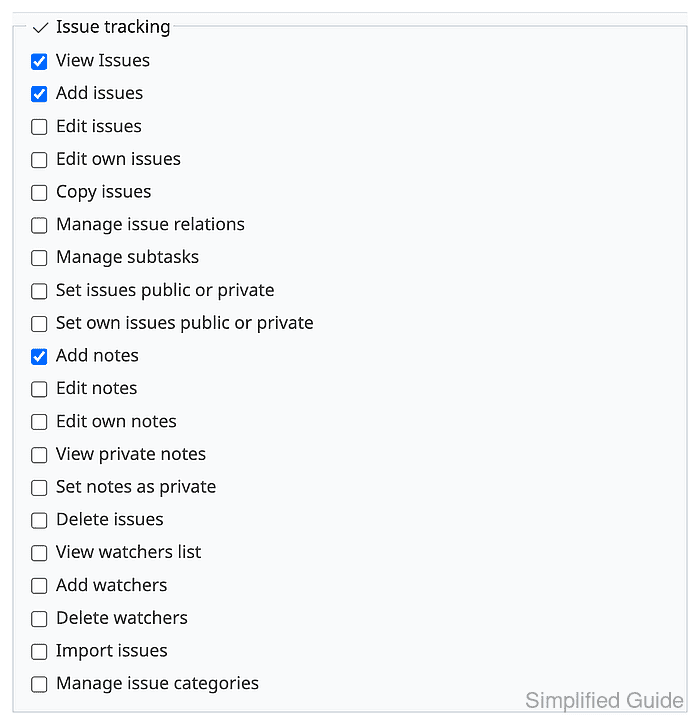
The role editor separates project, issue tracking, wiki, repository, time-tracking, and visibility settings. Issue permissions also use tracker coverage, so allowing issue creation requires both the permission checkbox and tracker coverage for the trackers used by the project.
Test a new role with an account that has no other role in the target project. Redmine combines permissions when a member has multiple roles, so a single-role test account shows whether the new permission set grants the intended actions and blocks project administration actions.
Steps to set Redmine role permissions:
- Sign in to Redmine with an administrator account.
- Open Administration → Roles and permissions.
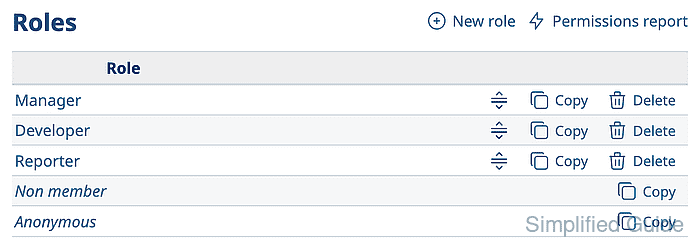
- Click New role.
- Enter the role name and choose the role visibility defaults.
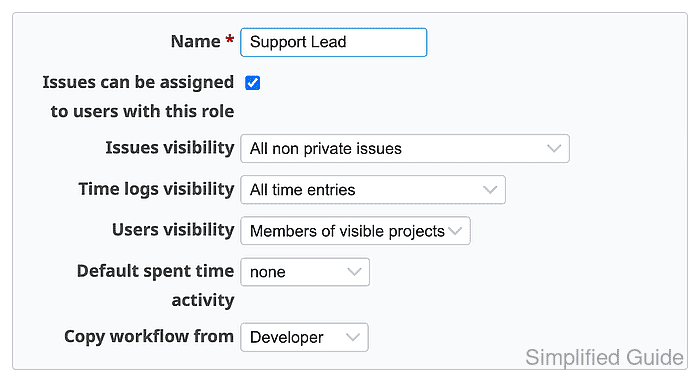
Use Copy workflow from when the new role should follow the issue workflow of an existing role such as Developer.
- Select the issue permissions and tracker coverage for the role.
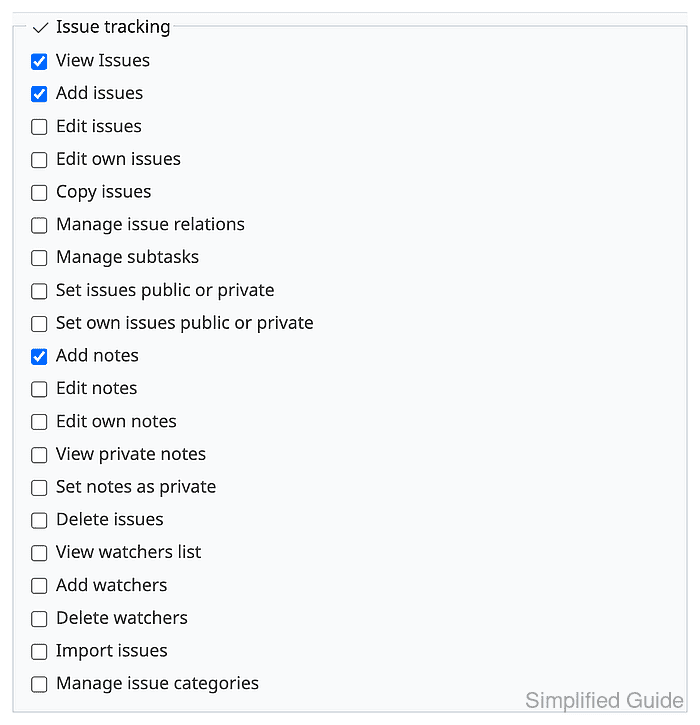
A support role can view issues, add issues, and add notes, while edit, delete, and project administration permissions remain unchecked.
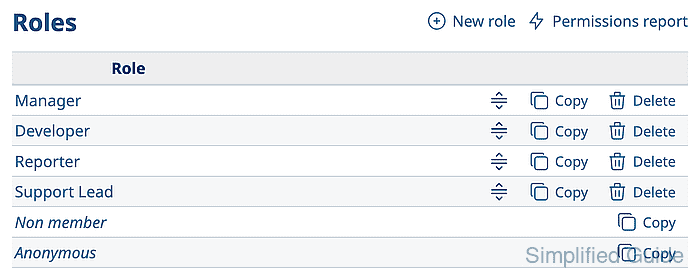
- Save the role and confirm it appears in the role list.
- Assign the role to a test user in the target project.
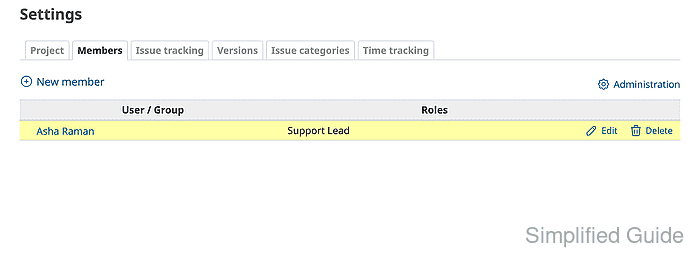
The test user should have only this role in the project, otherwise another role can mask an over-restricted or over-permissive setting.
Related: How to add members to a Redmine project - Sign in as the test user and open the New issue form for the project.
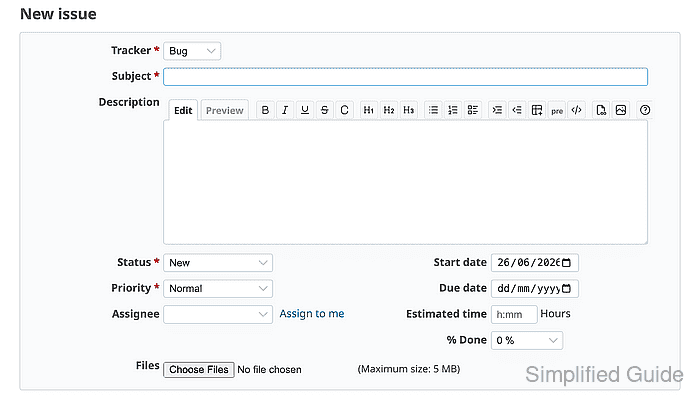
The form confirms that View Issues and Add issues work for the project tracker.
- Open a project settings URL as the test user and confirm Redmine returns 403.
https://redmine.example.net/projects/field-service/settings/members

If project settings open for the test user, remove high-risk permissions such as Edit project, Select project modules, or Manage members from the role and retest.

Mohd Shakir Zakaria is a cloud architect with deep roots in software development and open-source advocacy. Certified in AWS, Red Hat, VMware, ITIL, and Linux, he specializes in designing and managing robust cloud and on-premises infrastructures.


