How to install pip on Windows
Installing pip on Windows restores access to third-party packages, project bootstrap commands, and virtual-environment tooling when a working Python runtime exists but its package installer is missing. Without it, dependency installs from PyPI, local wheel files, or requirements-based workflows stop at the interpreter boundary.
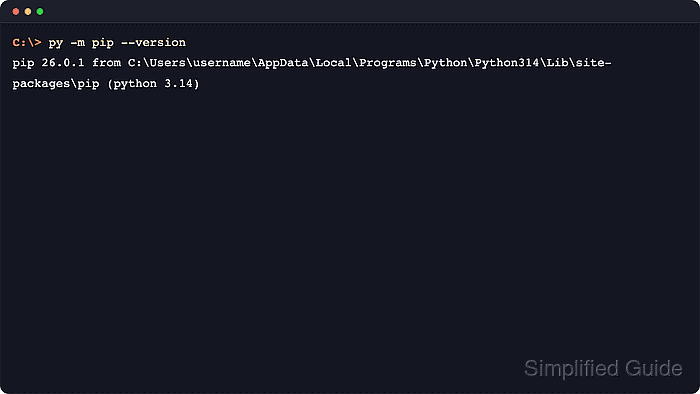
Current python.org CPython installations for Windows usually include pip already, and current packaging guidance favors interpreter-bound commands such as py -m pip over whichever pip.exe happens to resolve first in PATH. When the module is missing, the standard-library ensurepip bootstrap restores the bundled pip wheel from the local CPython installation before an optional upgrade pulls the latest release from the package index.
The workflow assumes a standard CPython installation on a supported Windows release with the py command available in Command Prompt or PowerShell. On current python.org installs, py may come from the Python install manager rather than the older launcher; either way, use py -m pip so package commands stay attached to the intended runtime.
Steps to install pip on Windows:
- Confirm that the Windows py command starts the target Python runtime.
C:\> py --version
Python 3.14.5
If py is not recognized, or if the Microsoft Store opens instead of a local Python runtime, repair or install Python before continuing.
Related: How to install Python on Windows
Related: How to check Python version - Check whether pip is already present for that interpreter.
C:\> py -m pip --version
pip 26.1.2 from C:\Users\example.user\AppData\Local\Programs\Python\Python314\Lib\site-packages\pip (python 3.14)
If this returns a version and path, the interpreter already has a working pip module and only the upgrade step below is optional.
Current pip docs show the interpreter-bound form py -m pip on Windows so package commands stay tied to the intended runtime even when multiple Python installs exist.
- Bootstrap the bundled pip copy when the previous step reports that the module is missing.
C:\> py -m ensurepip --upgrade
Looking in links: C:\Users\example.user\AppData\Local\Temp\tmpq4w9m2k1
Processing C:\Users\example.user\AppData\Local\Temp\tmpq4w9m2k1\pip-26.1-py3-none-any.whl
Installing collected packages: pip
Successfully installed pip-26.1
This is the supported Windows recovery path in current pip docs.
The ensurepip bootstrap uses the bundled wheel that ships with CPython and does not need internet access.
If ensurepip is unavailable, the local runtime was likely installed from a redistributor build or an incomplete Python install, so repair or reinstall Python instead of copying pip files manually.
- Upgrade the restored pip module to the current release for that interpreter.
C:\> py -m pip install --upgrade pip
Requirement already satisfied: pip in C:\Users\example.user\AppData\Local\Programs\Python\Python314\Lib\site-packages (26.1)
Collecting pip
  Using cached pip-26.1.2-py3-none-any.whl.metadata (4.7 kB)
Using cached pip-26.1.2-py3-none-any.whl (1.8 MB)
Installing collected packages: pip
  Attempting uninstall: pip
    Found existing installation: pip 26.1
    Uninstalling pip-26.1:
      Successfully uninstalled pip-26.1
Successfully installed pip-26.1.2
This step reaches the configured package index, so proxy or TLS interception rules can still affect it even when ensurepip succeeded locally.
Keep using py -m pip afterward rather than whichever pip.exe happens to appear first in PATH.
Related: How to configure a proxy for pip
Related: How to upgrade pip - Verify that pip now responds from the expected Python location.
C:\> py -m pip --version
pip 26.1.2 from C:\Users\example.user\AppData\Local\Programs\Python\Python314\Lib\site-packages\pip (python 3.14)
The sample profile name in this output is masked; the important signal is that the path after from points to the intended Python314 installation tree.
If the path points to the wrong interpreter, rerun the command with a specific launcher selector such as py -V:3.14 -m pip --version.