Installing Python on Windows now means installing the Python install manager first, then using it to place a managed CPython runtime behind the global python command. That keeps scripts, virtual environments, and package installs tied to a supported runtime instead of a leftover Store alias, old launcher, or installer path from an earlier setup.
The install manager is distributed through the Microsoft Store package that WinGet installs, and Python.org also offers the same MSIX package for manual installs. After the manager is present, py and pymanager can install runtime tags, while python starts the default runtime unless an active virtual environment overrides it.
These steps assume Windows 10 or Windows 11 with WinGet available. Windows Server 2019 requires the MSI path because it does not support MSIX, and older desktop releases need older Python branches. If a previous py.exe launcher or disabled app execution alias intercepts the commands, refresh the aliases or use pymanager for the install-manager subcommands.
Related: How to check Python version
Related: How to set the default Python interpreter
Steps to install Python on Windows:
- Open Windows Terminal, PowerShell, or Command Prompt.
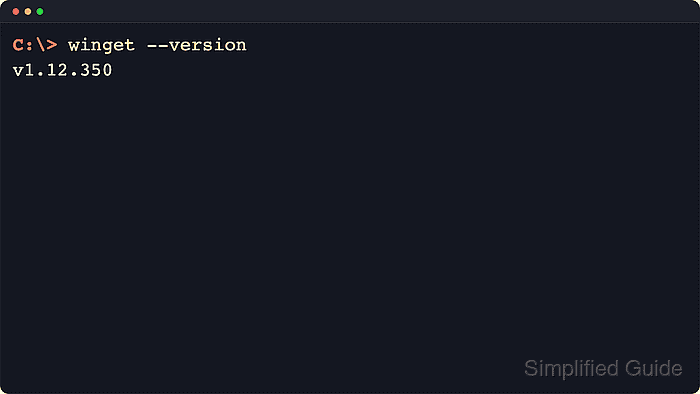
- Check that WinGet is available on the system.
C:\> winget --version
v1.12.350
Python documentation recommends WinGet as the simplest command-line entry point for installing the Python install manager on supported Windows releases.
- Install the current Python install manager package.
C:\> winget install 9NQ7512CXL7T -e --accept-package-agreements --disable-interactivity
Found Python install manager [9NQ7512CXL7T] Version 26.2
Successfully installed
Python documentation shows the exact-match WinGet install with package-agreement acceptance as the supported programmatic path for the Python install manager on supported Windows releases.
The same install manager is also available from the Microsoft Store app or as the Python.org MSIX package when WinGet is not the preferred delivery path.
An older standalone Python Launcher for Windows can still own the py command. Use pymanager for install-manager subcommands or remove the legacy launcher if py returns launcher errors.
- Apply the install manager's recommended configuration changes.
C:\> py install --configure -y
This runs the configuration checker non-interactively so the default aliases and global shortcut locations are registered for the current user. Use pymanager install --configure -y if the old py.exe launcher is still ahead of the install manager.
- Install the default Python 3 runtime.
C:\> py install default
Installed Python 3.14.5
The special default tag resolves to the latest non-prerelease CPython release from the Python team unless the install manager configuration selects another default. Use a specific tag such as 3.14 when a project requires a fixed minor version.
- Confirm that the default python command starts the installed runtime.
C:\> python --version
Python 3.14.5
The install manager also uses py list to show which runtime is currently treated as the default when multiple installs exist.
If python still opens the Microsoft Store or either command is missing, open Manage app execution aliases and refresh the Python (default) and Python install manager aliases. Systems with a trimmed user PATH also need the default WindowsApps entry restored.
- Verify that the bundled pip module responds through the same interpreter.
C:\> python -m pip --version
pip 26.1.1 from C:\Users\example.user\AppData\Local\Python\pythoncore-3.14-64\Lib\site-packages\pip (python 3.14)
Using python -m pip keeps package management bound to the same interpreter that answered python --version, which avoids whichever standalone pip.exe appears first in PATH.
The user-profile path in this example is masked, but the important success signal is a pip version line that points back to the same Python 3.14 install tree.
If this fails with No module named pip, repair the installed runtime or bootstrap the bundled pip copy before adding packages.

Mohd Shakir Zakaria is a cloud architect with deep roots in software development and open-source advocacy. Certified in AWS, Red Hat, VMware, ITIL, and Linux, he specializes in designing and managing robust cloud and on-premises infrastructures.


