How to inspect a PKCS#12 file using OpenSSL
PKCS#12 archives often arrive as password-protected .pfx or .p12 files from certificate portals, appliances, Windows stores, and vendor handoffs. The archive can contain certificates and a private key, so inspecting it before import helps confirm what is inside without printing the private key to the terminal.
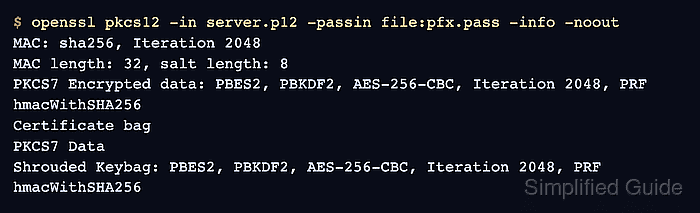
OpenSSL parses an existing archive with the pkcs12 subcommand unless -export is supplied. The -info -noout inspection path verifies the archive password and integrity MAC, then prints container details such as certificate bags, encrypted data, and shrouded key bags while suppressing credential output.
A structure check does not prove that the certificate is valid for a hostname, trusted by clients, or matched to the private key expected by a service. Extract only certificate material when field-level review is needed, keep password files out of shell history, and delete temporary inspection copies after the archive has been identified.
Steps to inspect a PKCS#12 file using OpenSSL:
- Place the PKCS#12 archive and password file in a private working directory.
A .pfx or .p12 archive commonly contains the private key. Keep the archive and password file readable only by the account doing the inspection, and replace server.p12 and pfx.pass with local filenames.
- Inspect the archive structure without printing certificate or key material.
$ openssl pkcs12 -in server.p12 -passin file:pfx.pass -info -noout
MAC: sha256, Iteration 2048
MAC length: 32, salt length: 8
PKCS7 Encrypted data: PBES2, PBKDF2, AES-256-CBC, Iteration 2048, PRF hmacWithSHA256
Certificate bag
PKCS7 Data
Shrouded Keybag: PBES2, PBKDF2, AES-256-CBC, Iteration 2048, PRF hmacWithSHA256
Certificate bag shows certificate material. Shrouded Keybag shows an encrypted private key is present. Older archives may show different encryption names; use -legacy only when OpenSSL cannot load a legacy archive with the default providers.
- Identify a wrong password or unreadable archive by the MAC verification error.
$ openssl pkcs12 -in server.p12 -passin file:wrong.pass -info -noout
MAC: sha256, Iteration 2048
MAC length: 32, salt length: 8
Mac verify error: invalid password?
Do not use -nomacver to bypass this check for routine inspection. A failed MAC check means the password, archive, or archive integrity needs to be resolved before import.
- Extract only the leaf certificate when subject, issuer, date, or SAN fields need review.
$ openssl pkcs12 -in server.p12 -passin file:pfx.pass -clcerts -nokeys -out pfx-leaf.crt.pem
-clcerts -nokeys writes the certificate associated with the key and skips private-key output.
- Inspect the extracted certificate fields.
$ openssl x509 -in pfx-leaf.crt.pem -noout -subject -issuer -dates -ext subjectAltName
subject=C=US, O=Example Corp, CN=server.example.com
issuer=C=US, O=Example Corp, CN=server.example.com
notBefore=Jun 30 07:52:25 2026 GMT
notAfter=Aug  1 07:52:25 2027 GMT
X509v3 Subject Alternative Name:
    DNS:server.example.com, DNS:www.example.com
Use certificate field checks to confirm identity and dates. Use a chain validation or key-match check before treating the archive as ready for deployment.
Related: How to view certificate details using OpenSSL
Related: How to verify a certificate chain using OpenSSL
Related: How to check whether a certificate matches a private key using OpenSSL - Remove temporary inspection files after recording the fields needed for the import decision.
$ rm -f pfx-leaf.crt.pem pfx.pass wrong.pass server.p12
Delete only staged inspection copies. Keep the original archive in approved secret storage when it is still needed for import or audit records.